October 2026 Release: Assignments, Cases, Certificates and More
This release is about three questions clinical teams ask every day: what does each person need to do, by when, and how do we prove it was done? Assignments answer the first two; cases and certificates answer the third. Controlled documents, Connect, Catalyst and Compass hold the work itself.
It also makes AyniHealth more your organisation's own: your logo and colour throughout, a support chat in every organisation, and a way to pause someone on leave, or someone who has left, without losing their place.
Assignments: what each person needs to do, and by when
My assignments
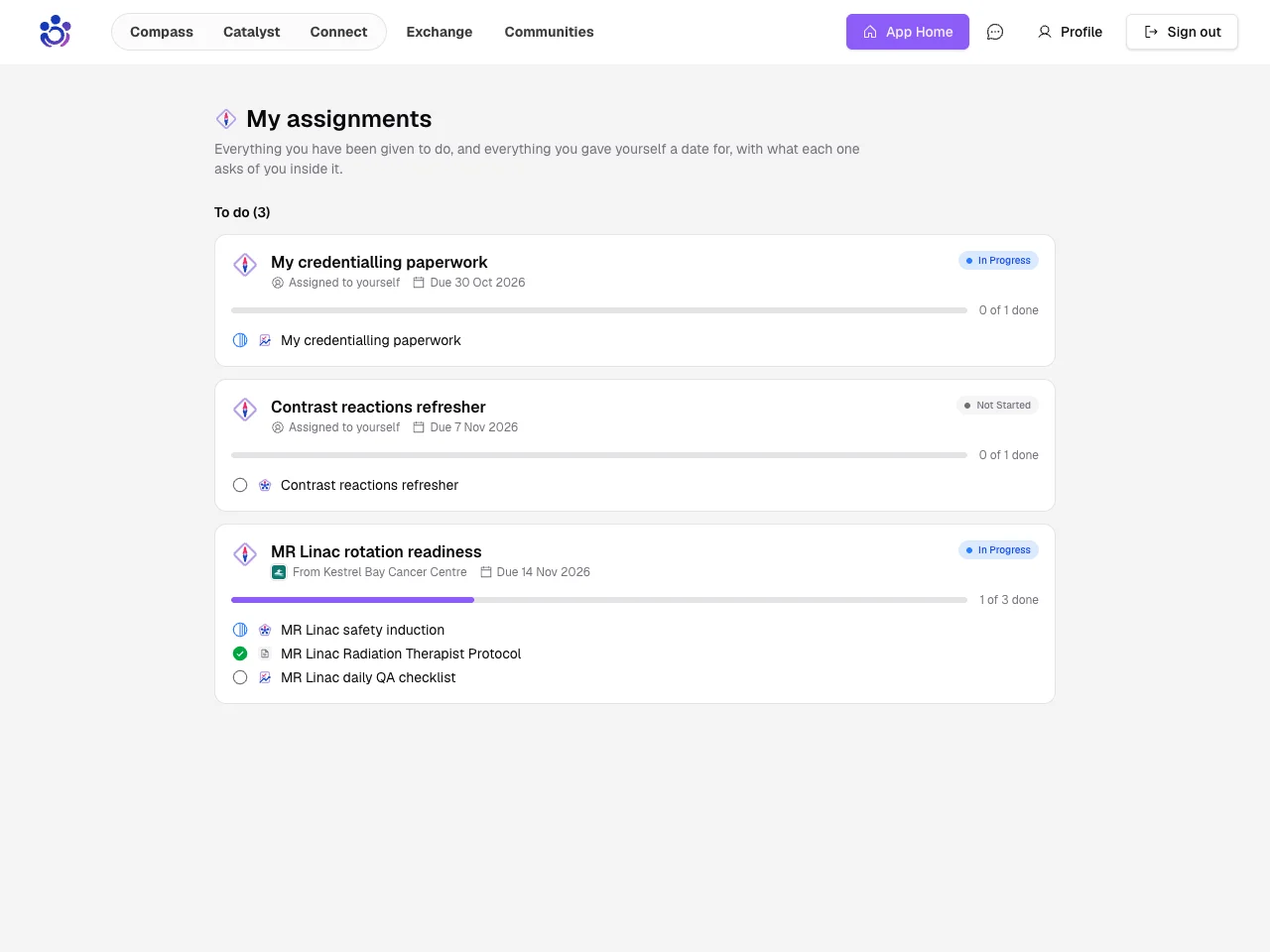
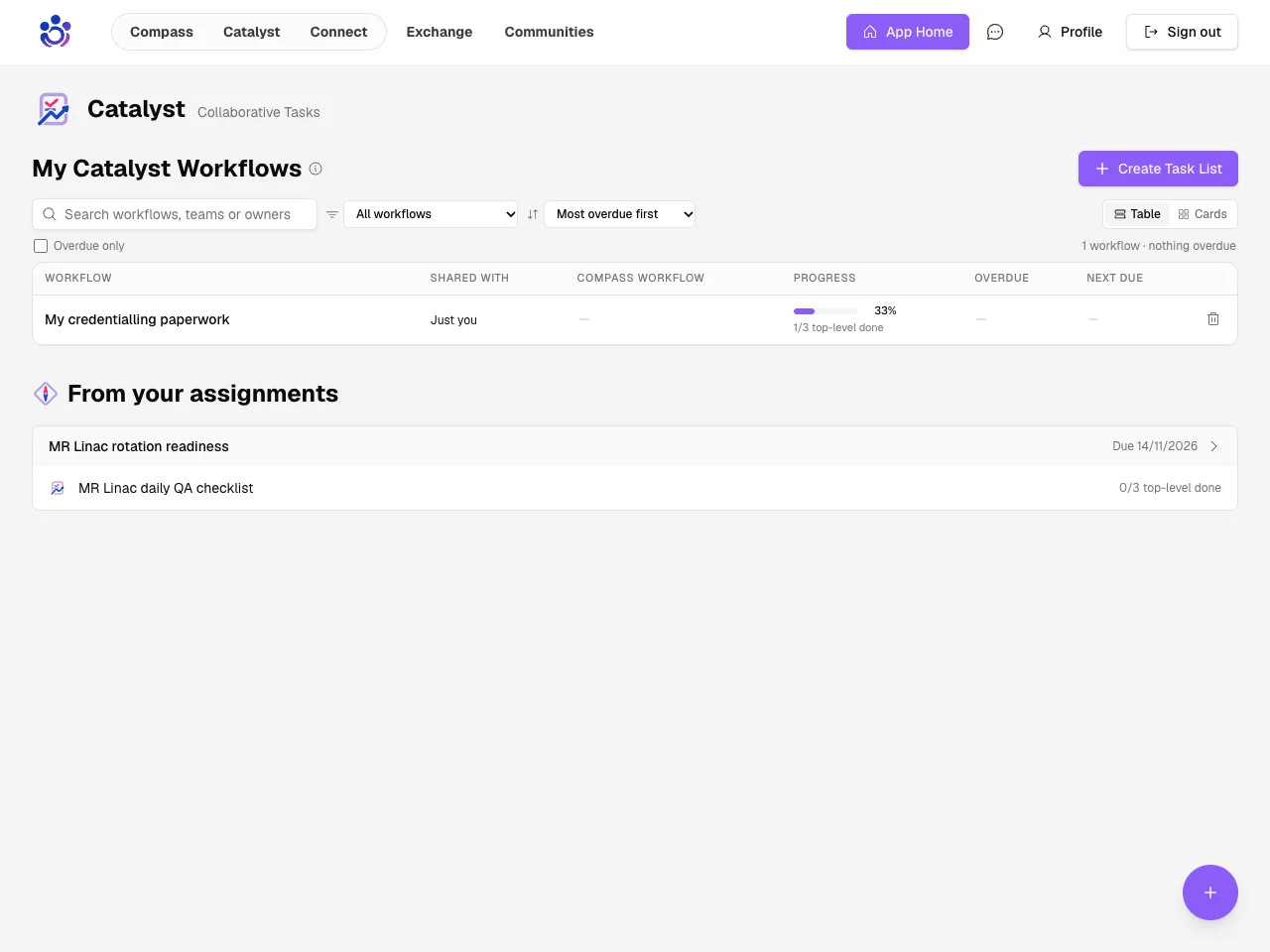
Everything you have been given, and everything you set yourself, now lives on one page, with each assignment's requirements kept inside it.
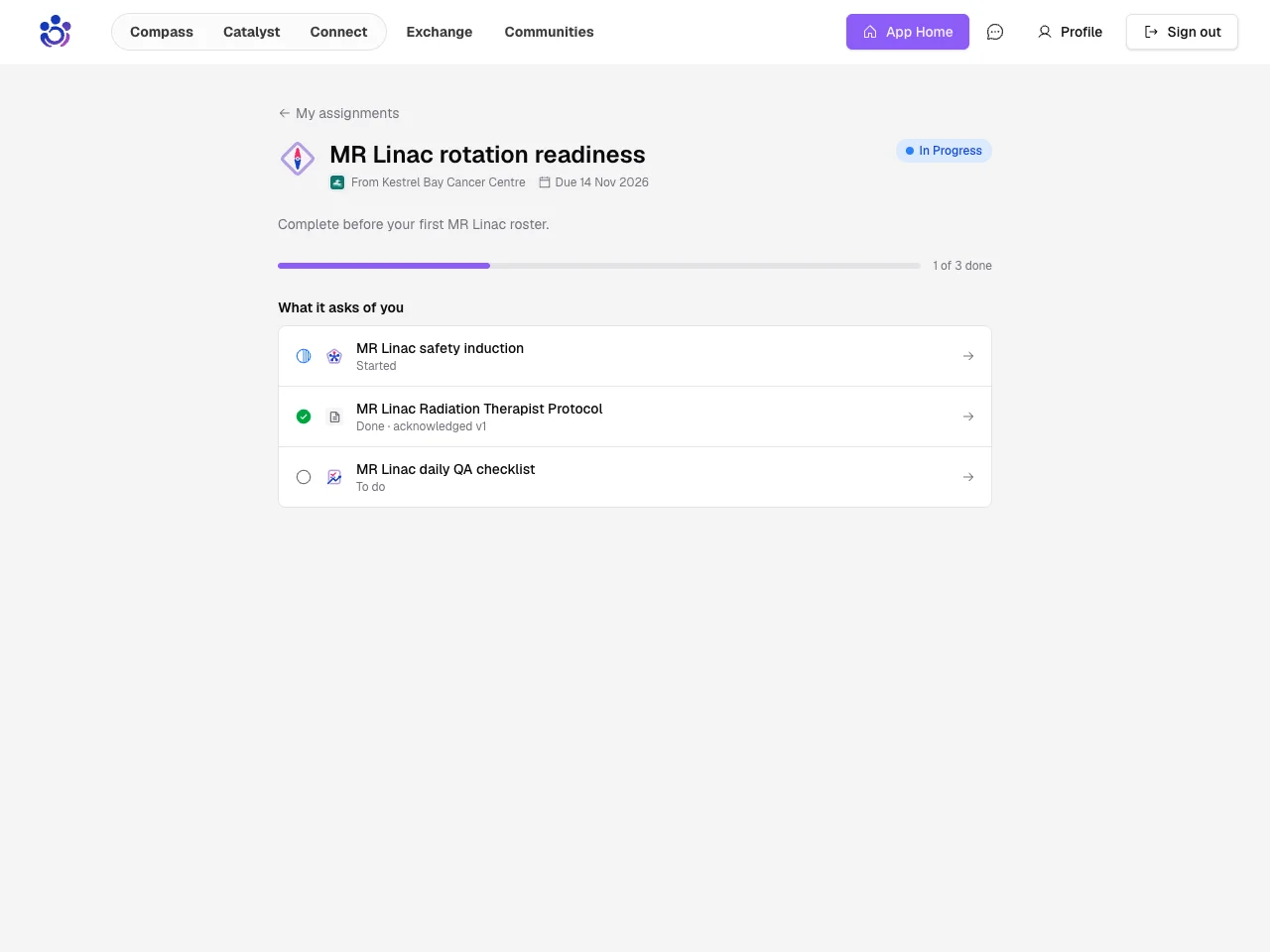
Open an assignment to see what it asks of you and go straight to each item.
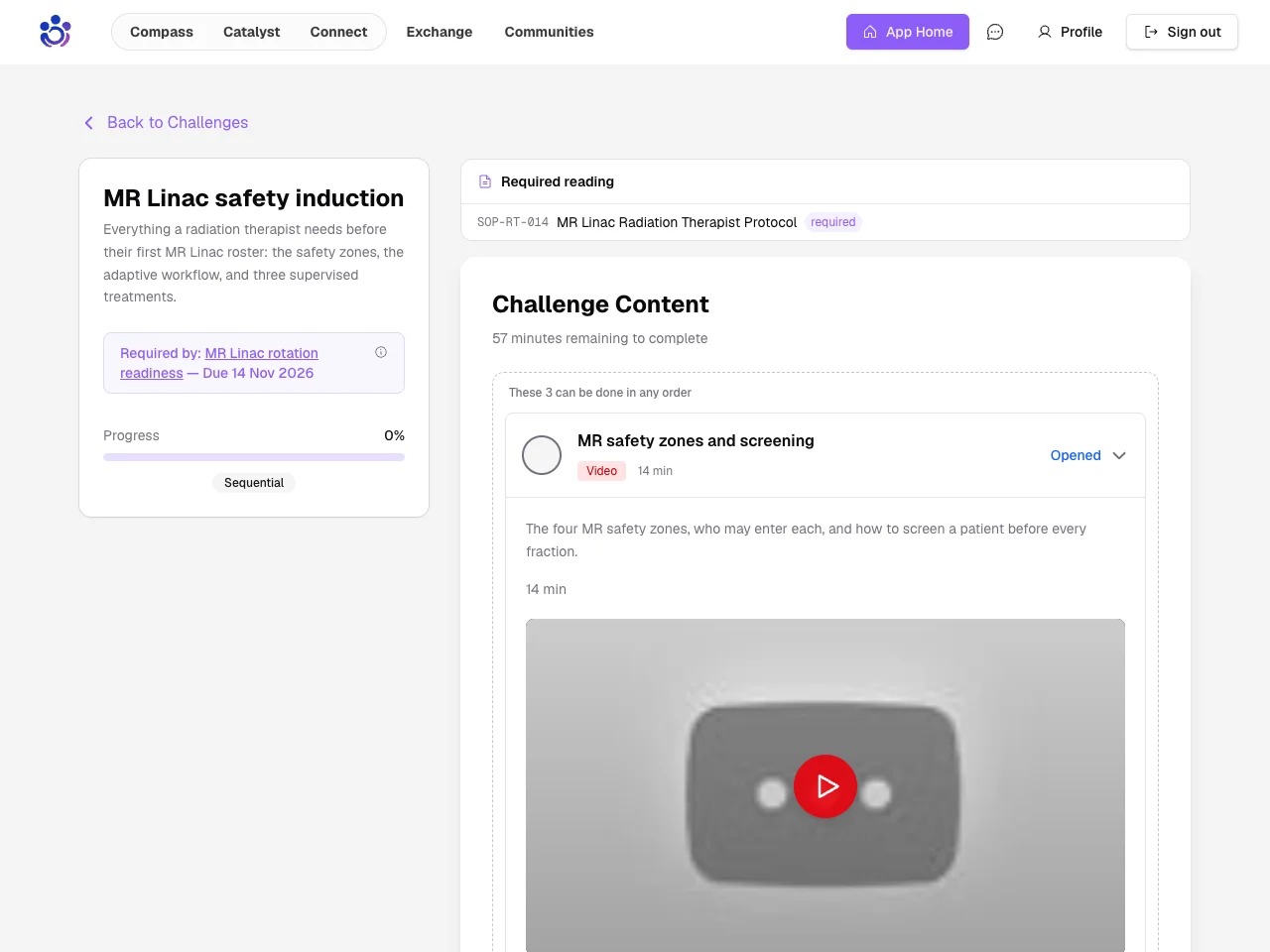
Each item links back to the assignment it belongs to, so you never lose your place.
Catalyst lists you were given now sit under their assignment instead of crowding your own lists.
Documents as requirements
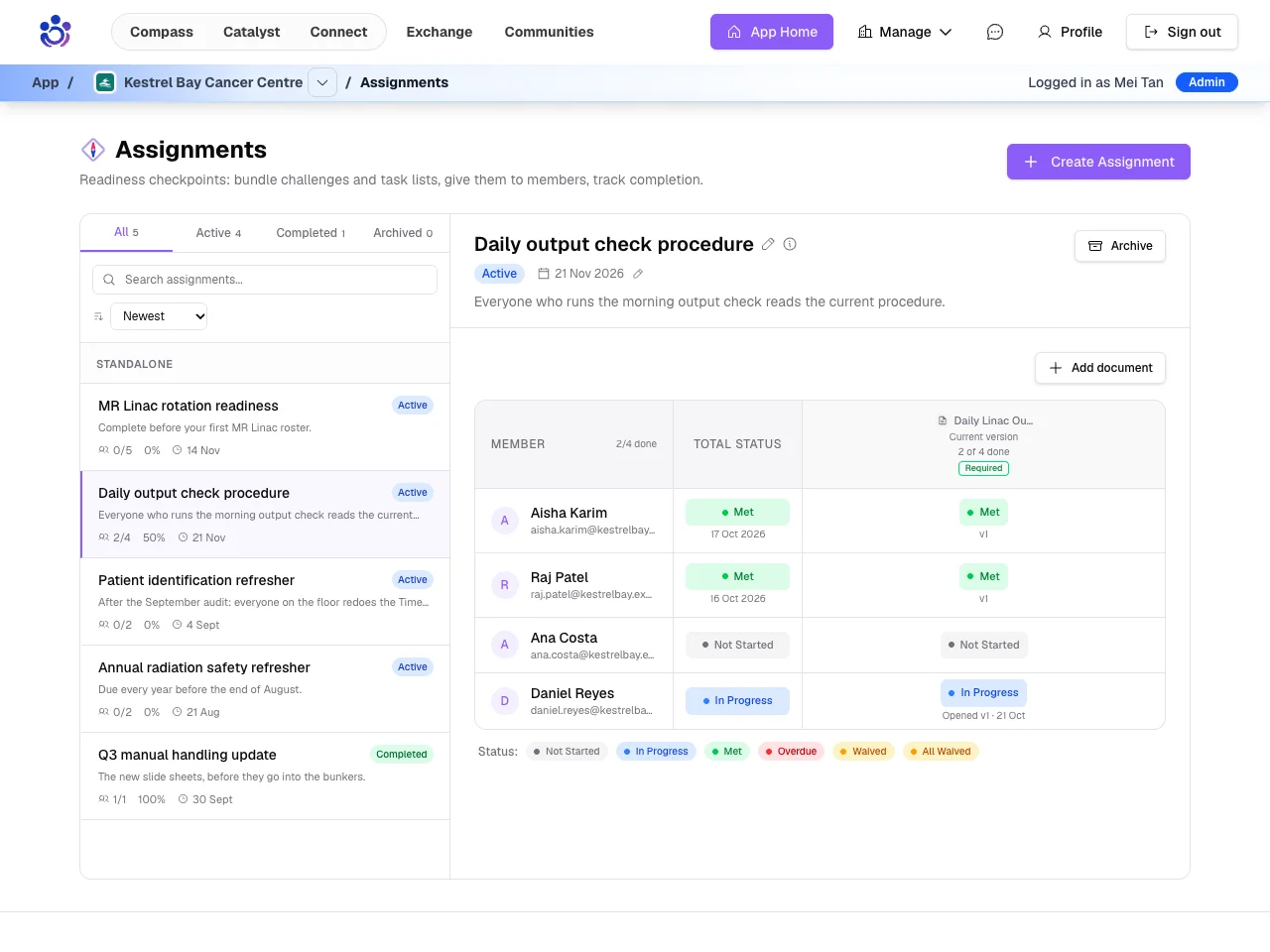
A controlled document can now be a requirement: the person reads it in place and acknowledges the version that counts.
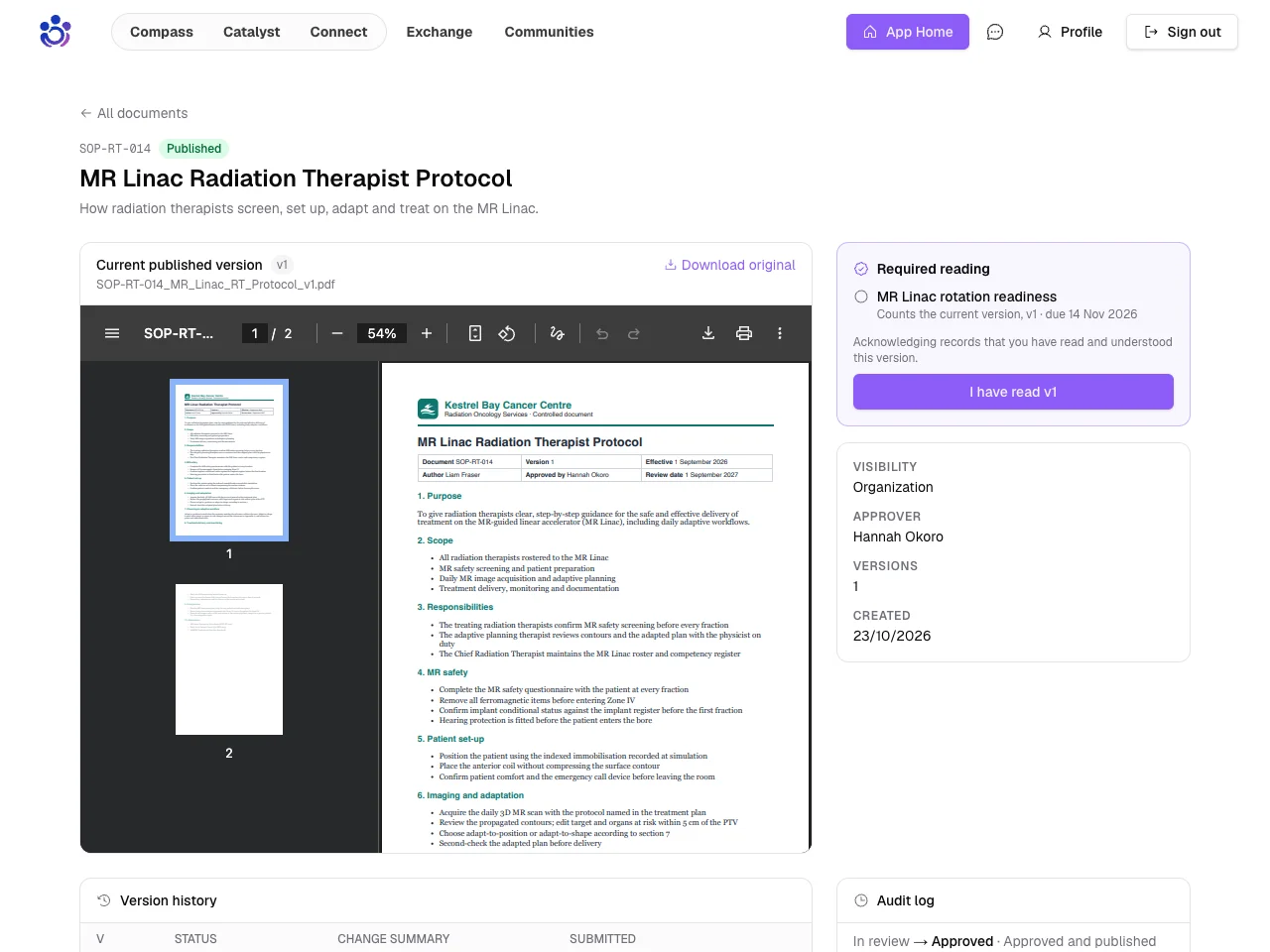
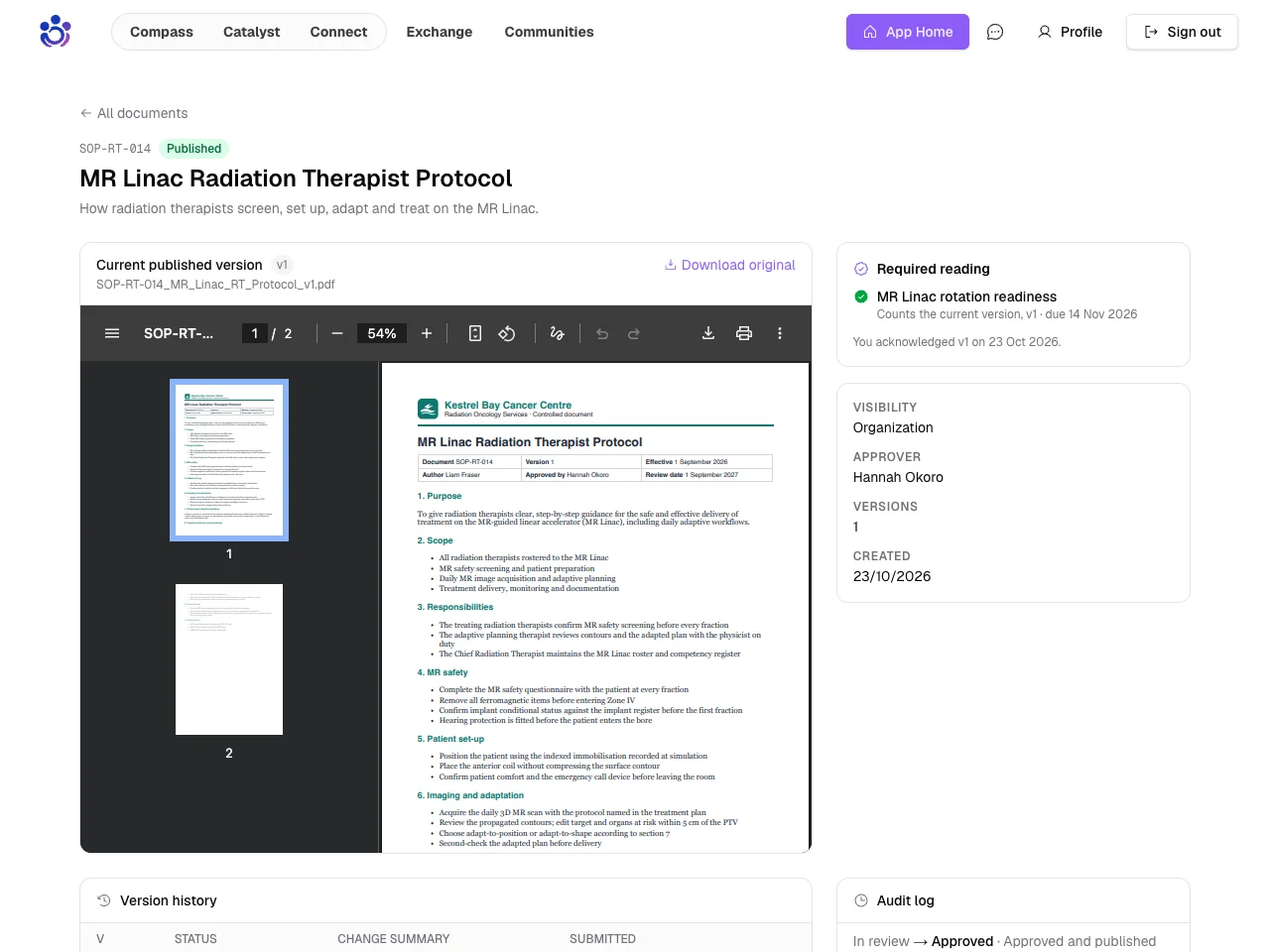
One click records which version they read, and when.
The assignment's owner sees it straight away in the tracking grid.
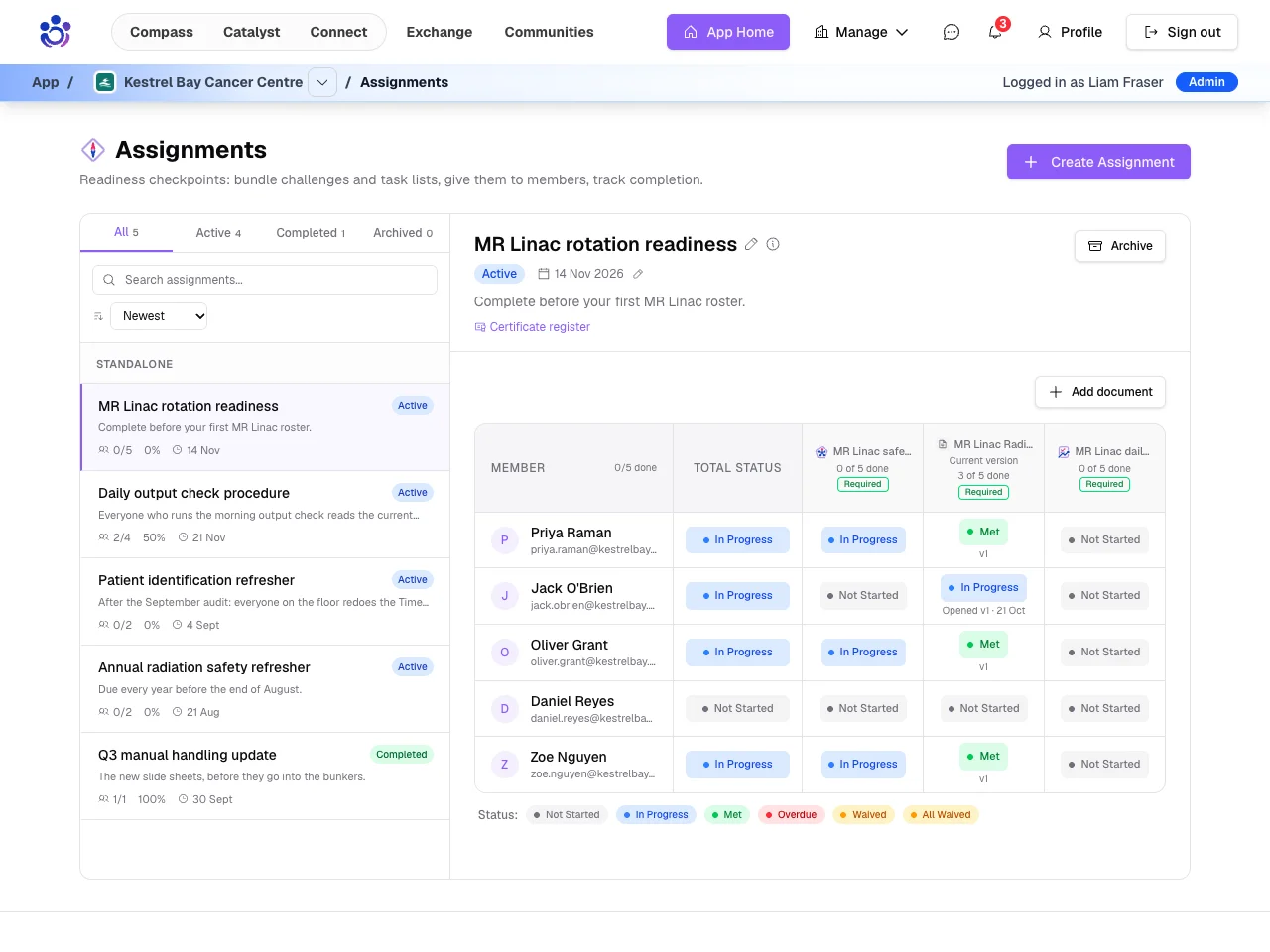
It also shows who has opened the document but not yet acknowledged it, so you know whom to chase.
Due dates counted from when someone joins
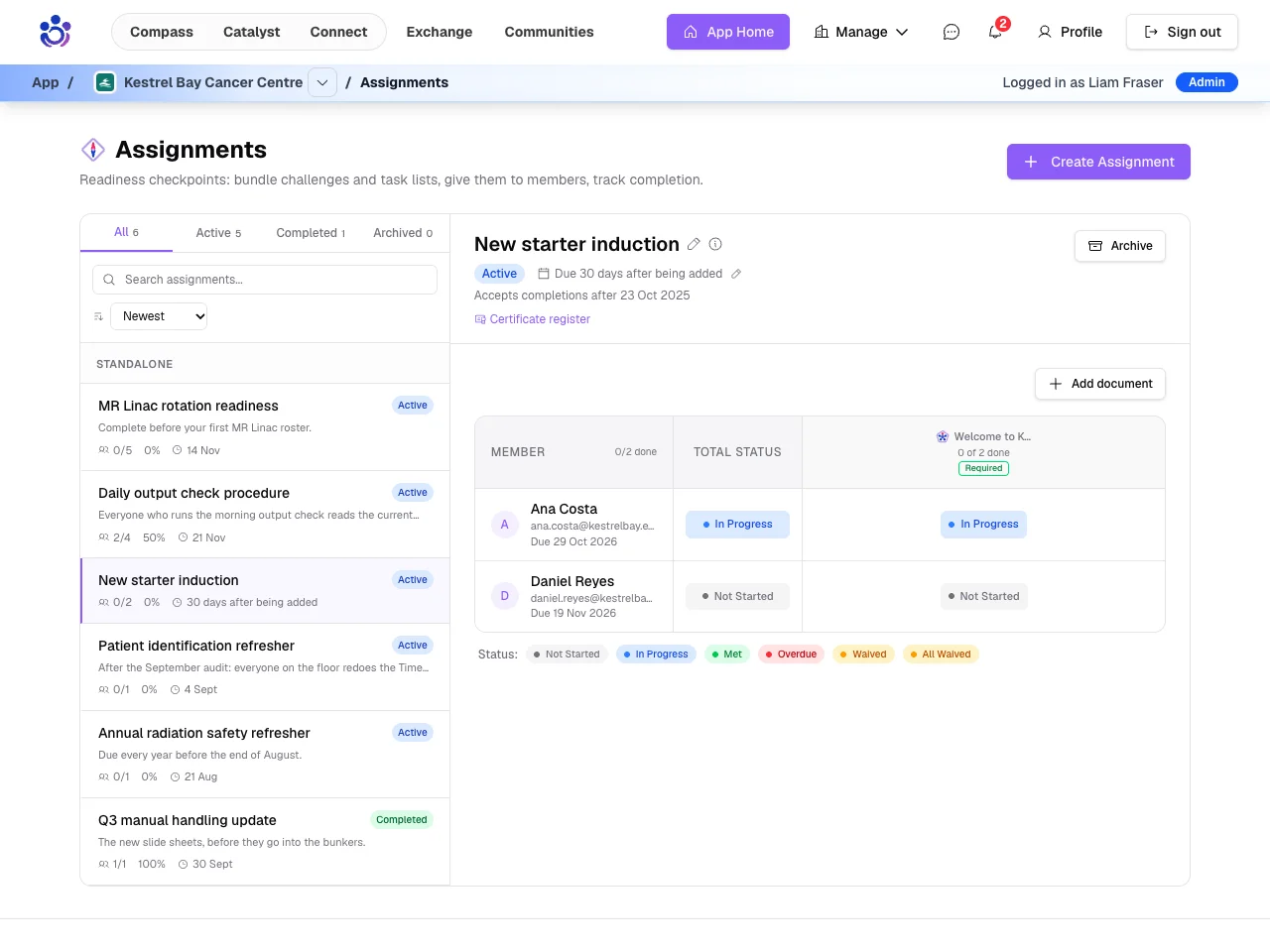
"Within 30 days of starting" now works as written: each person is due a set number of days after they are added.
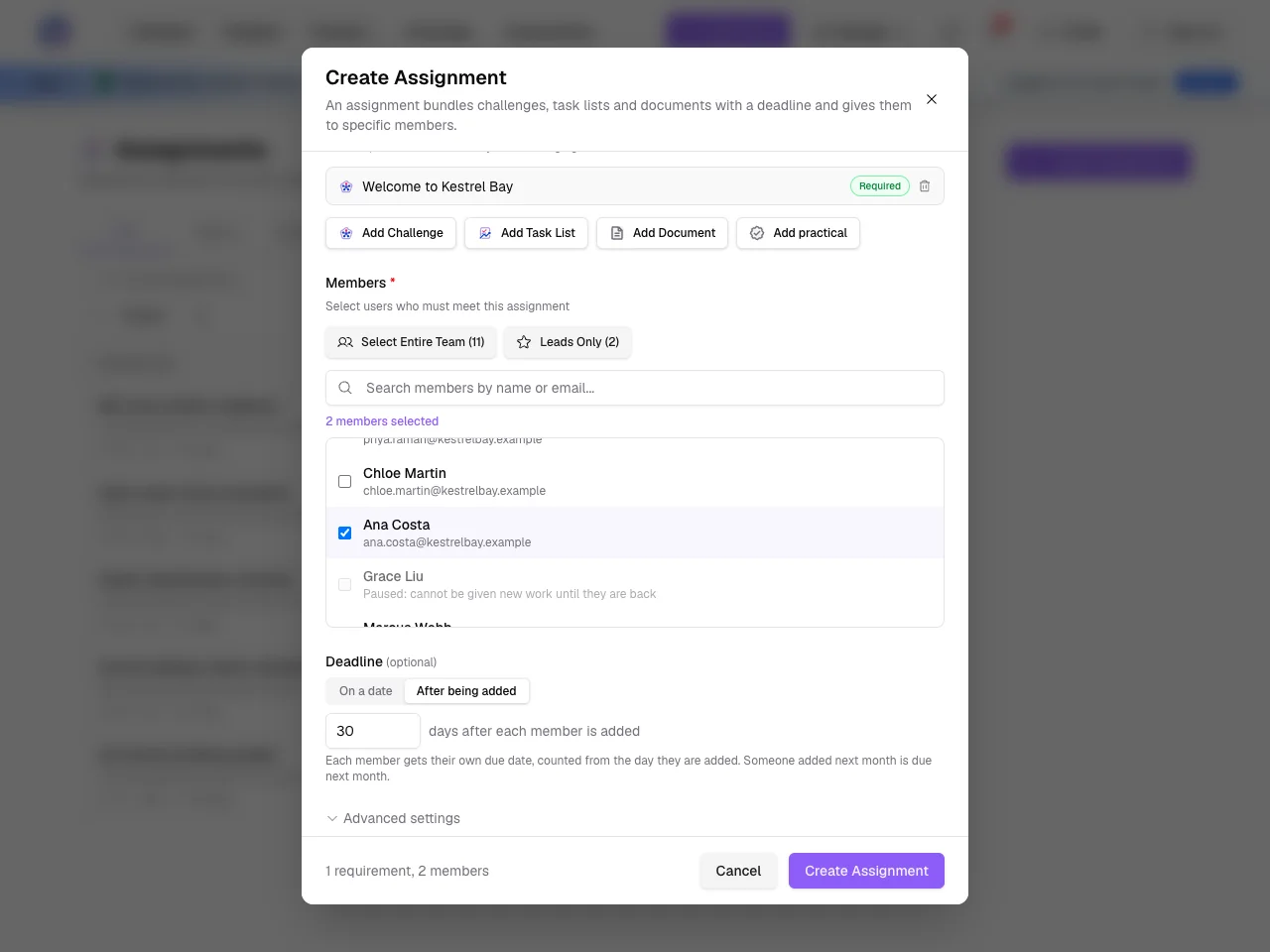
So two people on the same assignment can be due on different days, each counted from their own start.
Assign to me
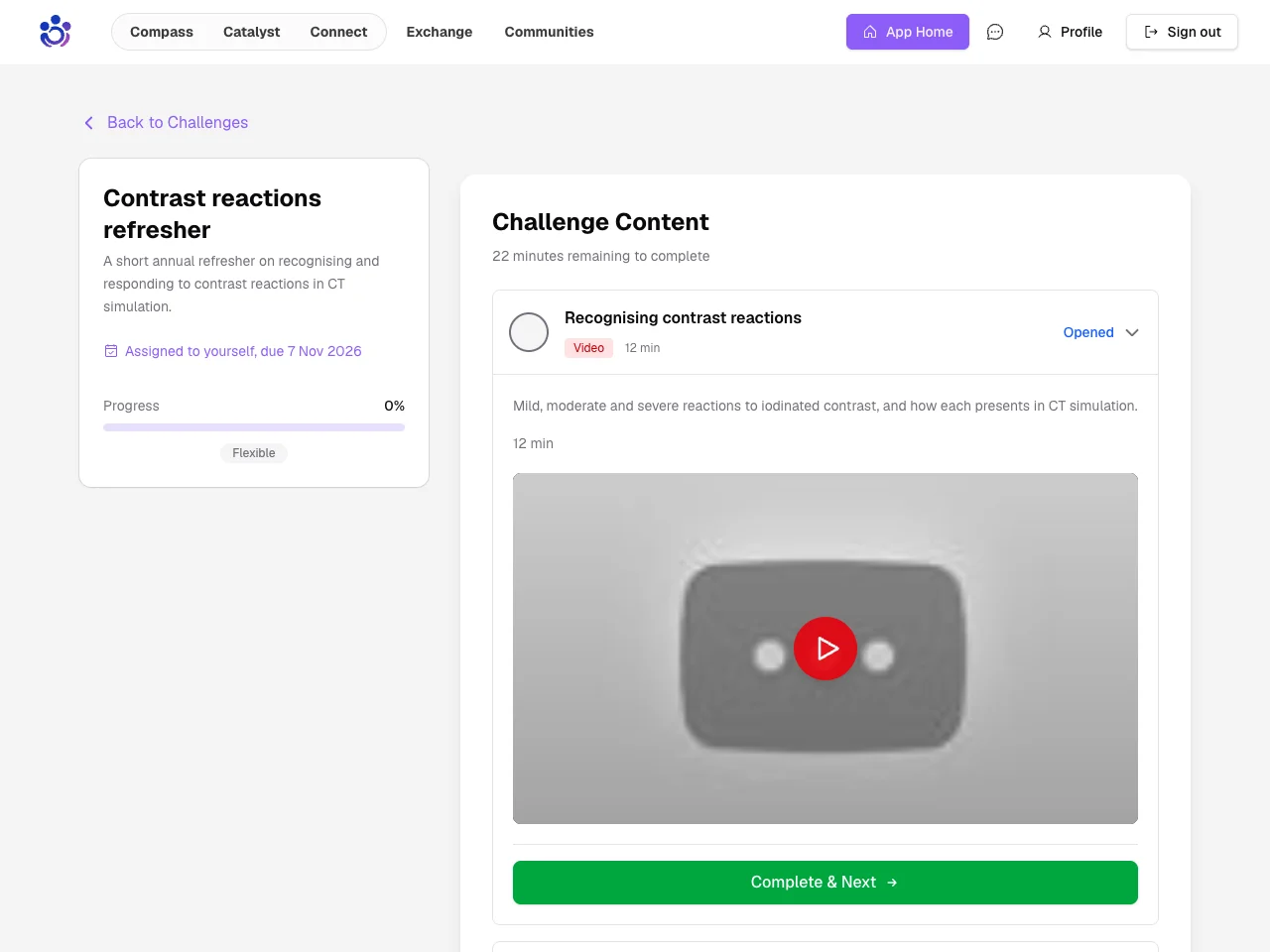
You can still start anything with no deadline, or now assign it to yourself with a finish-by date and get reminders.
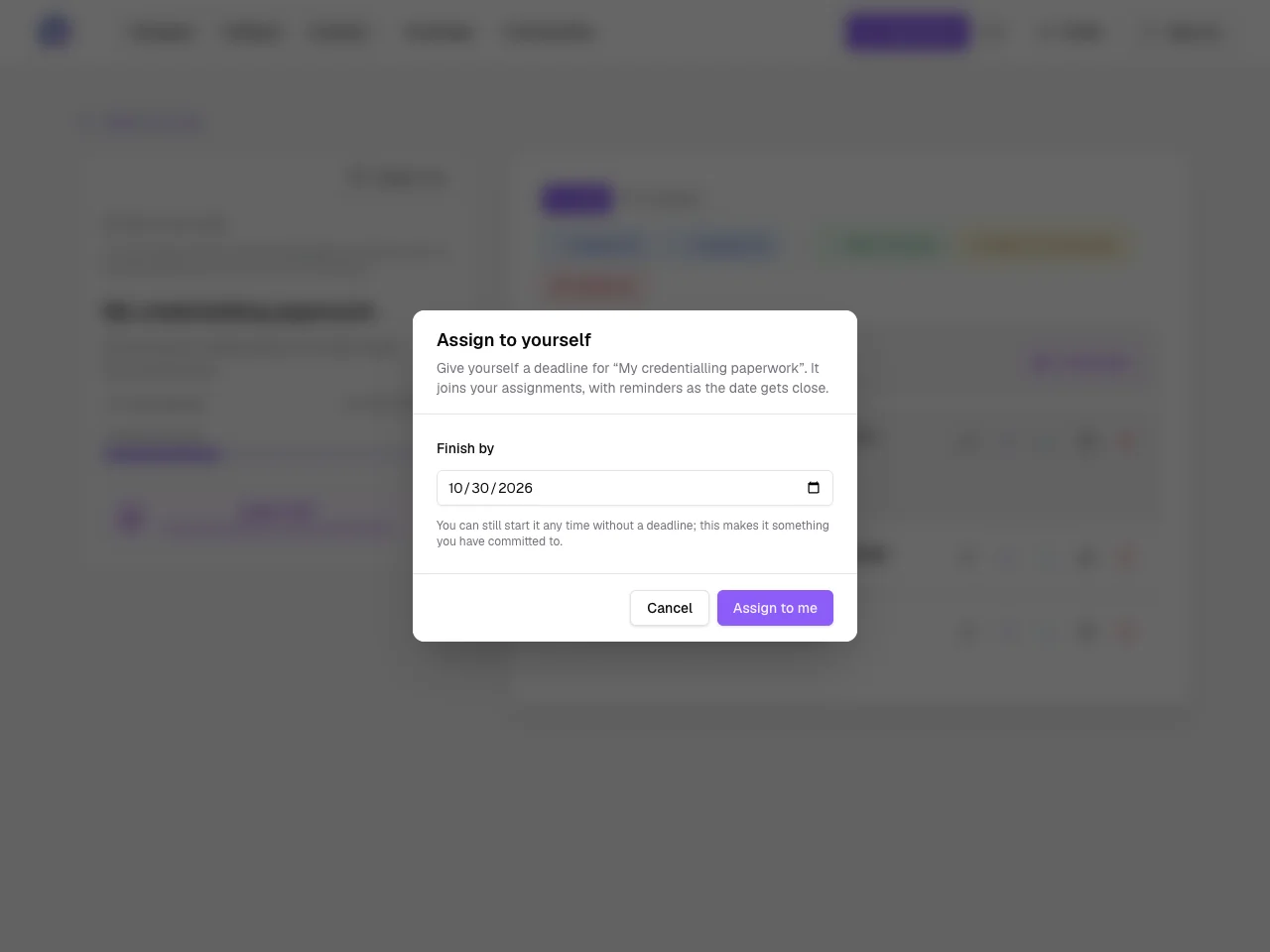
It then shows as yours, with its due date, wherever the item appears.
Reminder emails
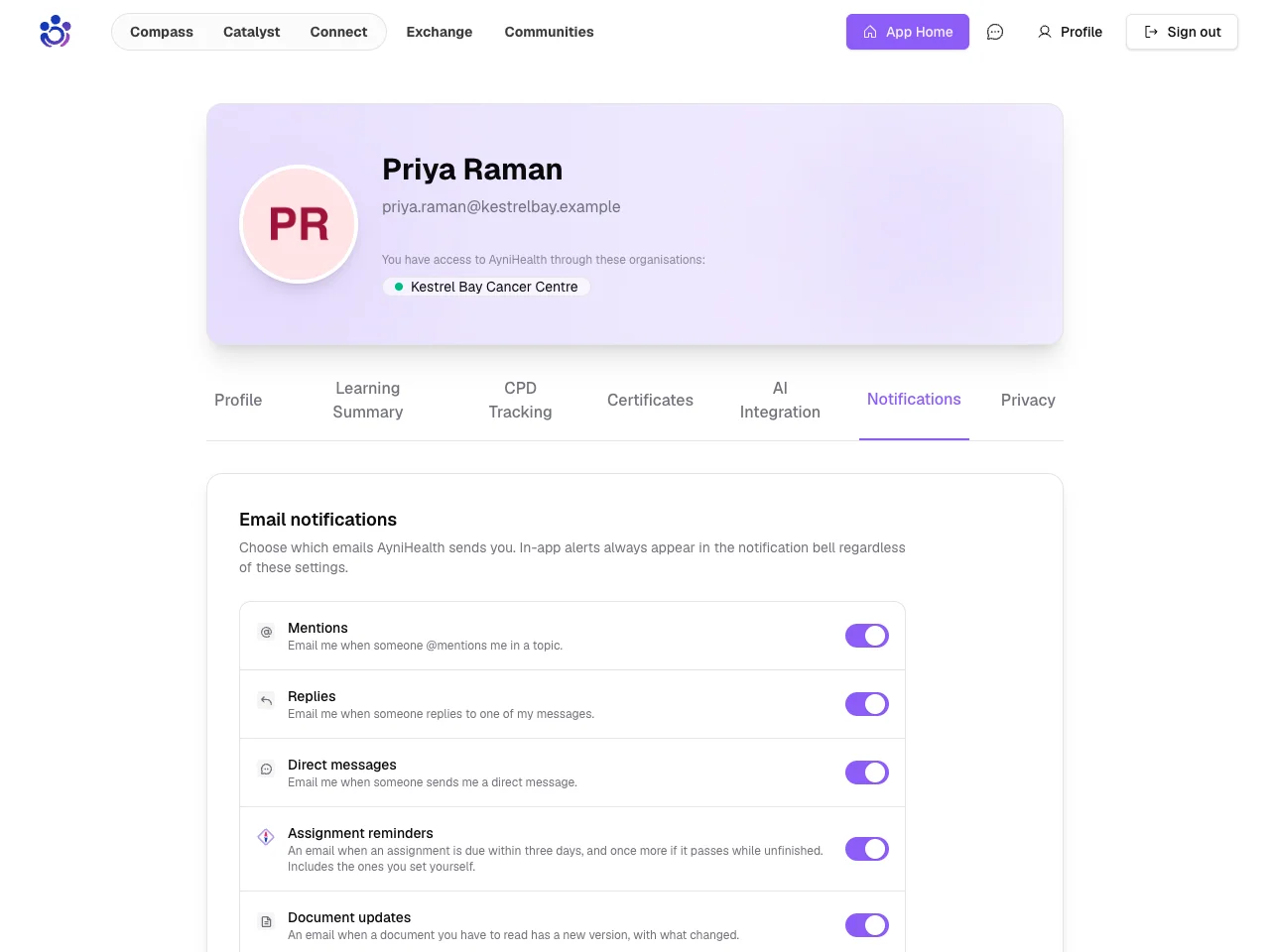
Everyone in an assignment now gets an email when something is due within three days or overdue, and can turn it off under Notifications.
Cases: practical sign-off, case by case
Assignments say what is due. Cases and certificates prove it was done.
Set up a practical
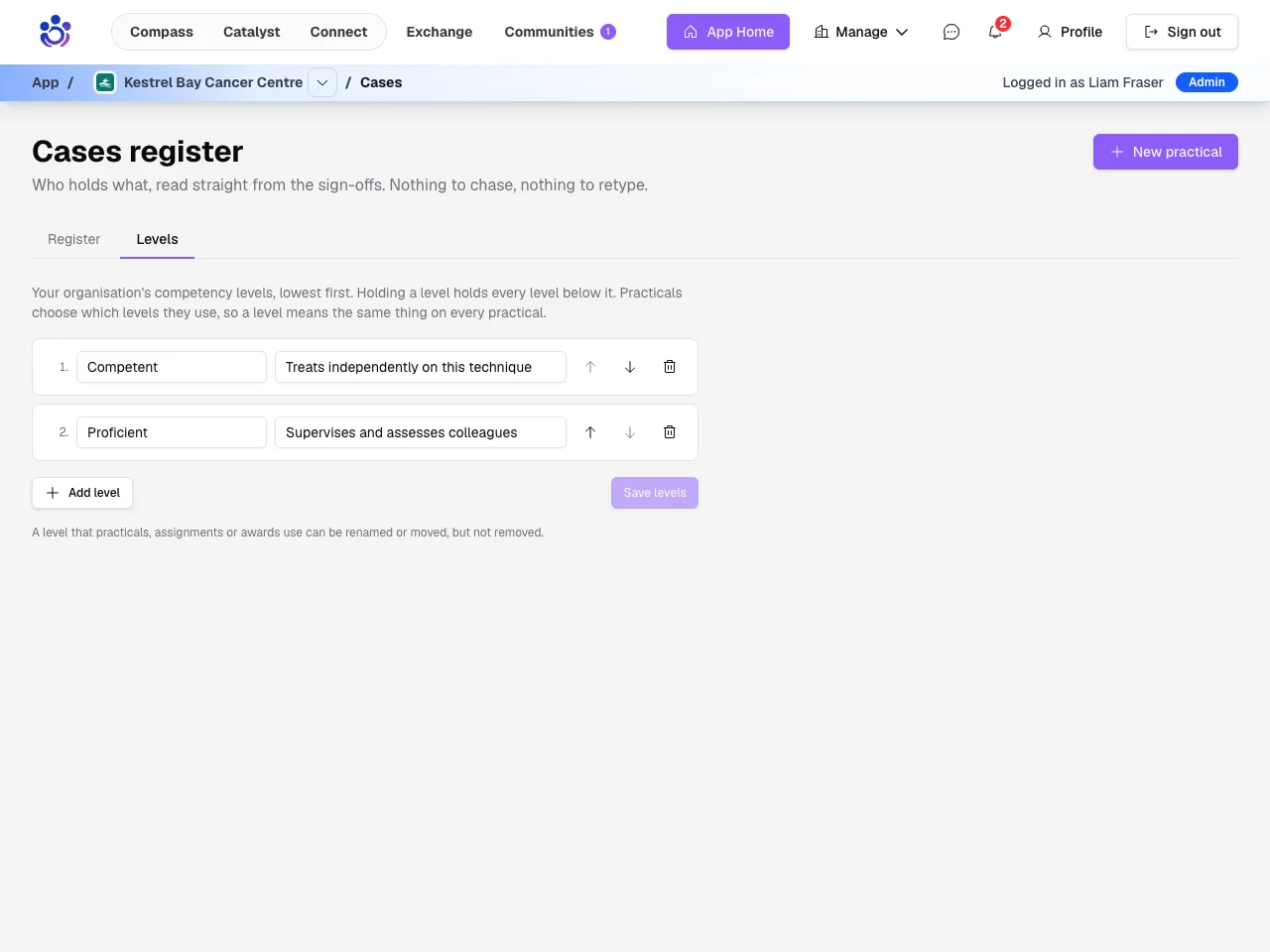
Start with your organisation's own competency levels.
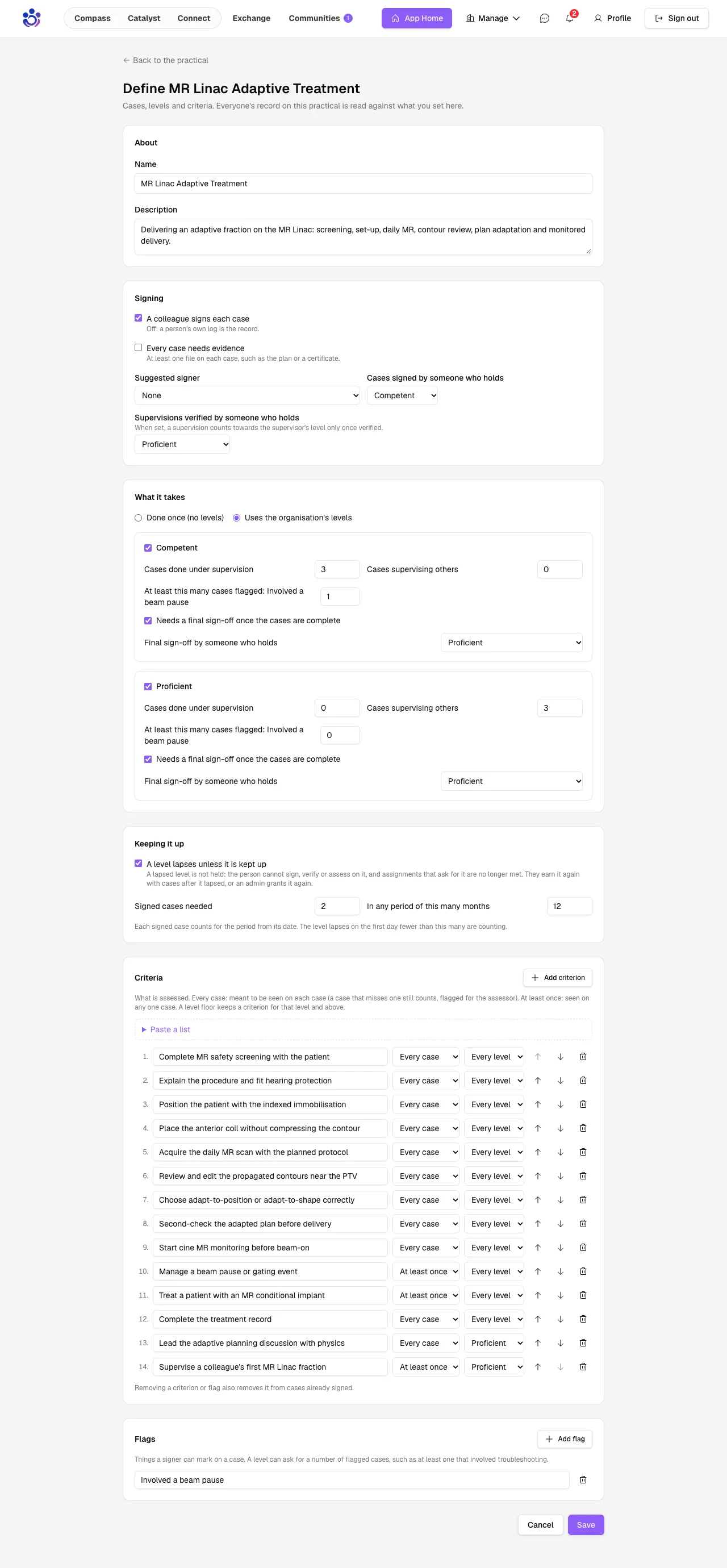
Then define each practical once: how many cases each level needs, the criteria, and who may sign.
Log, sign and sign off
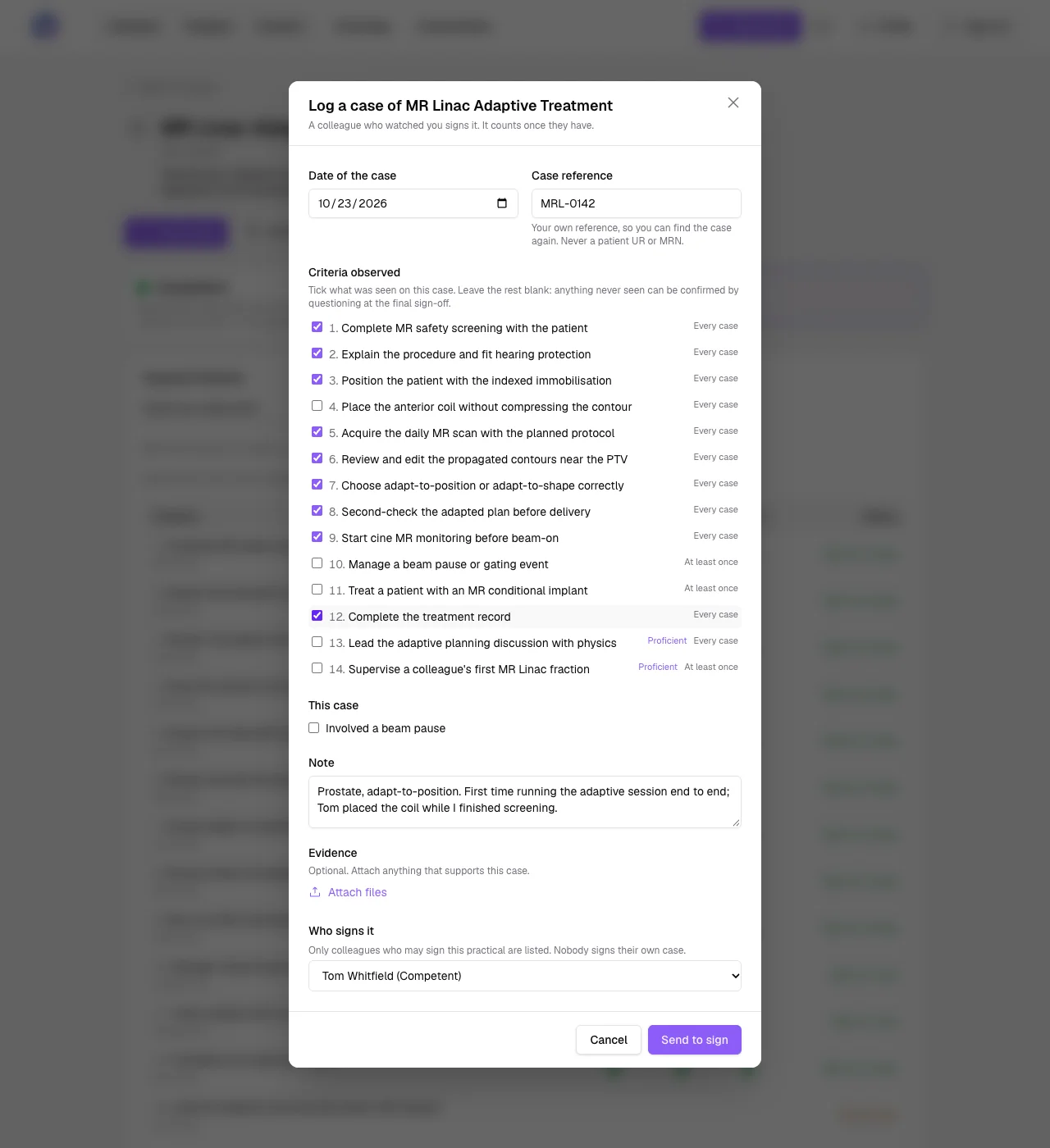
A trainee logs each case and picks a qualified colleague to sign it.
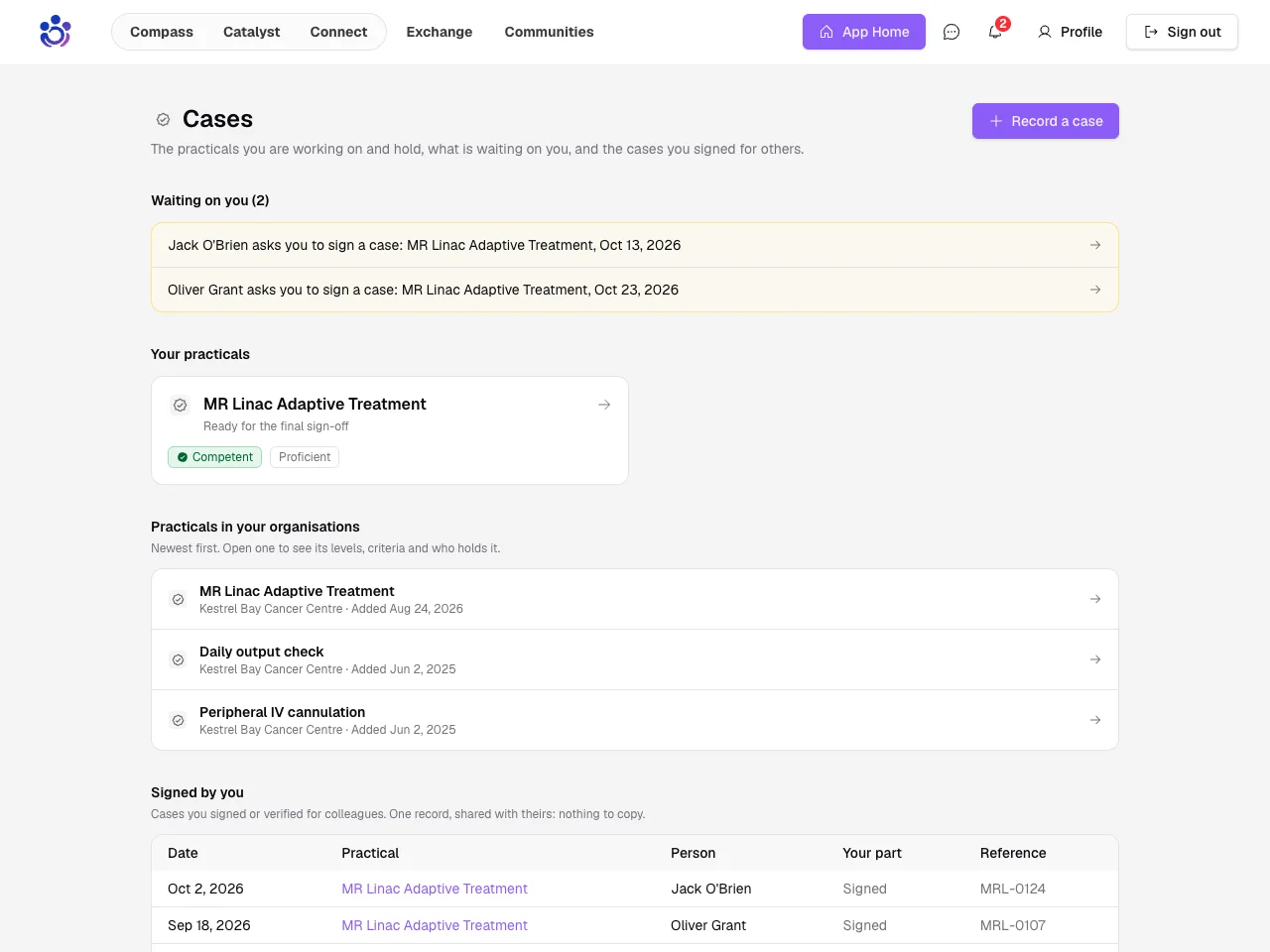
The case waits for that colleague on their Cases page.
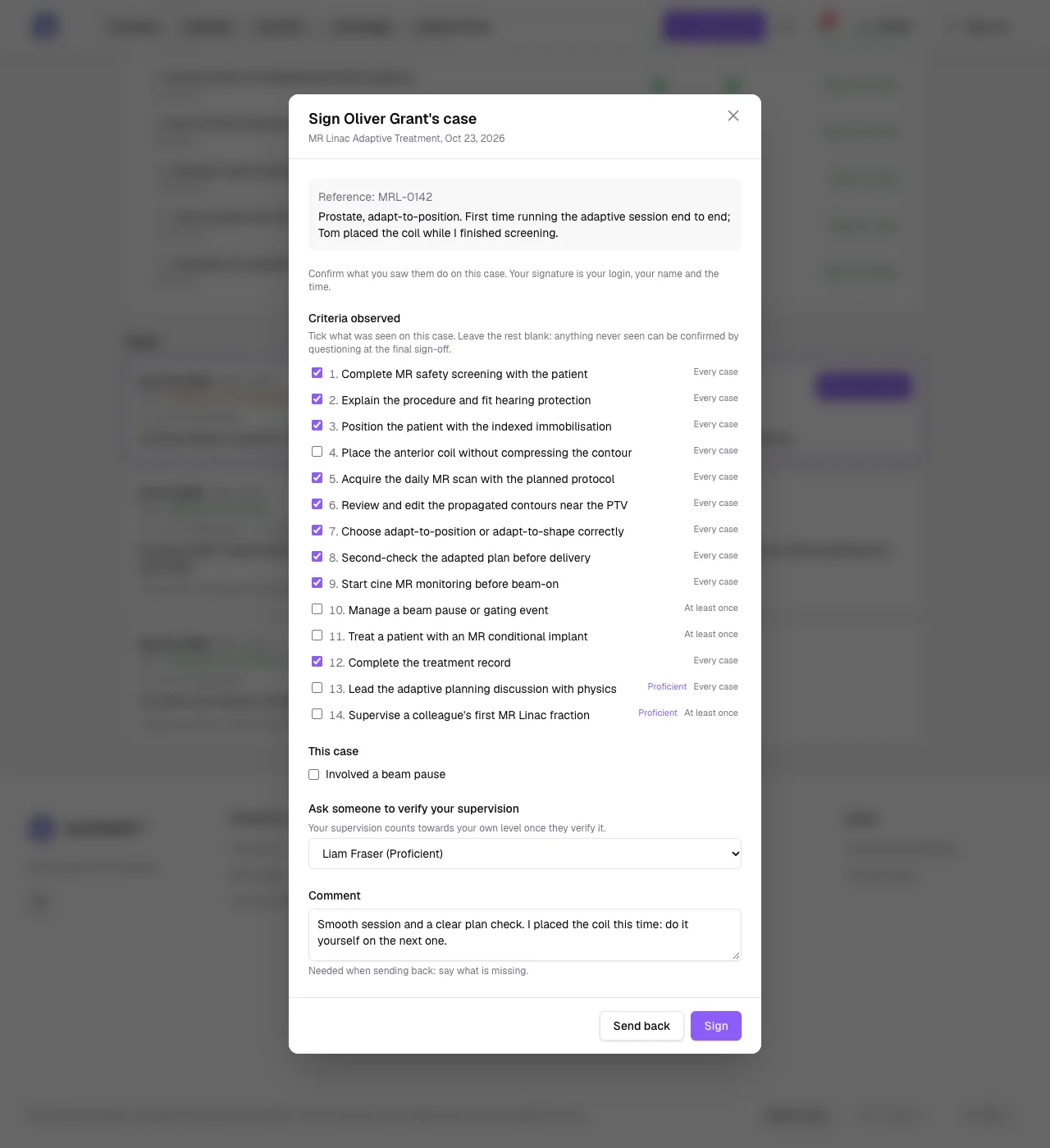
They confirm what they saw and sign, or send it back.
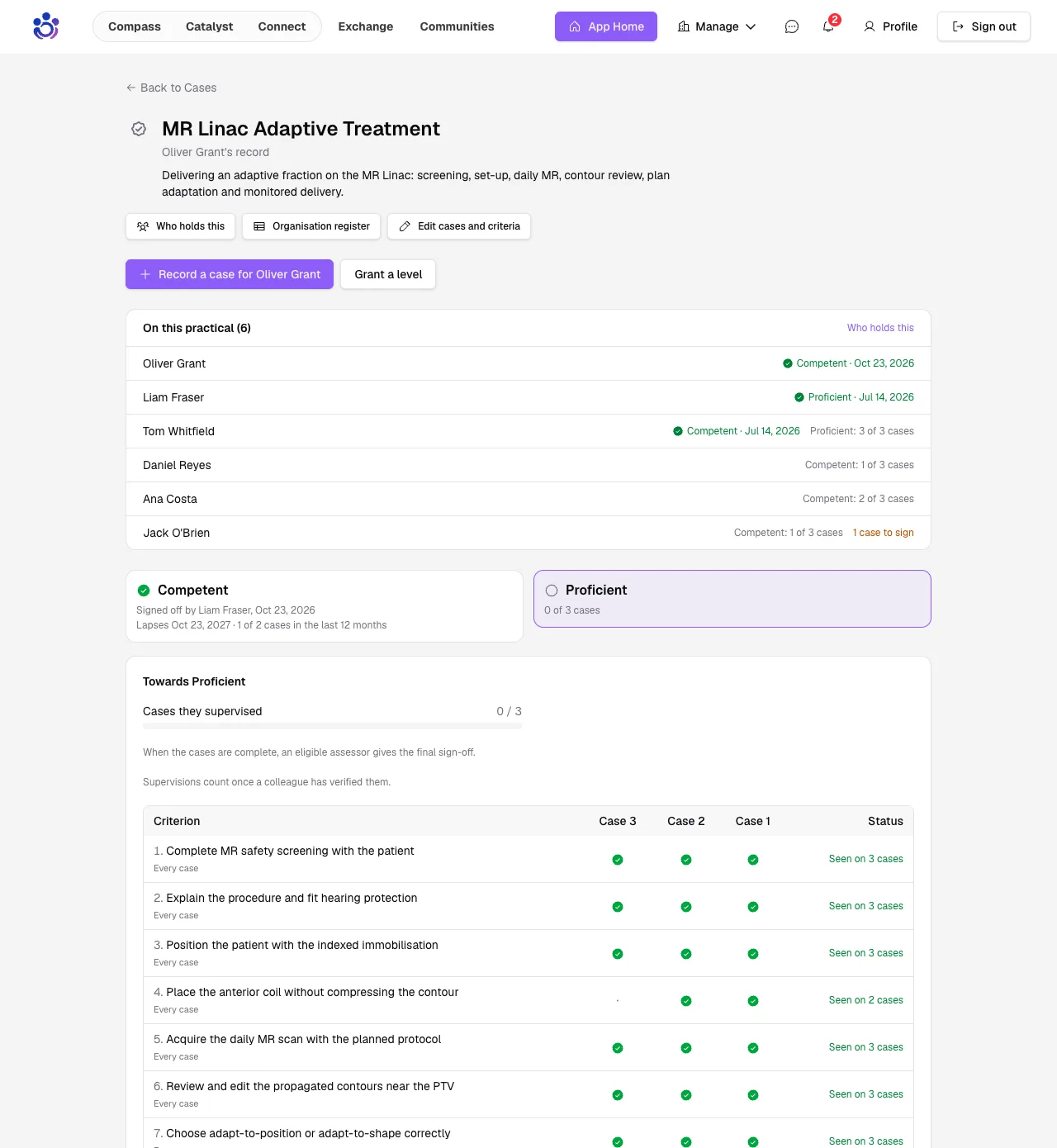
The trainee's record shows which criteria each case covered and what is left.
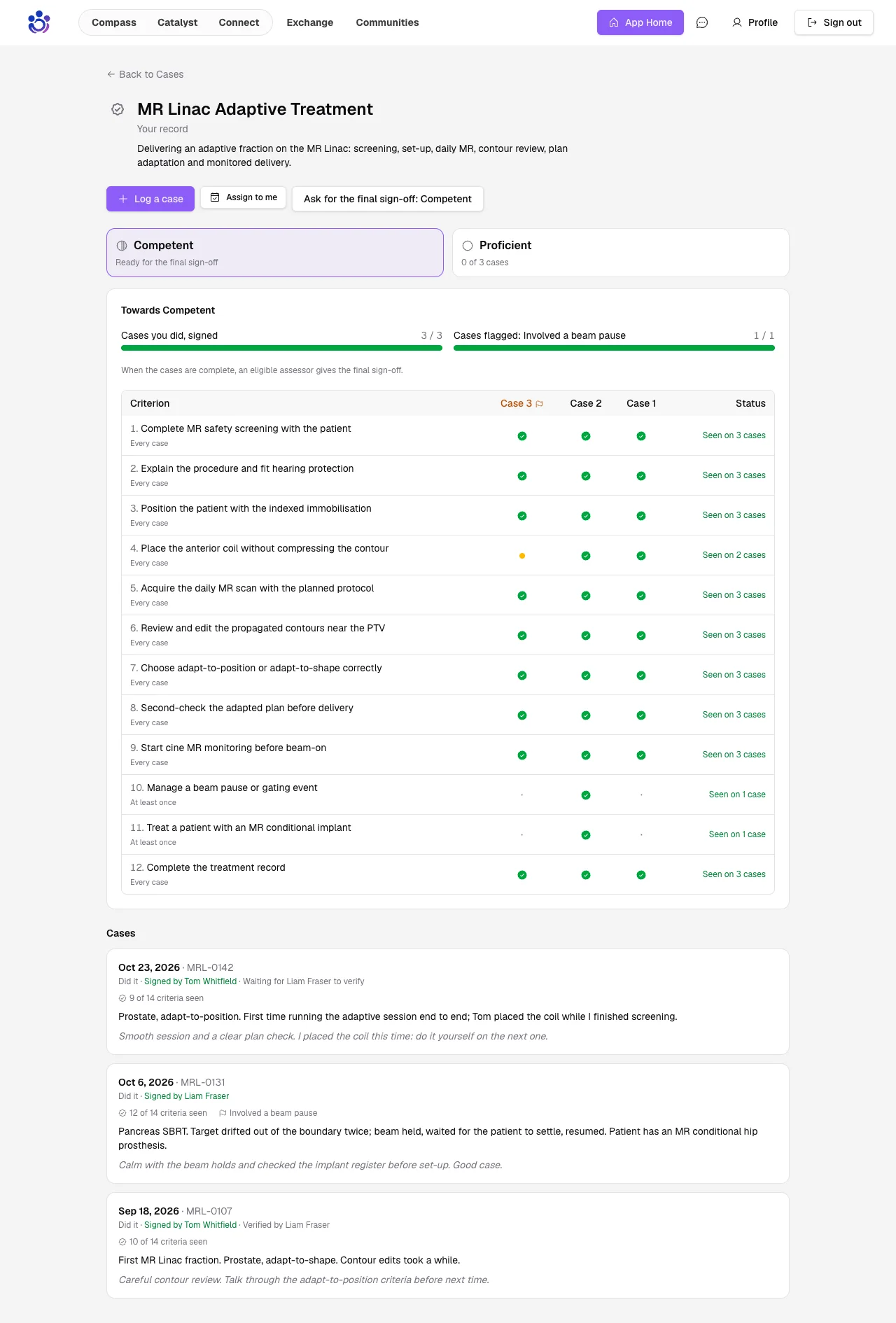
With the cases done, an assessor gives the final sign-off.
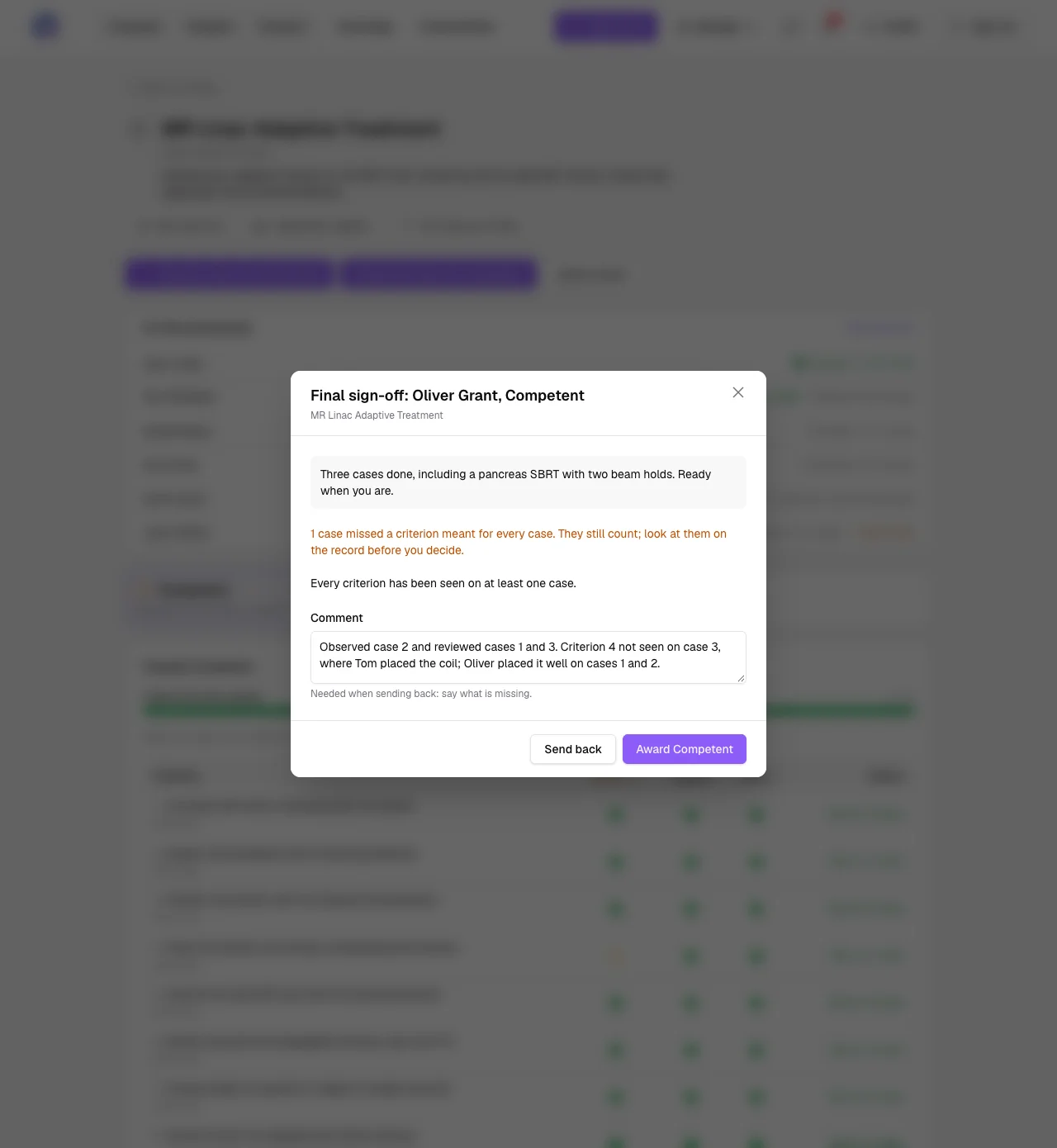
The level is theirs, and the next one starts counting.
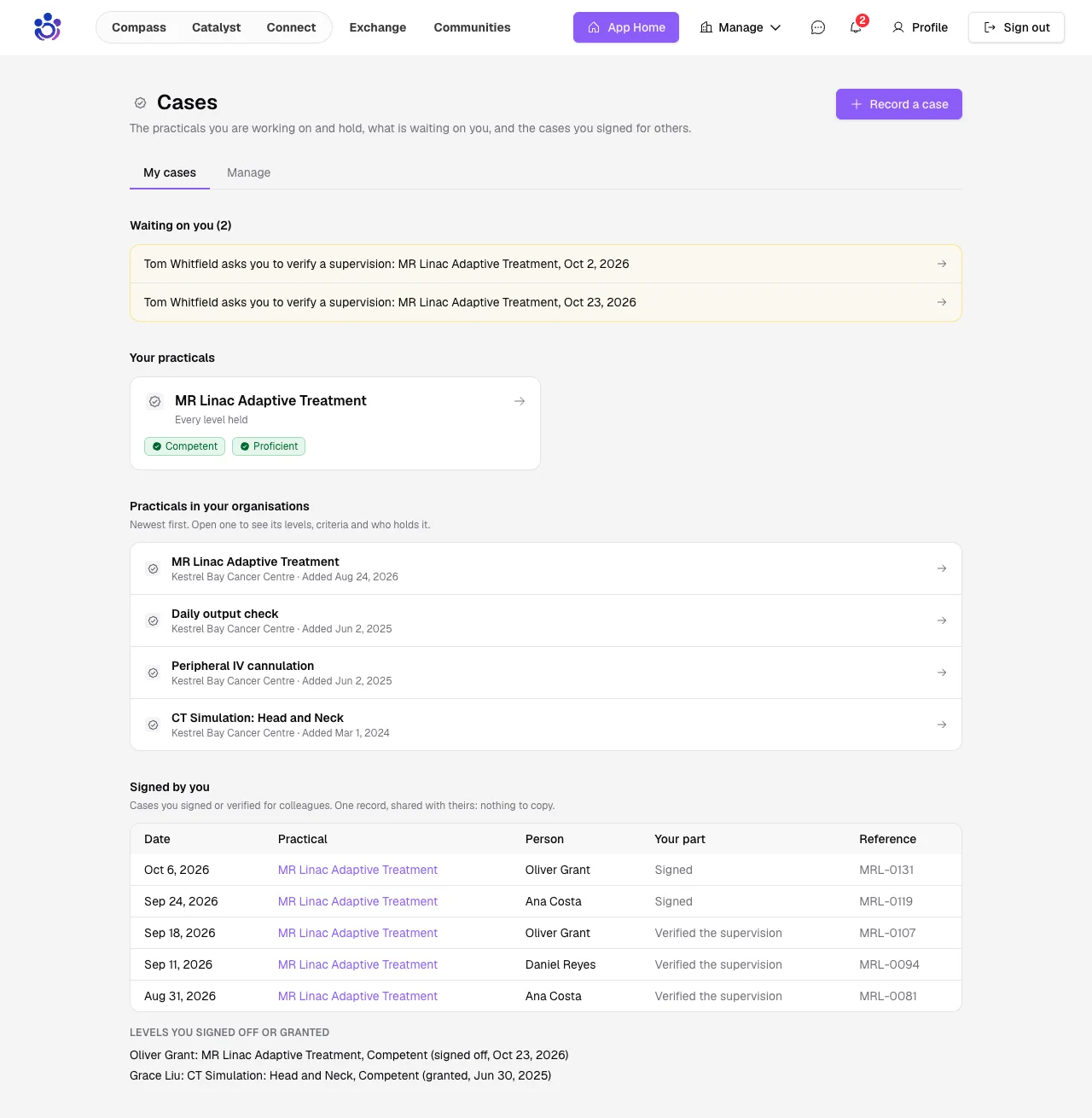
Signed by you
Every signer keeps a record of the cases they signed and verified for colleagues.
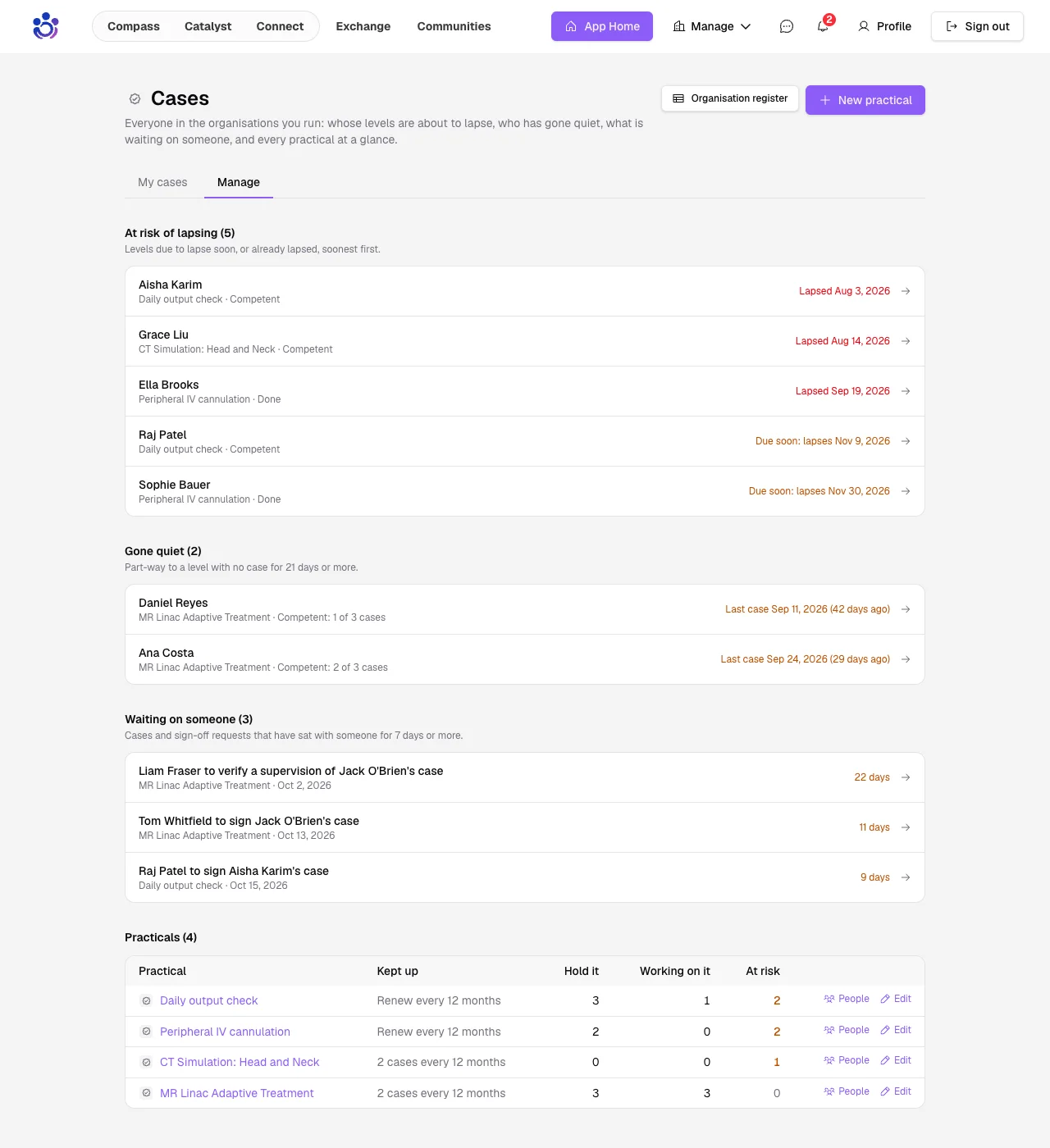
Who holds what, and what is about to lapse
See everyone's level in a practical at a glance.
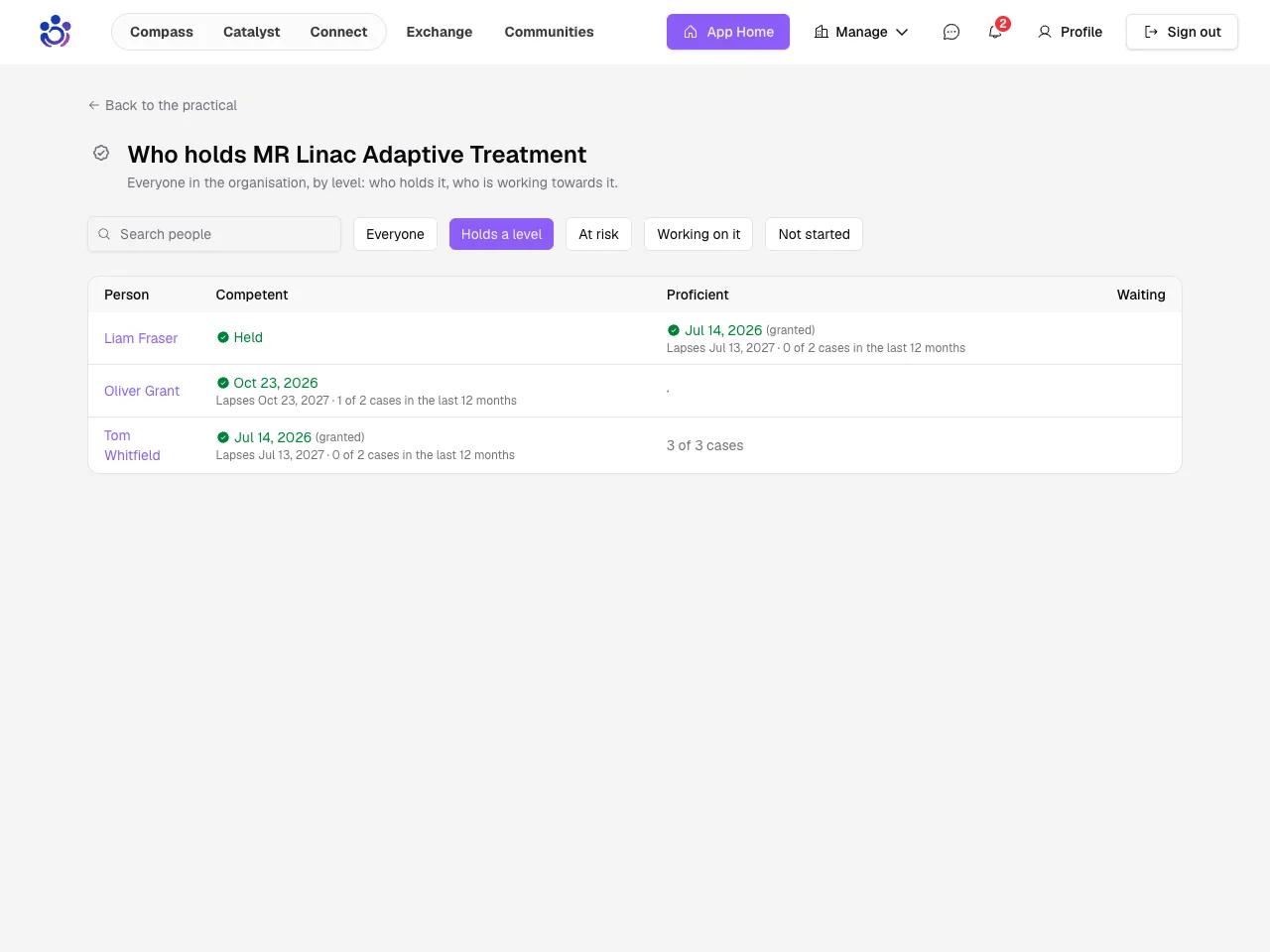
Owners and admins also see who is about to lapse, who has gone quiet and what is waiting on whom.
Certificates anyone can verify
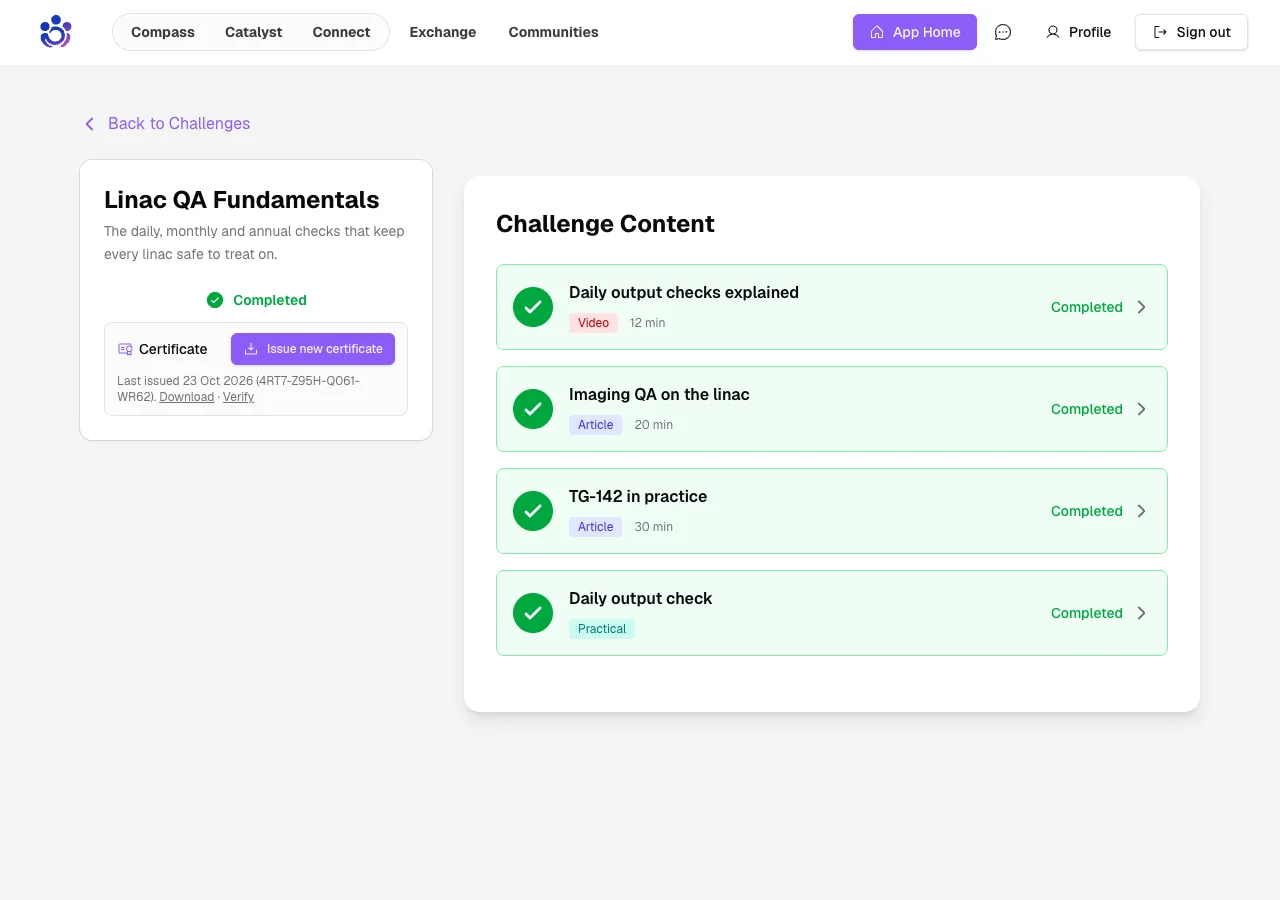
A completed challenge now gives a certificate that the person keeps, even after they leave.
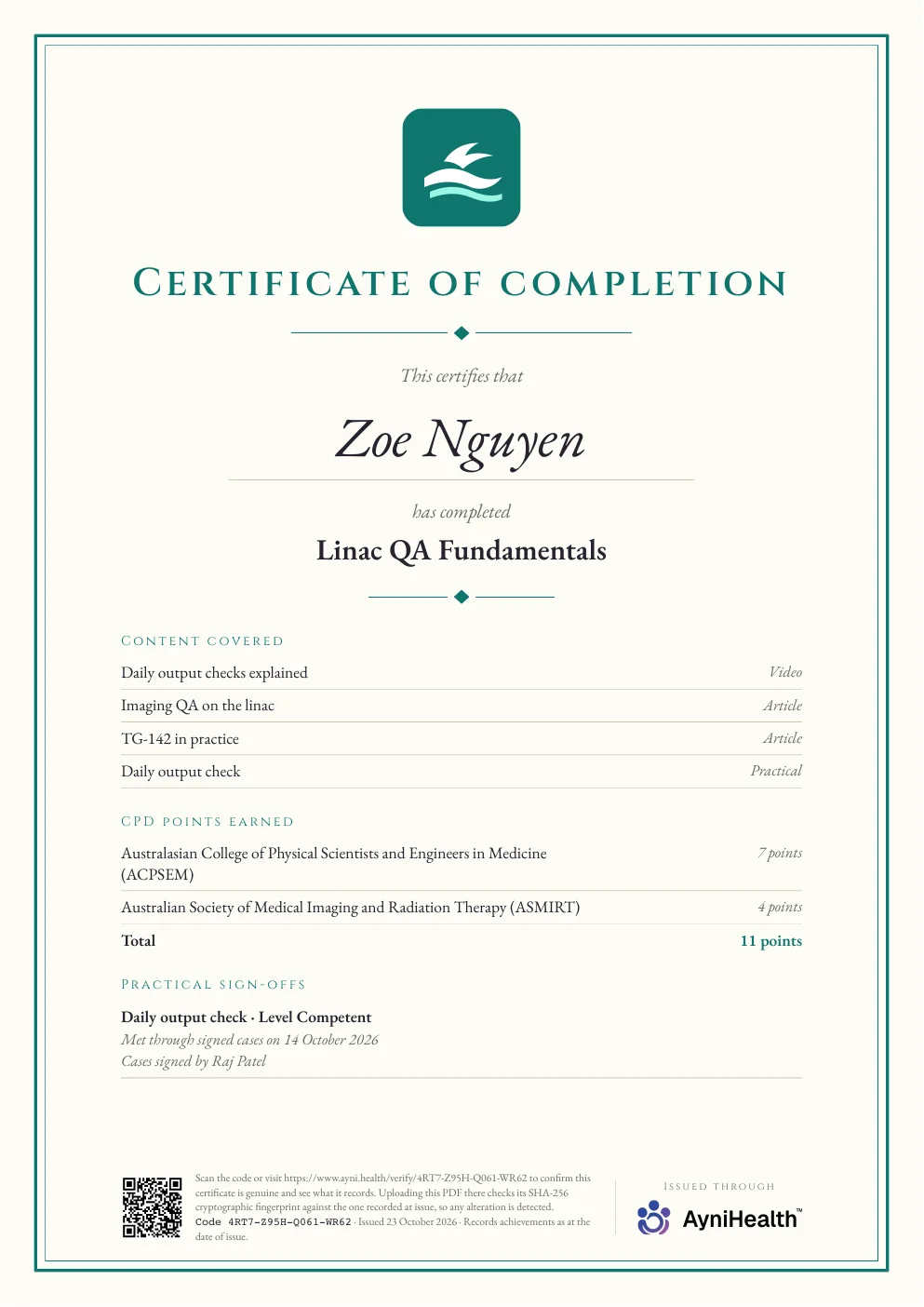
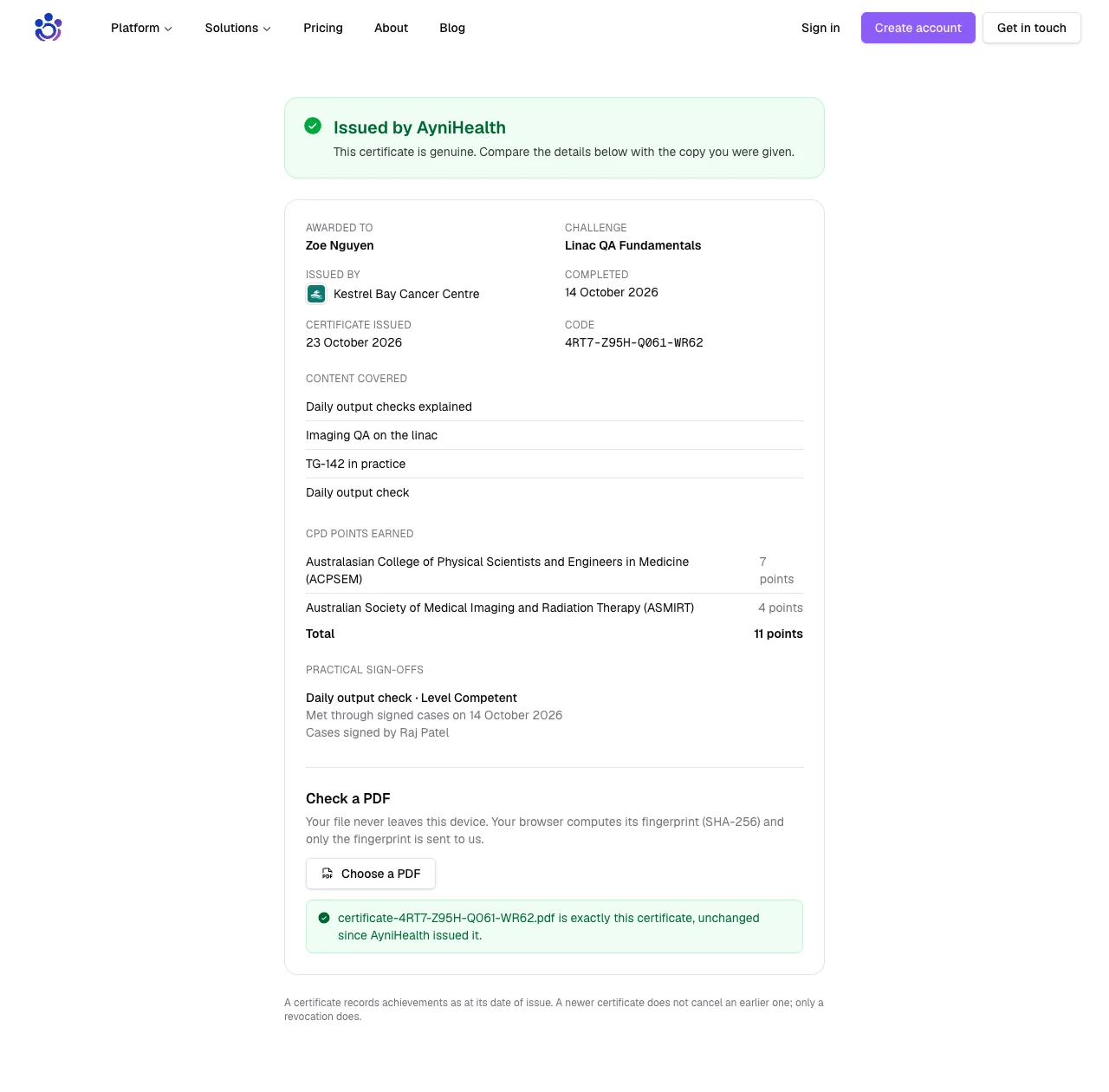
It carries your organisation's logo and records the content covered, CPD points by body and any practical sign-offs.
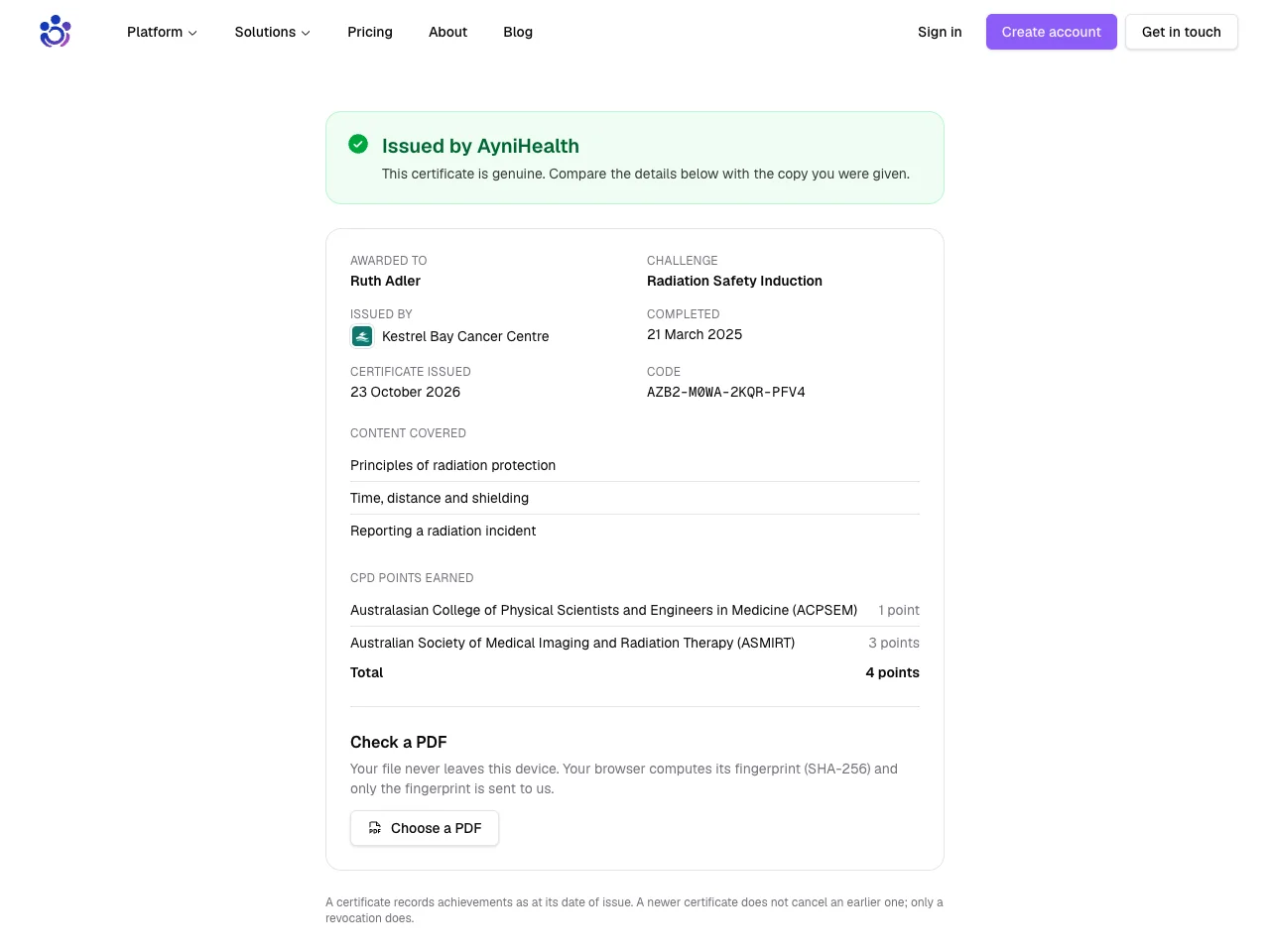
Anyone can check it at ayni.health/verify, by code or by uploading the PDF.
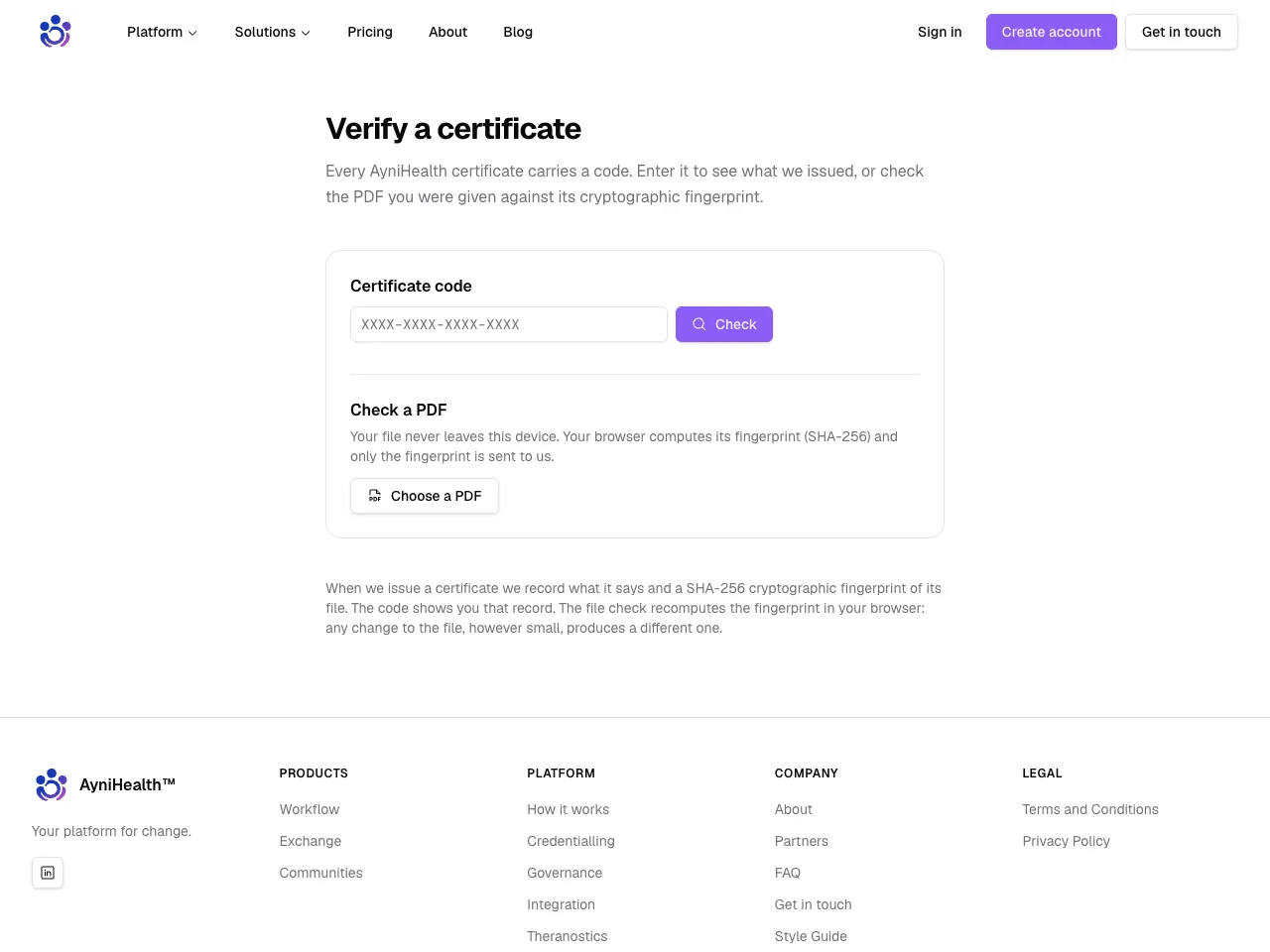
A match confirms the file is exactly the one we issued.
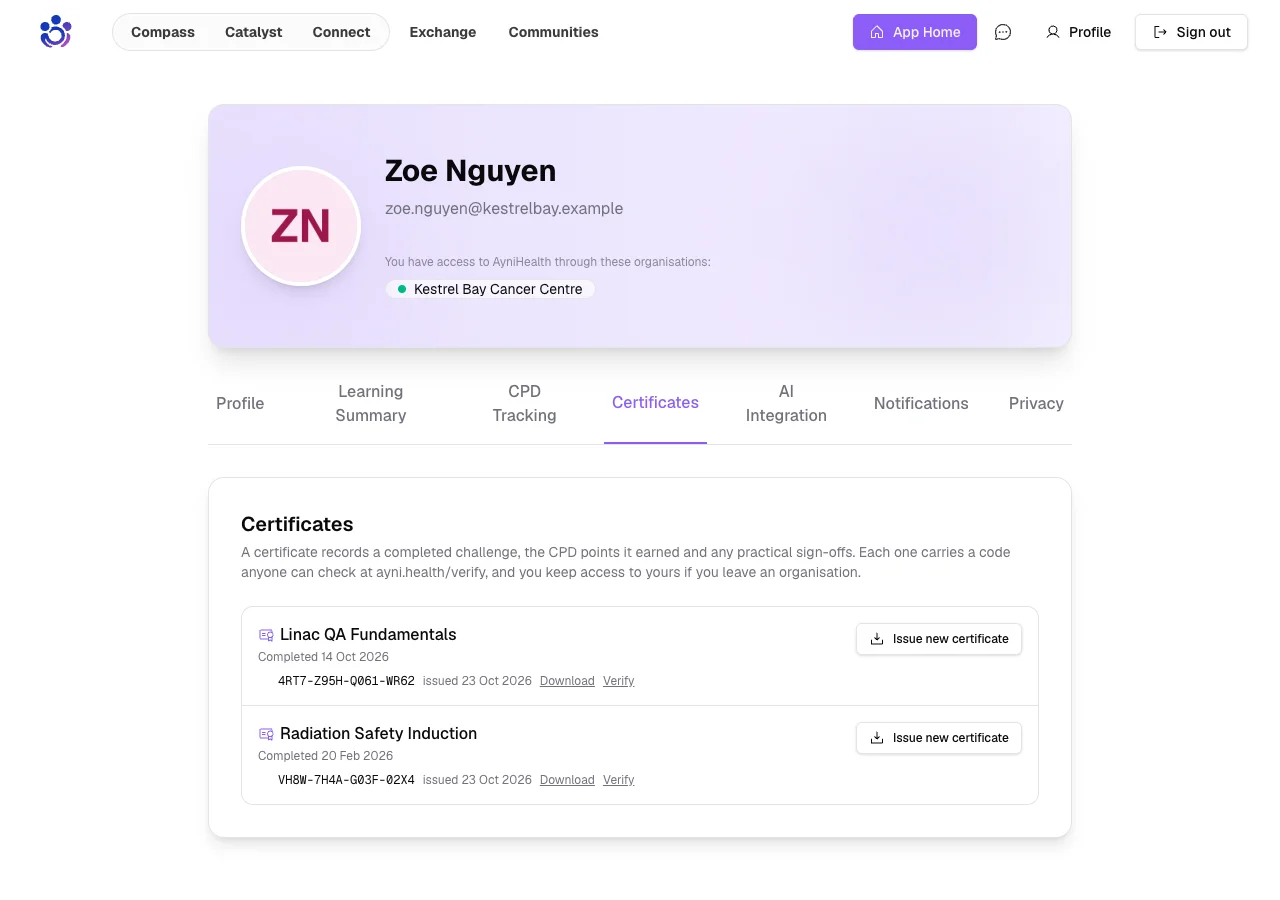
Every certificate you have earned is kept on your profile.
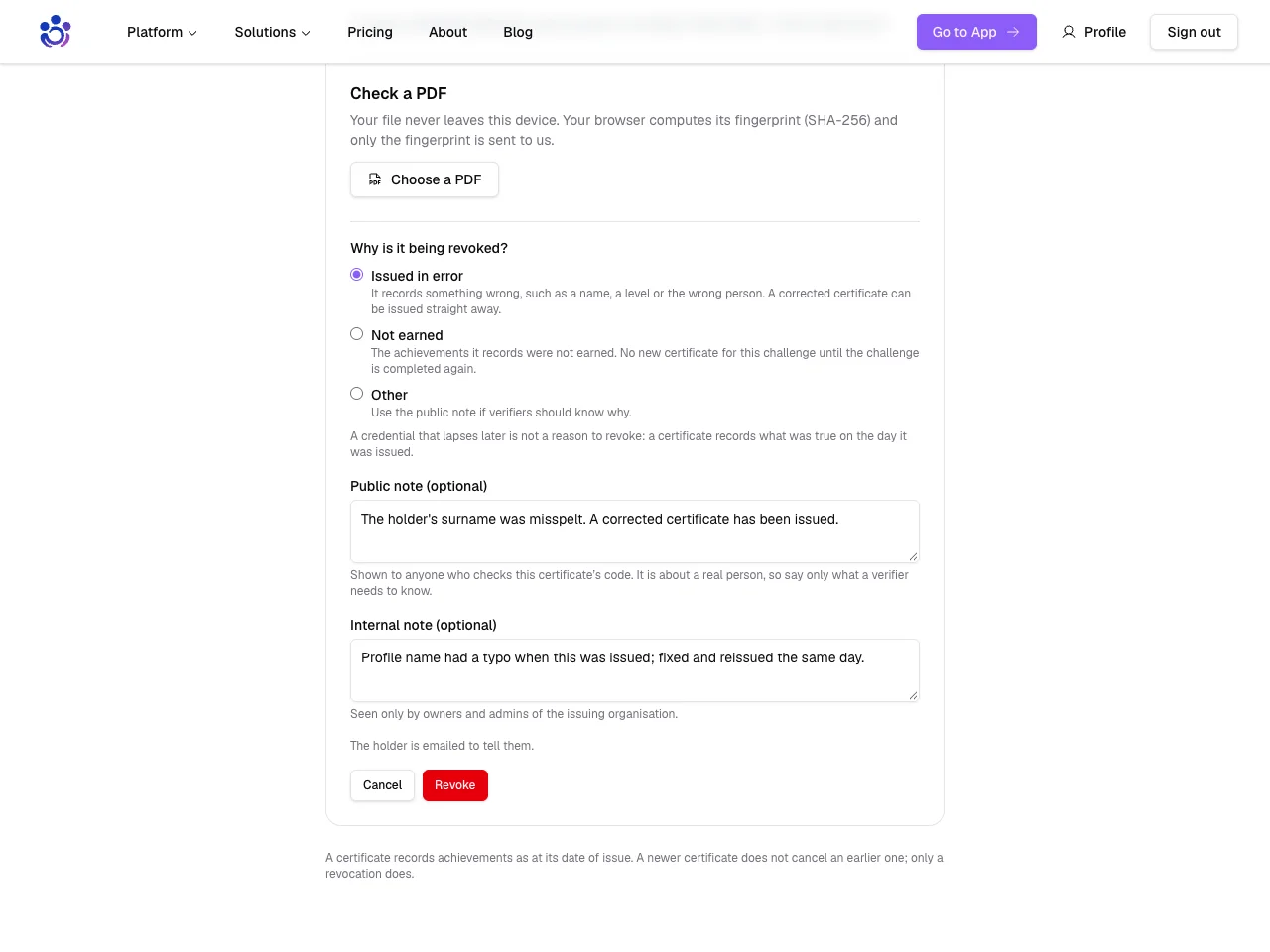
Revoking a certificate
If a certificate was issued in error or was not earned, the issuing organisation can revoke it and say why.
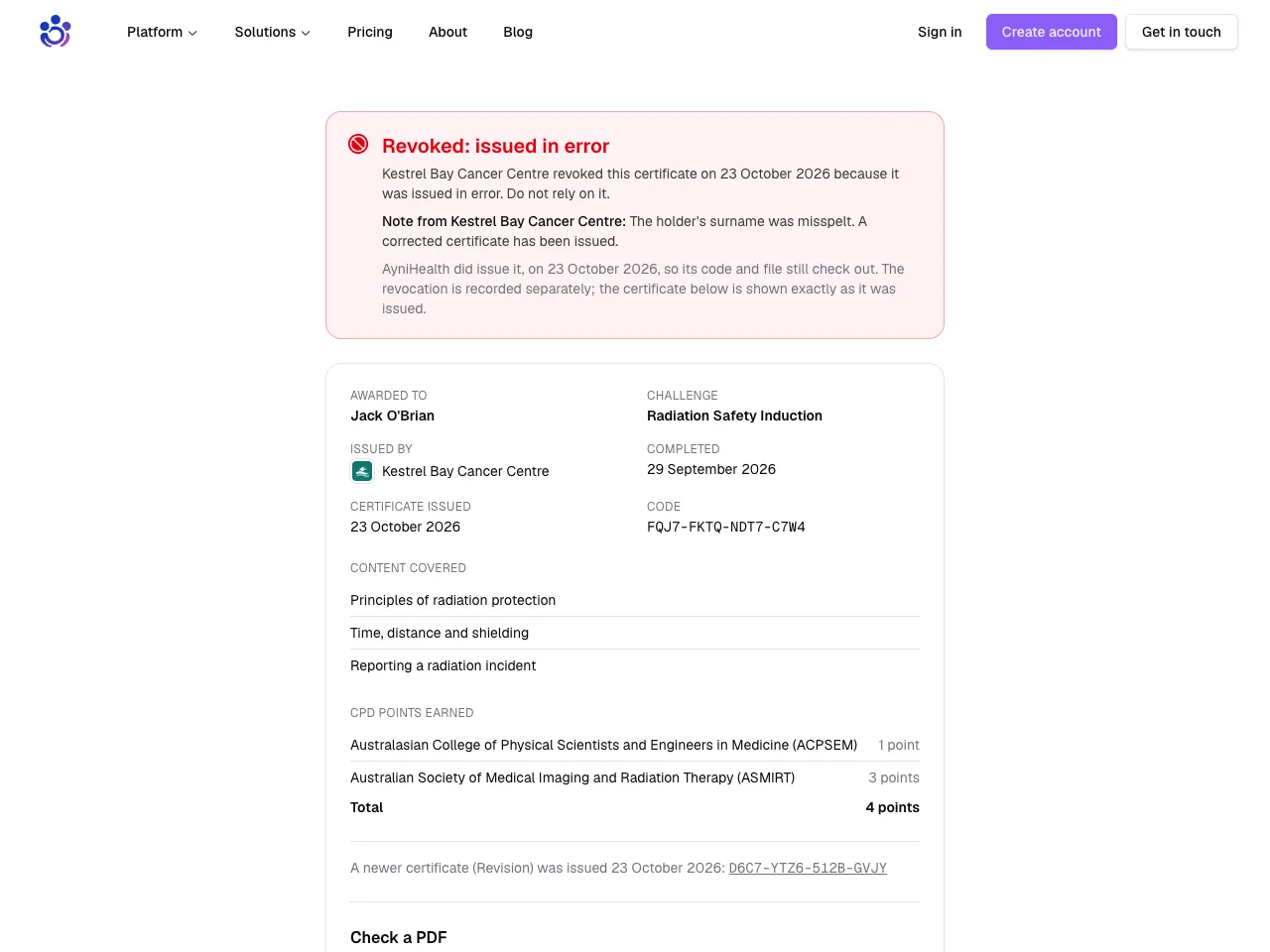
Anyone checking it then sees that it was revoked, on what grounds, by whom and when.
Keep your certificates if you delete your account
Deleting your AyniHealth account no longer has to take your certificates with it: you can choose to keep them verifiable.
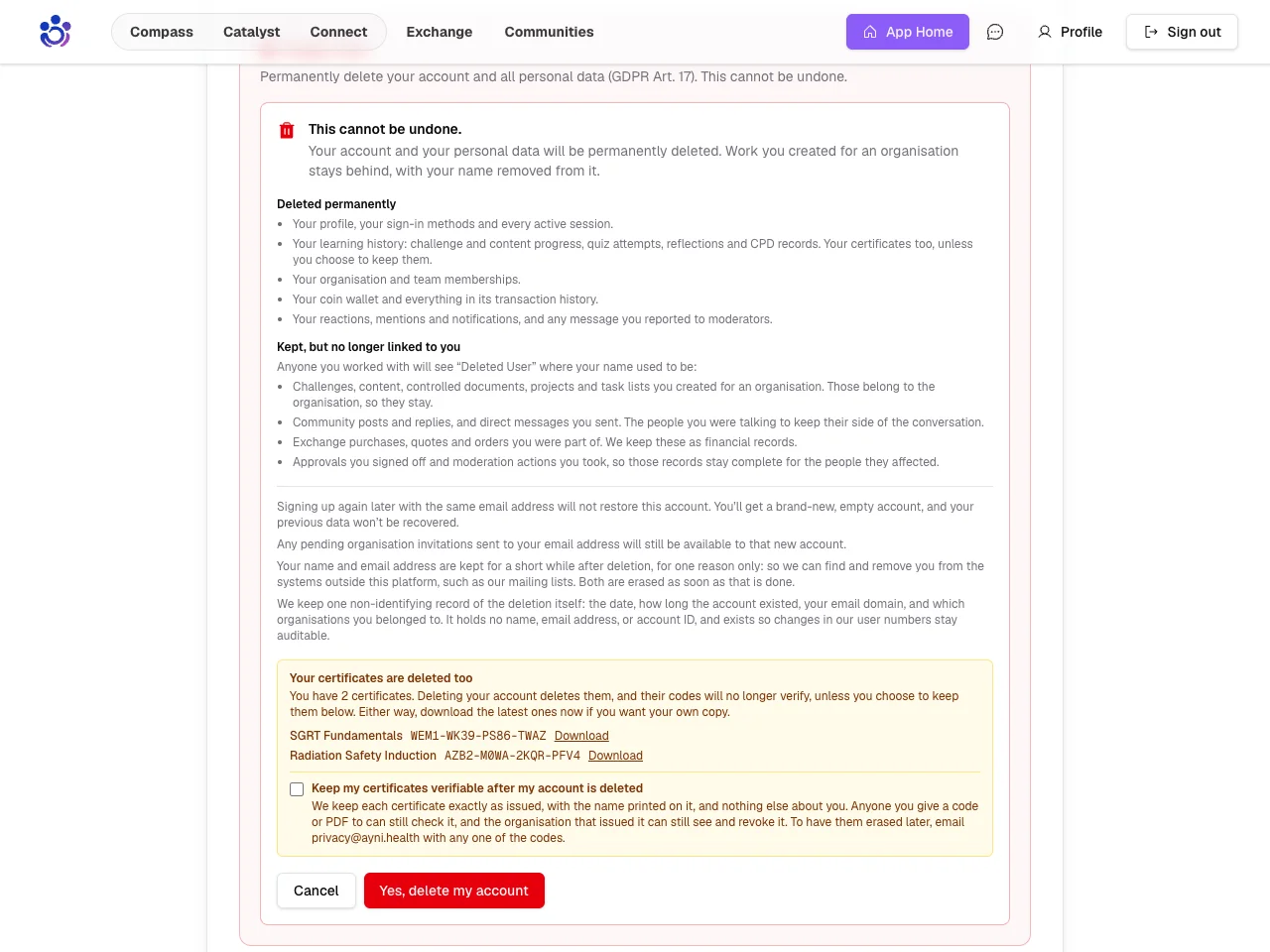
Anyone holding the code or the PDF can still check them.
Document control
The procedures behind the work now say where they are used, what changed, and who is discussing them.
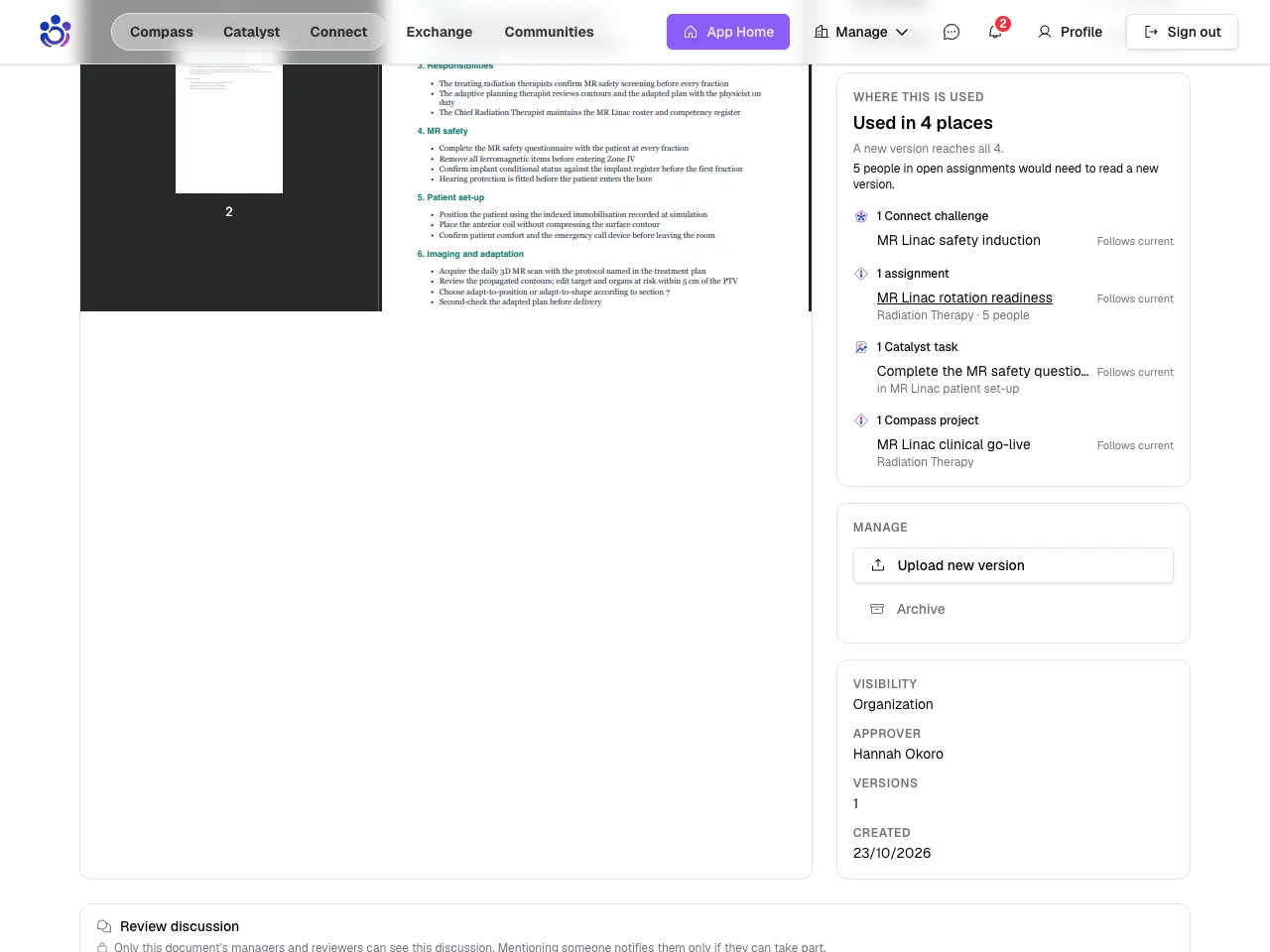
Where is this document used?
Before you change a controlled document, see everything that depends on it.
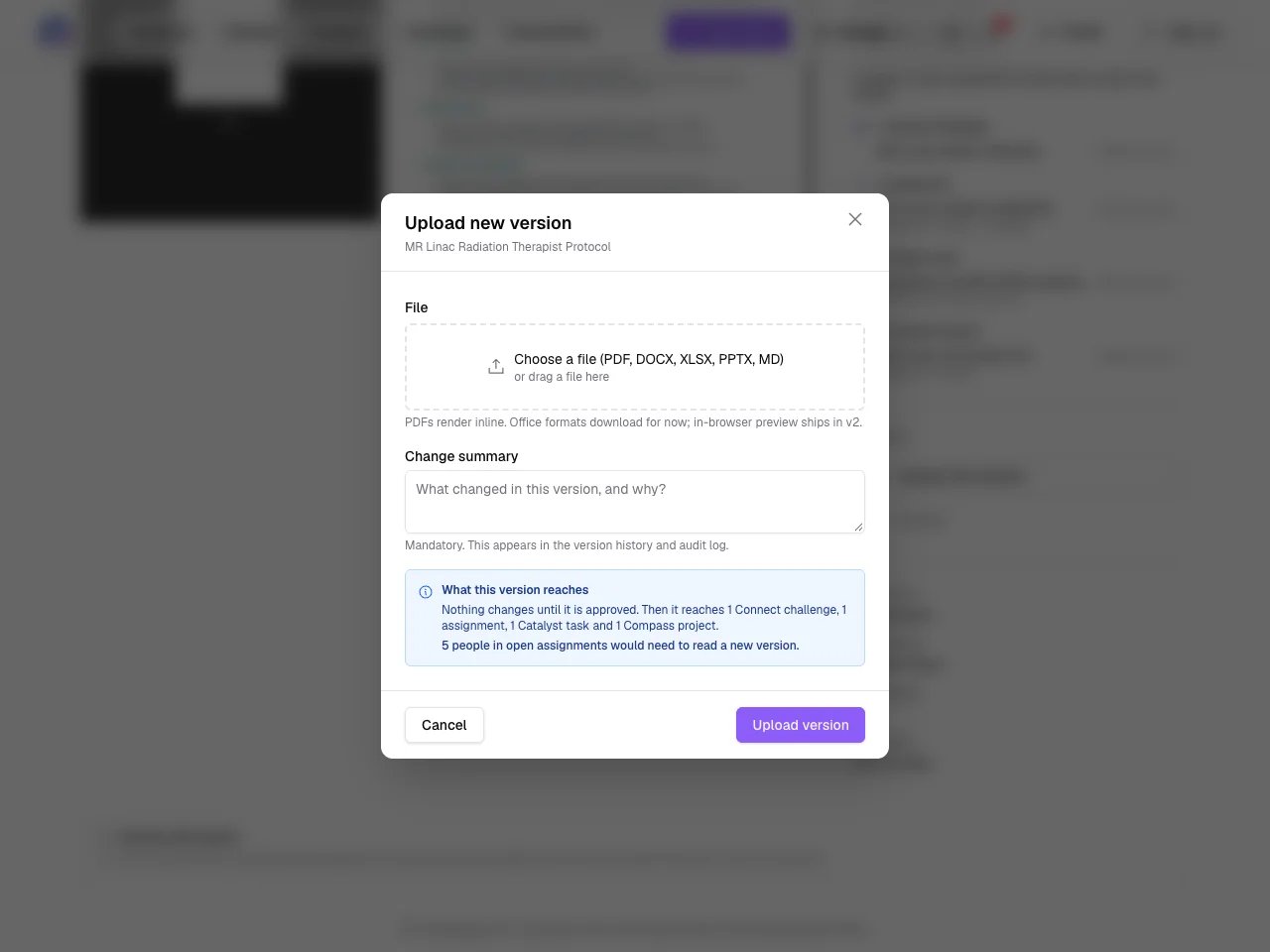
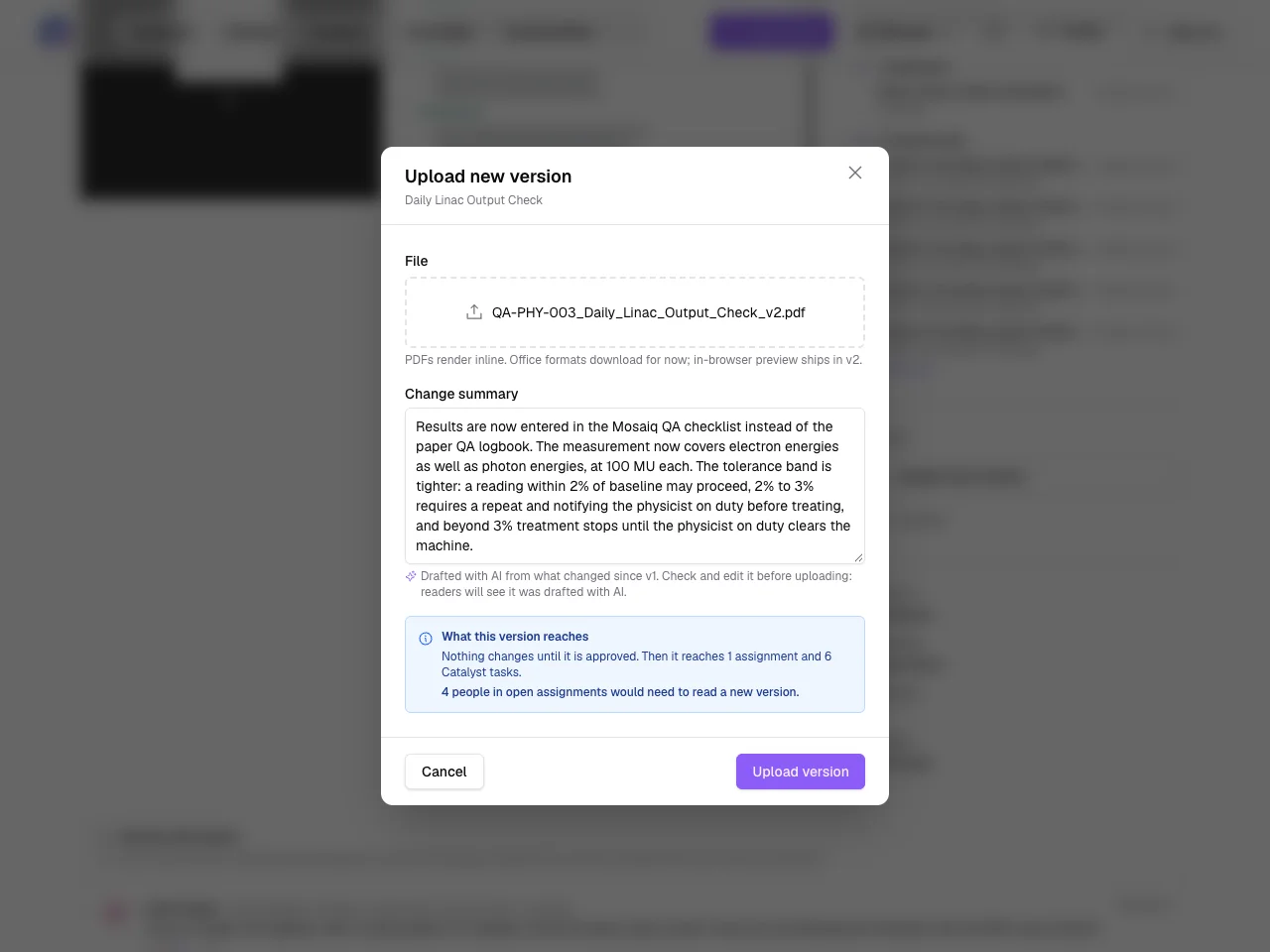
The same summary appears as you upload a new version, so you know who it will reach.
What changed, drafted with AI
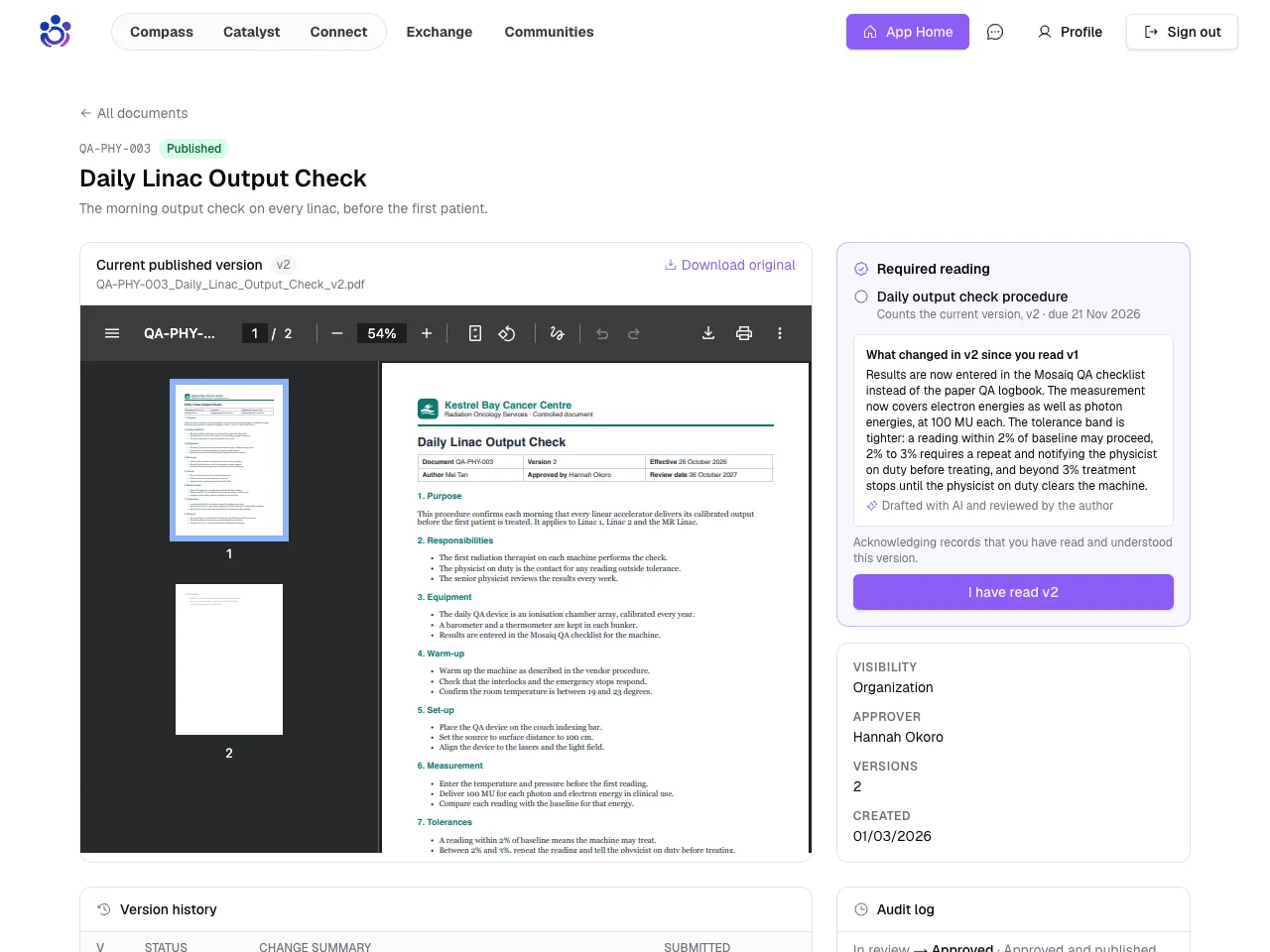
AI drafts a plain-language summary of what changed, for the editor to review.
People who read the last version see the summary before they acknowledge the new one.
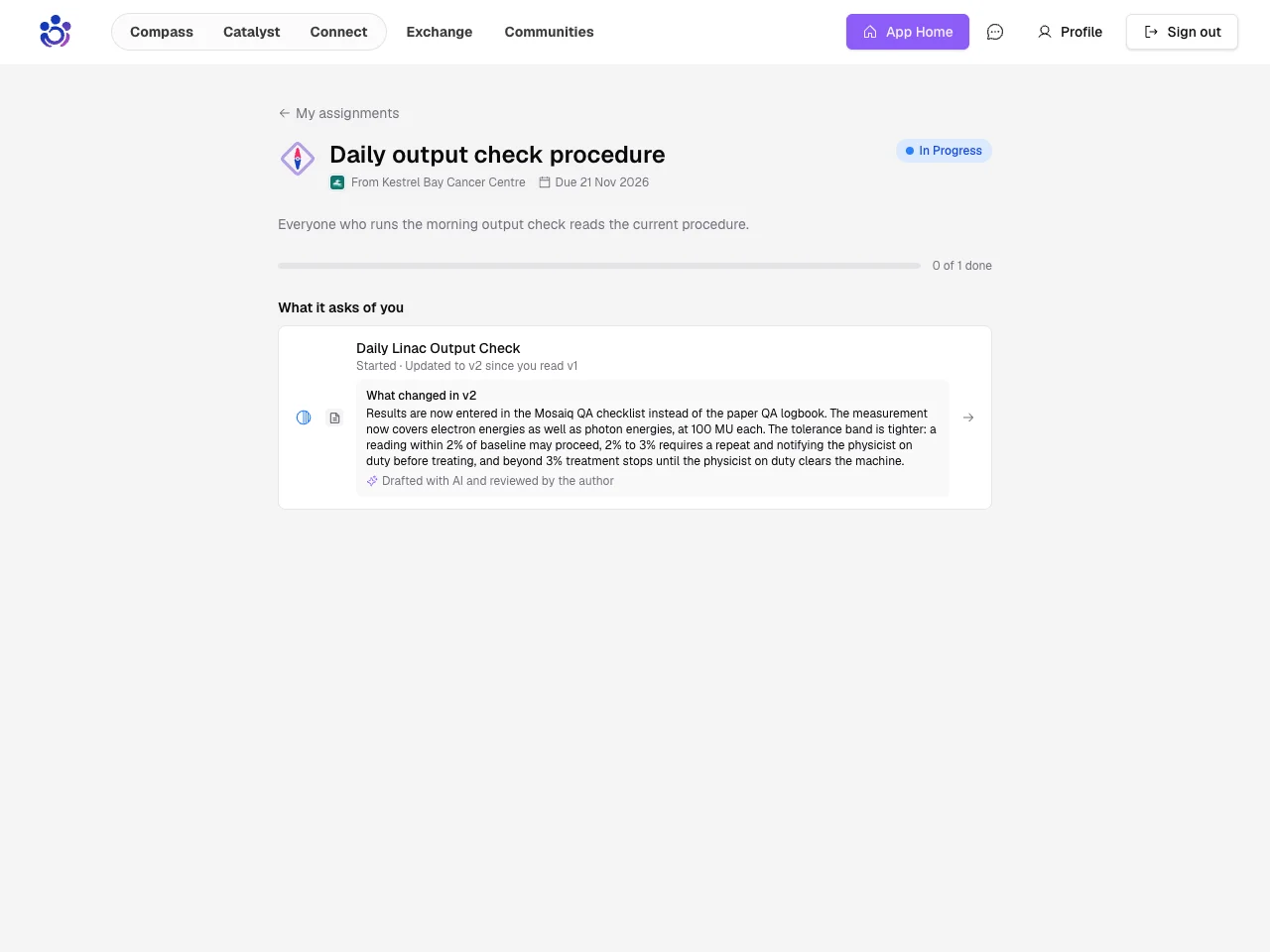
It appears in My assignments too.
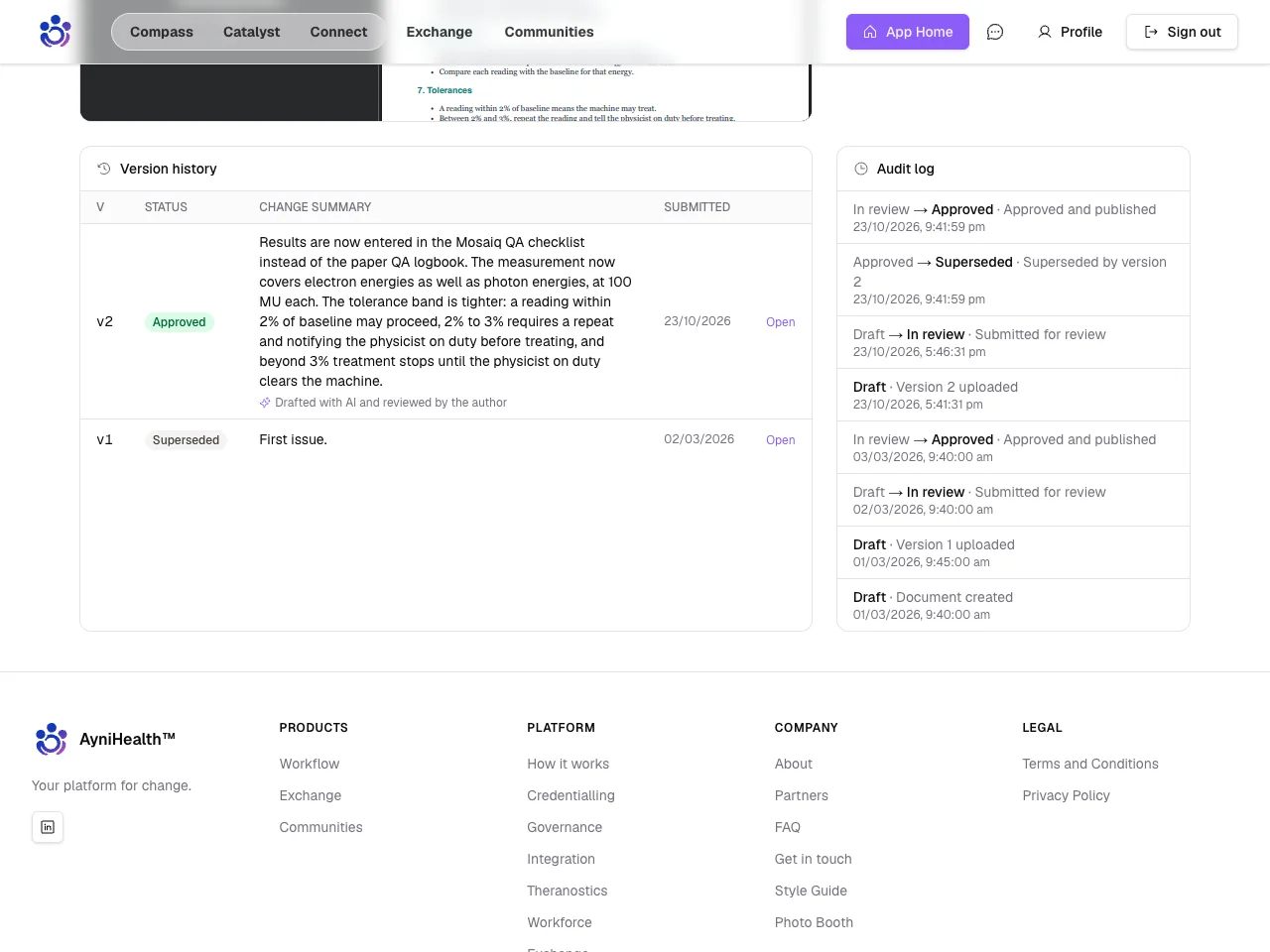
Review notes stay with reviewers
Members now see a published document and what changed in it, without the review conversation behind it.
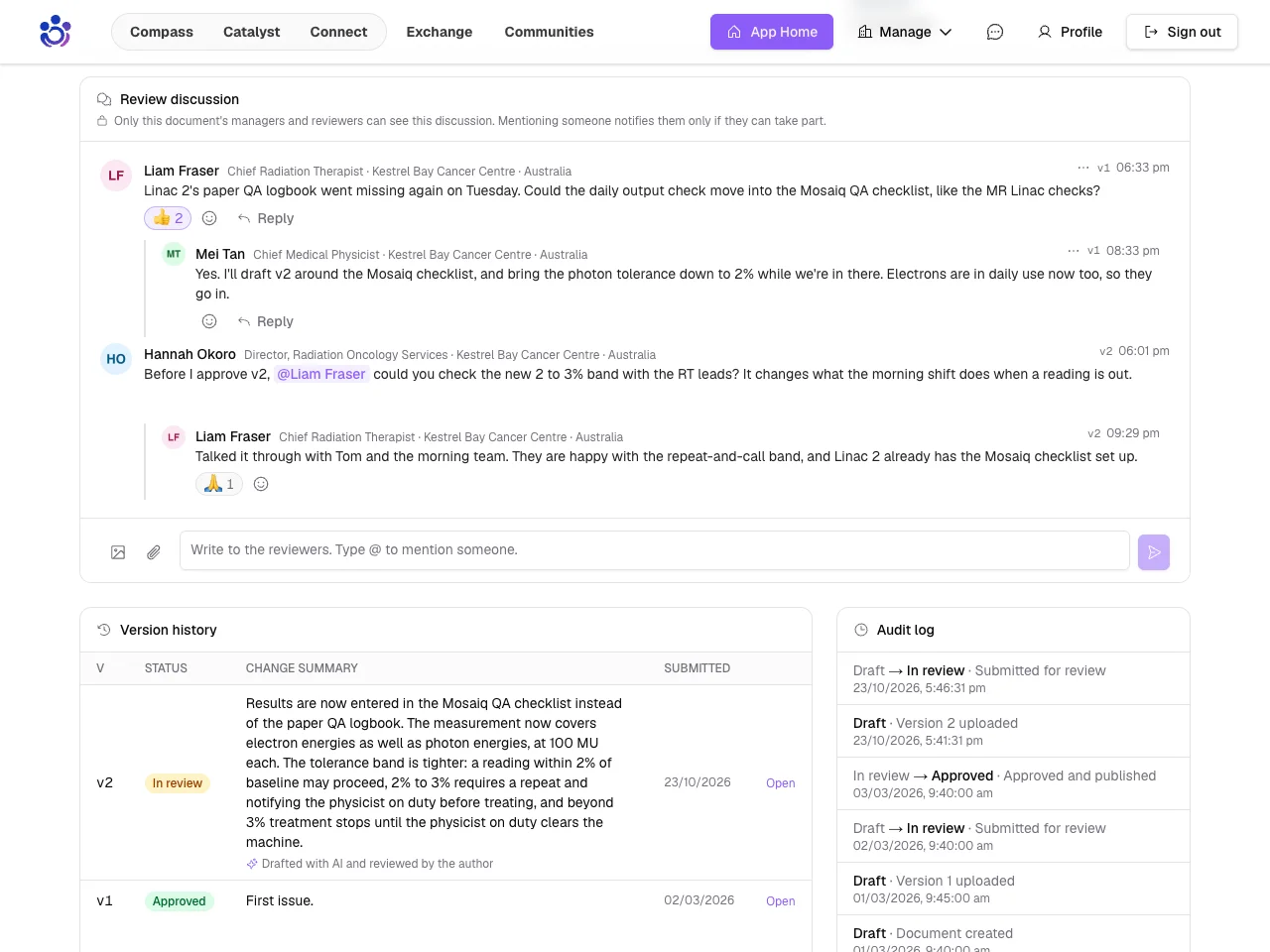
Discuss a document with its reviewers
Each controlled document now has its own discussion for the people who manage and review it, and every message shows which version it was about.
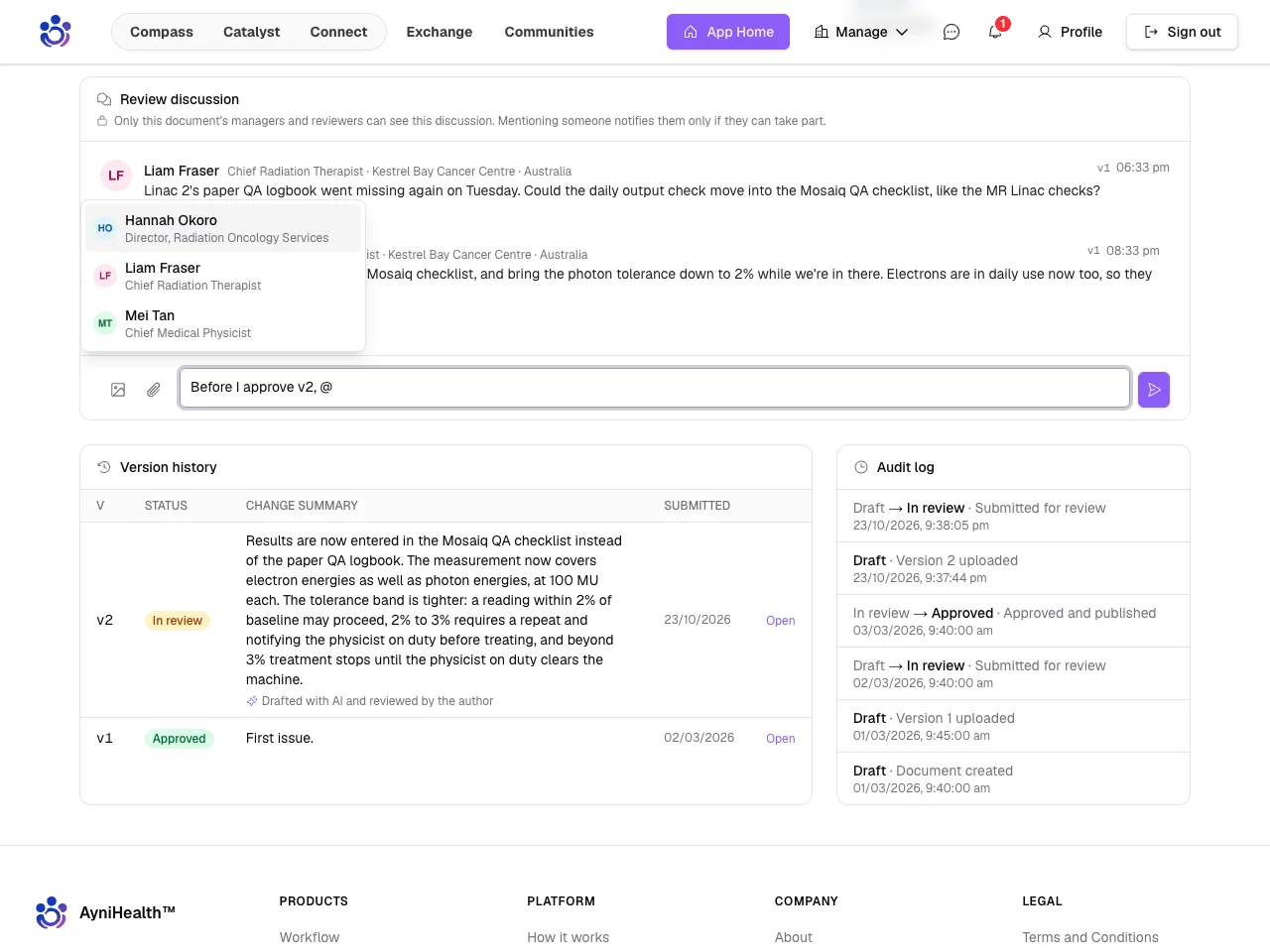
Type @ to bring a colleague in. Only people who can review the document are offered.
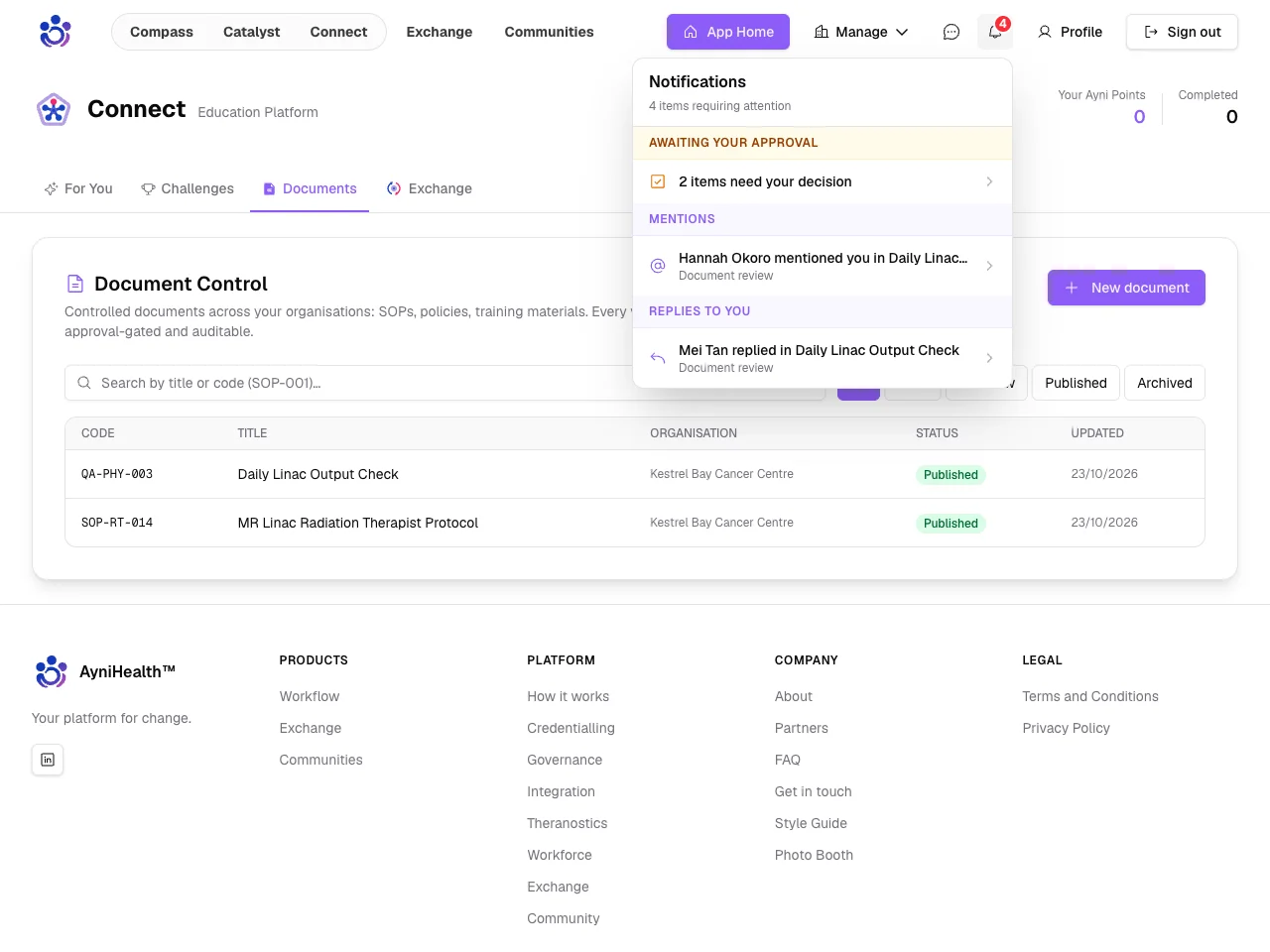
They are told in their notifications, which open the discussion at that message.
Connect, Catalyst and Compass
Building the work itself: challenges, checklists and projects.
Some in any order, then the rest
When building a sequential challenge, tick Any order with the one above to group items.
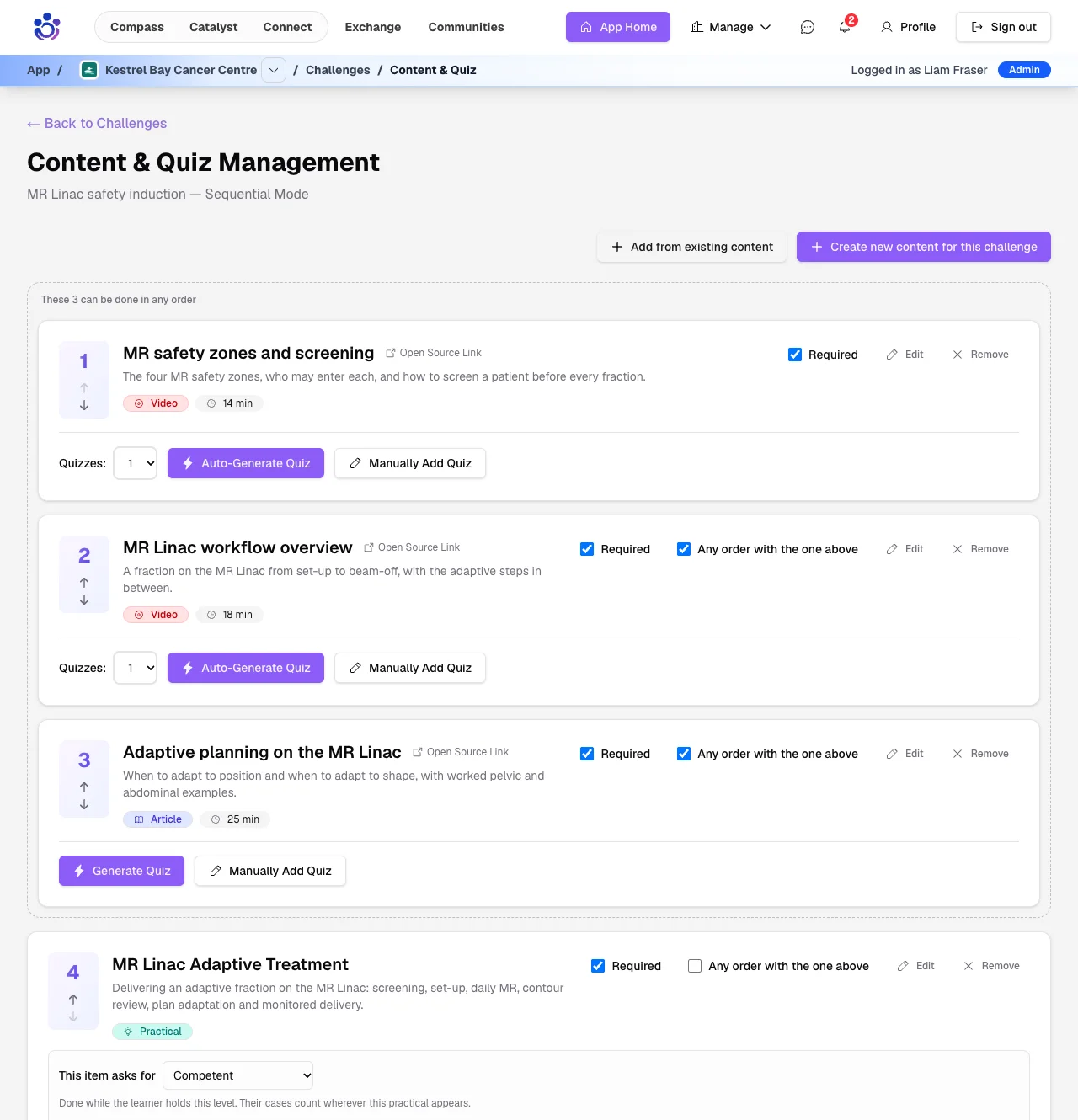
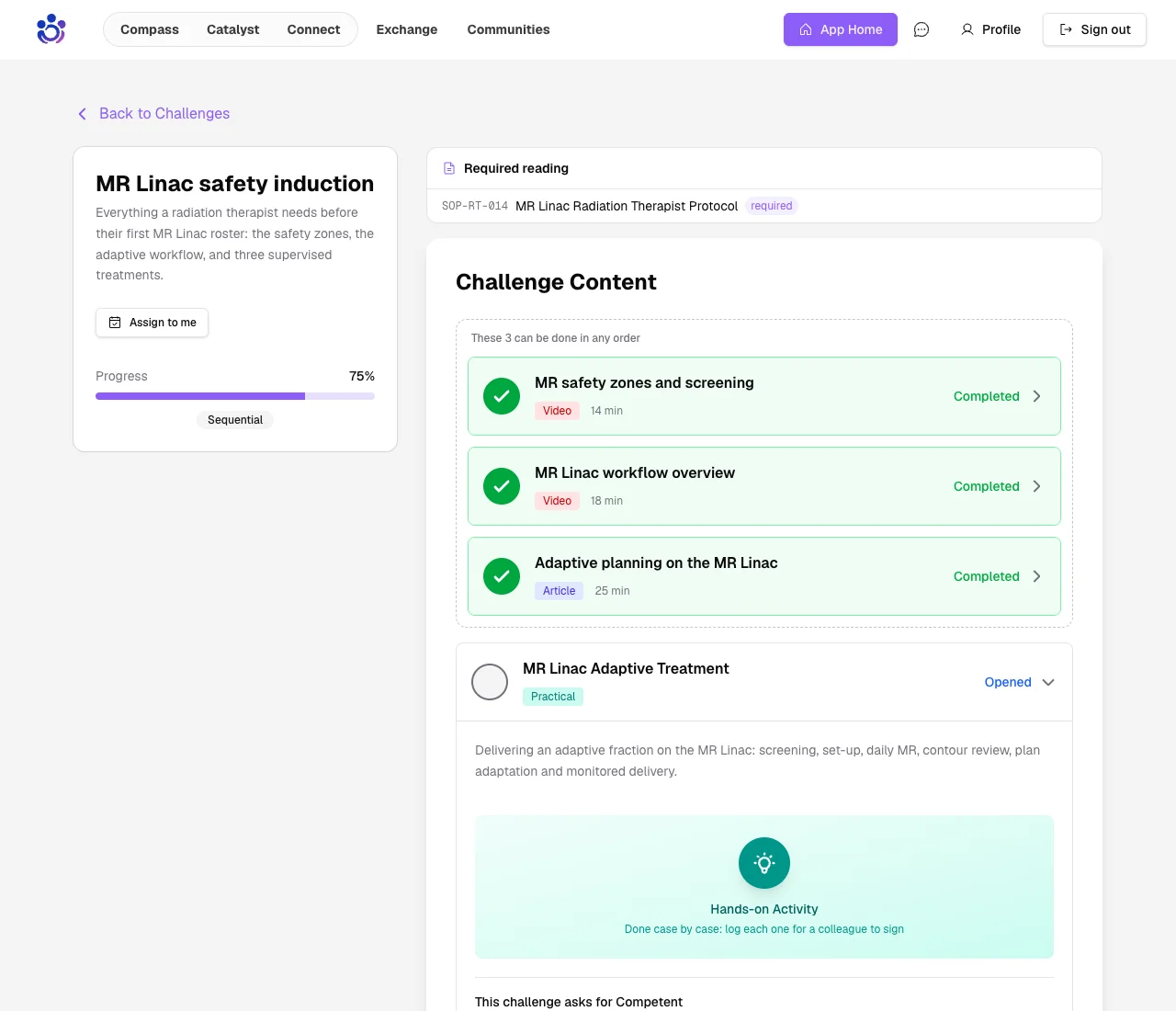
Learners work through the group in any order, and what follows stays locked.
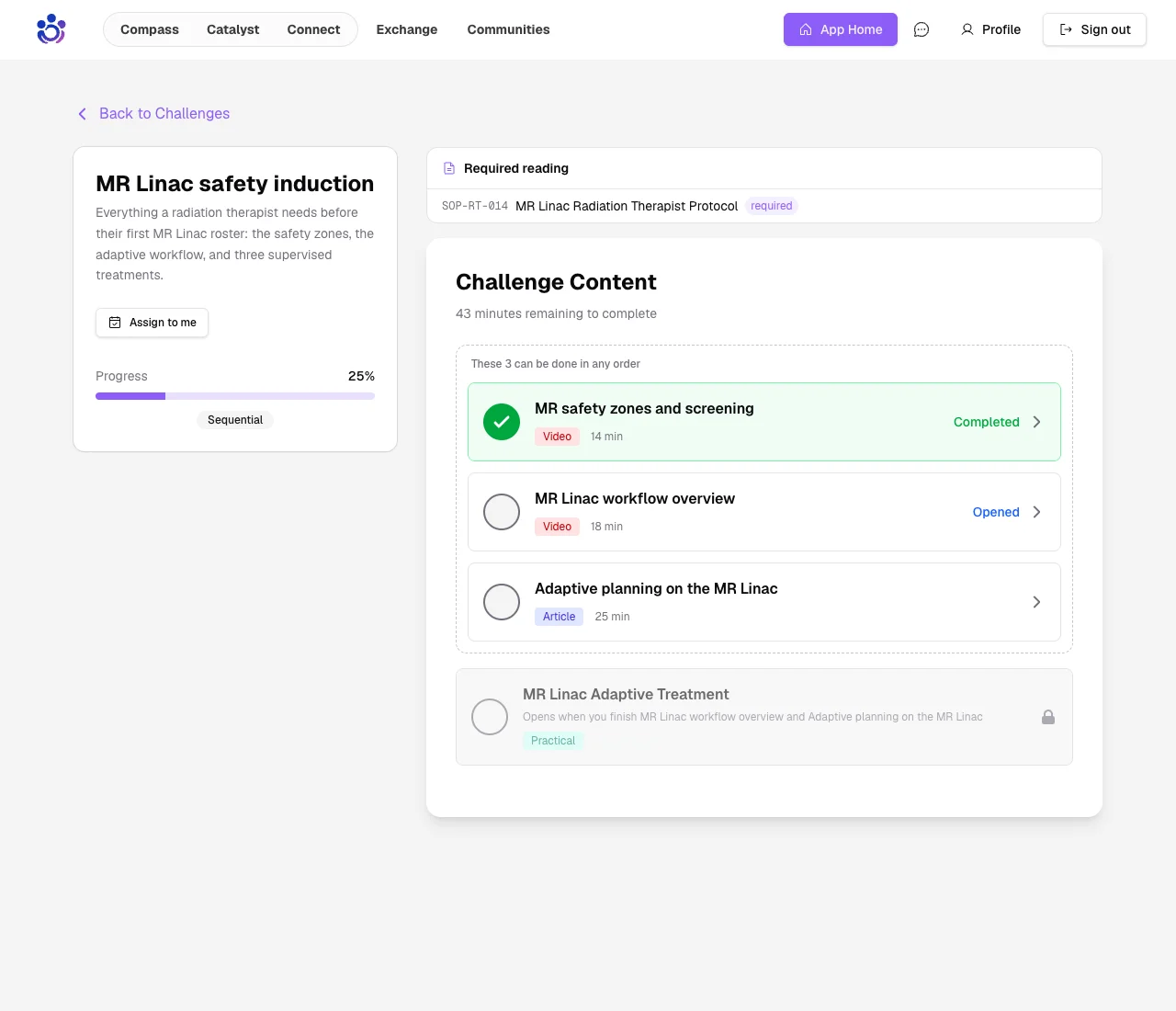
Once the group is finished, the next item opens.
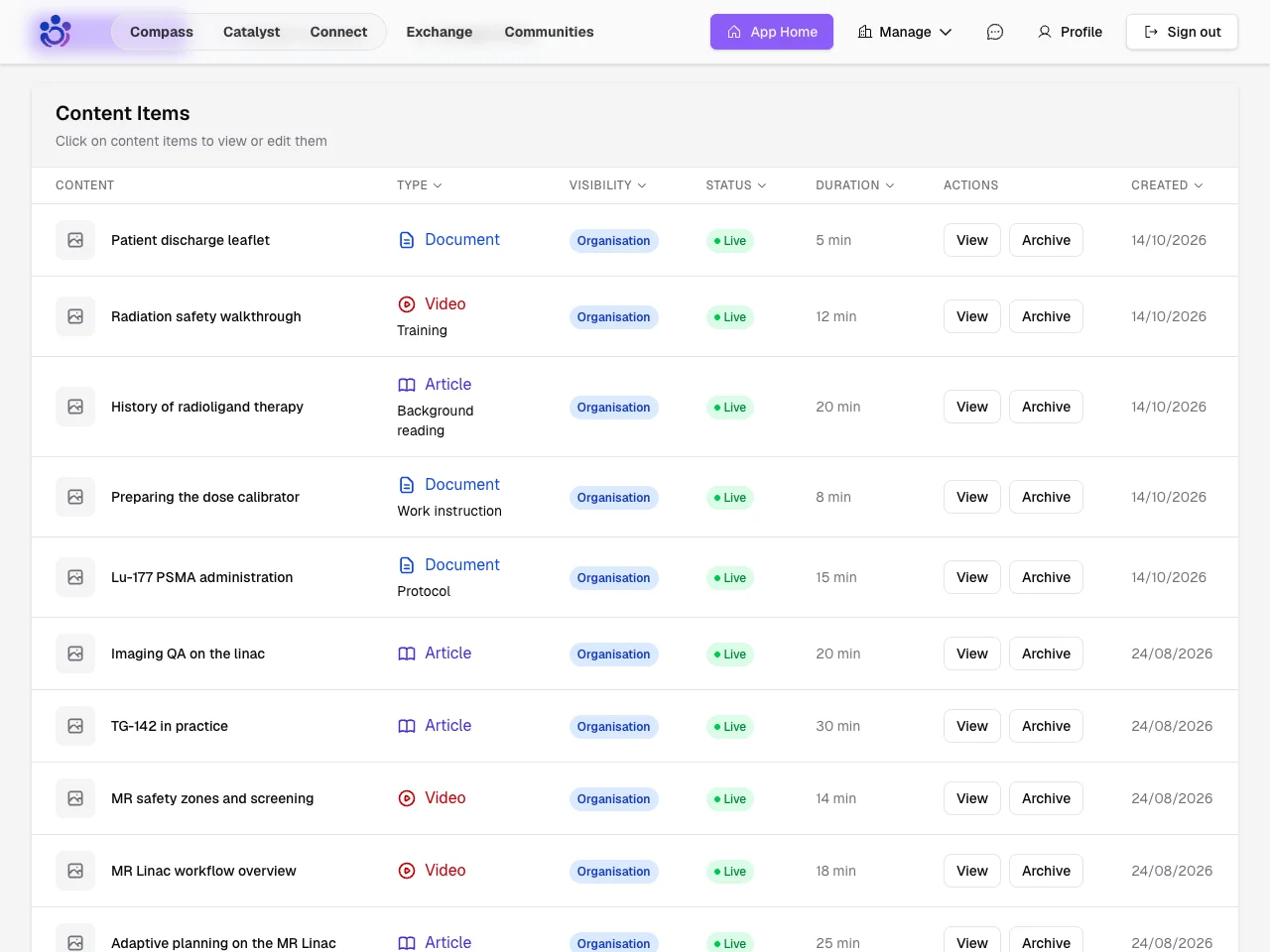
Purpose labels
Content can now say what it is for, as well as what it is.
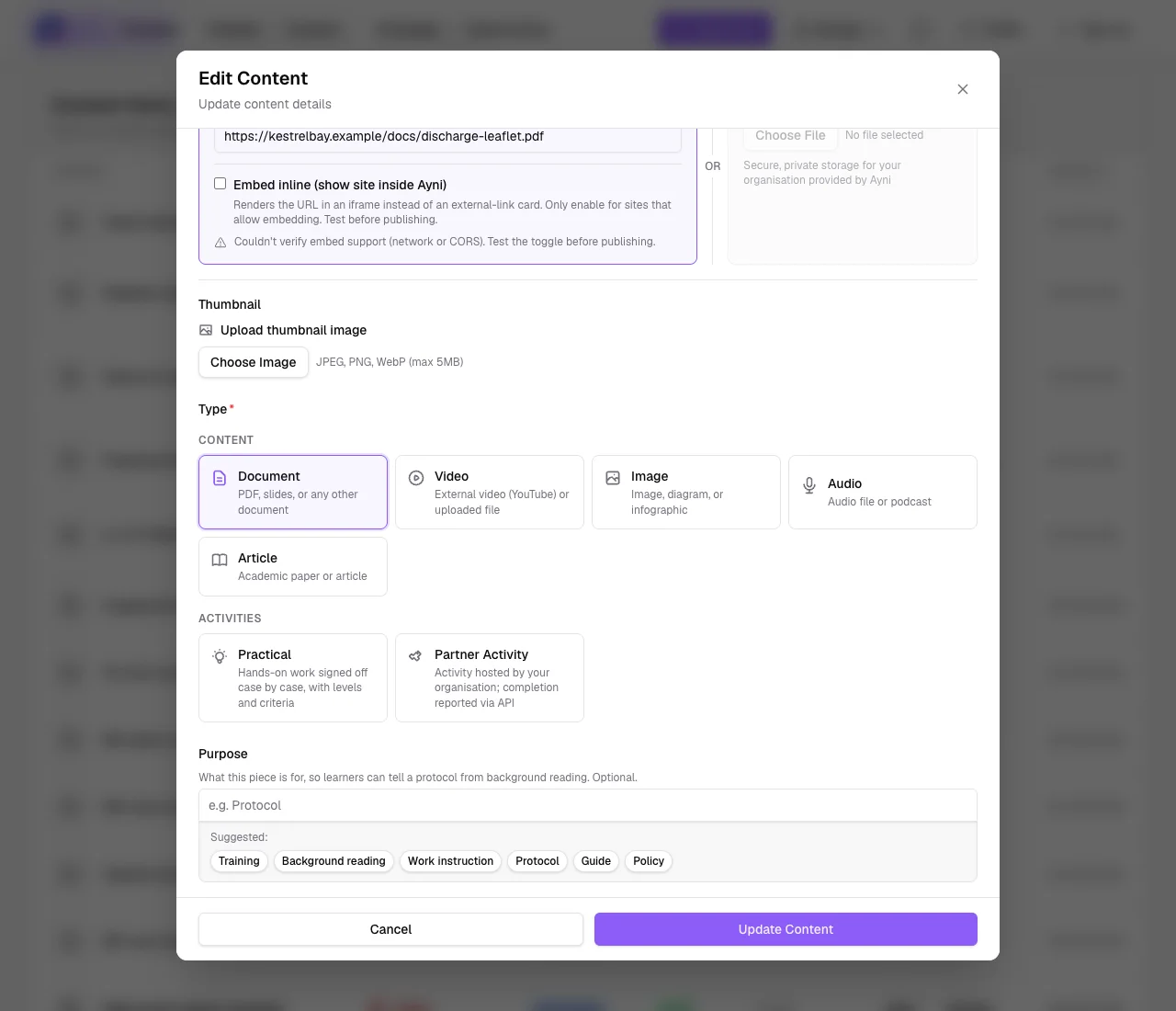
Learners see the purpose beside each item, so a protocol no longer looks like background reading.
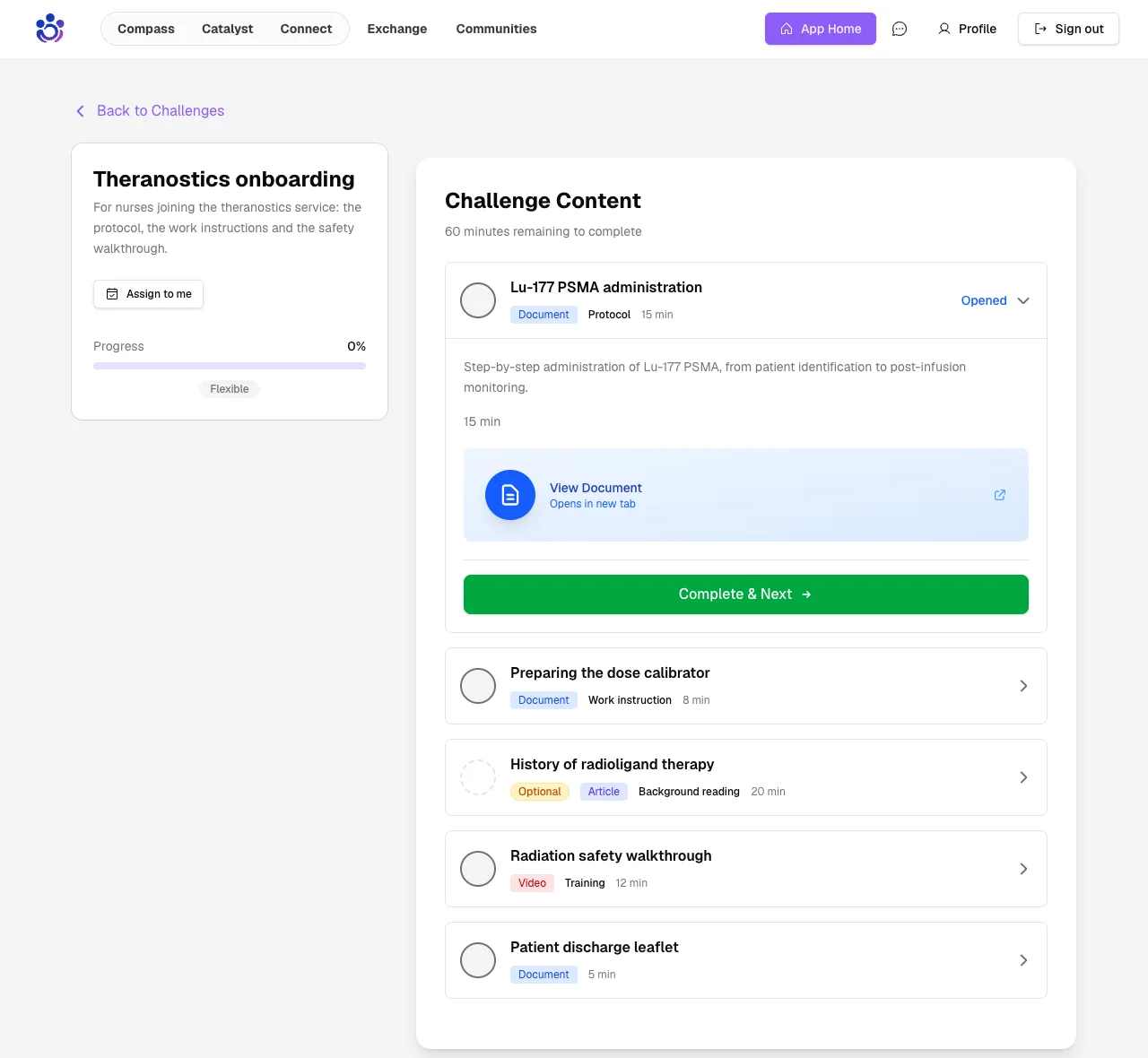
Admins see it under each item's type in their content list.
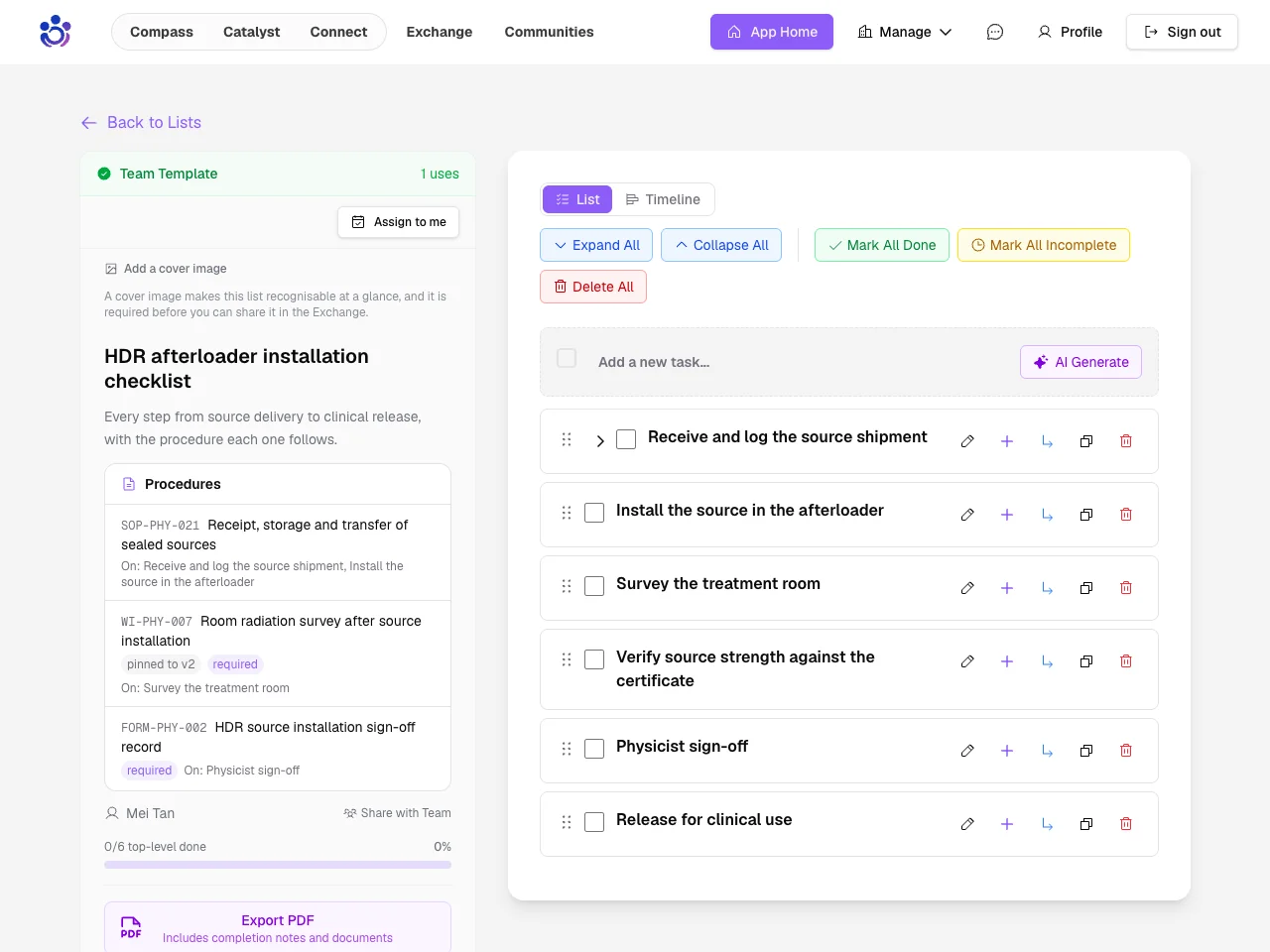
A template's procedures on every copy
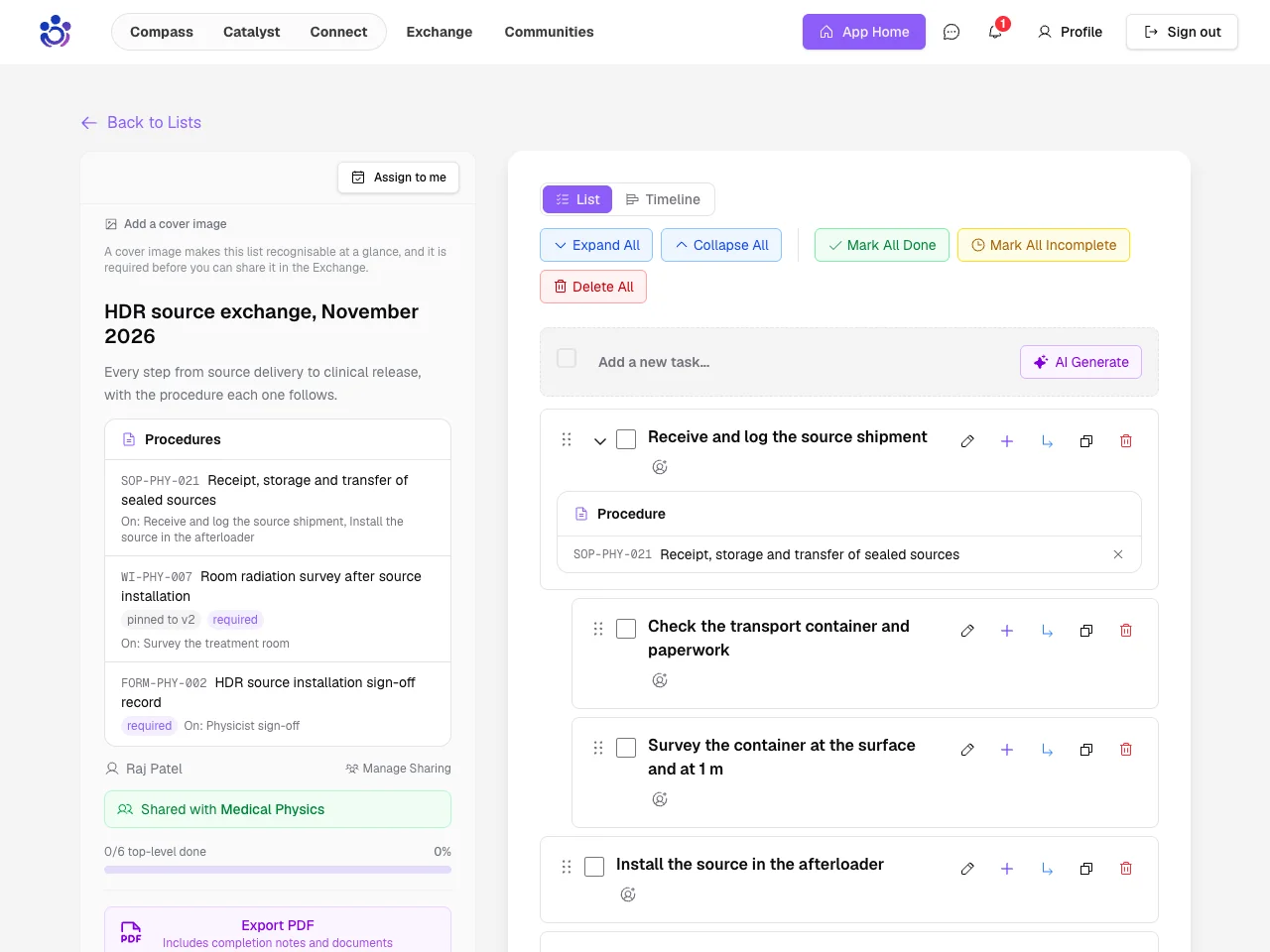
The controlled documents linked on a template's tasks now come with every list made from it, gathered under Procedures at the top.
Each copy links the document itself, never a copy of it, so when an SOP is revised every list shows the new version.
Build a list from your documents
Catalyst's AI now reads PDFs (scanned ones and flowcharts included), Word, Excel and PowerPoint files, photos and voice memos when it drafts tasks for you.
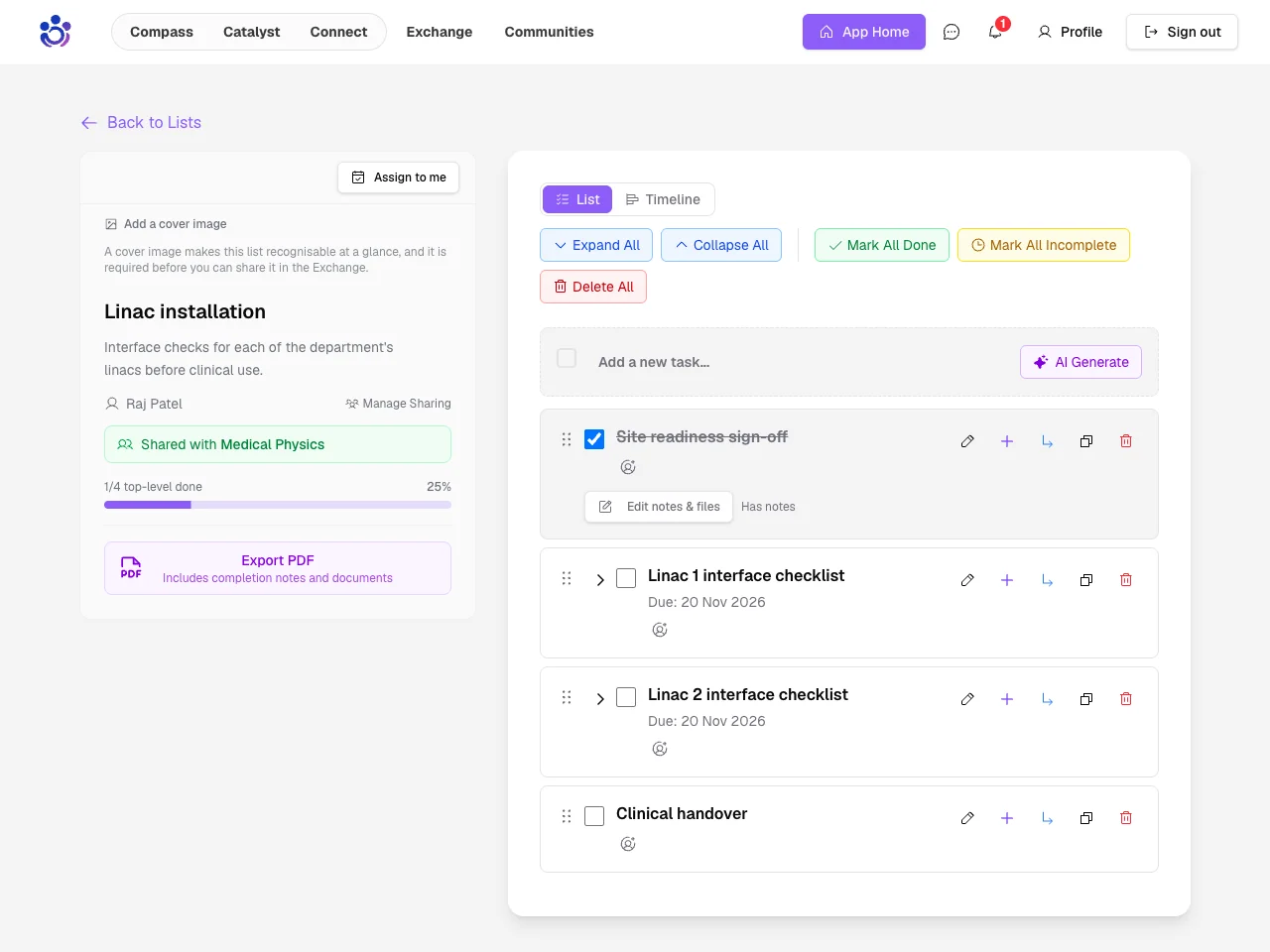
Duplicate a checklist
Installing the same equipment more than once? Duplicate a task with all its subtasks and give the copy its own name.
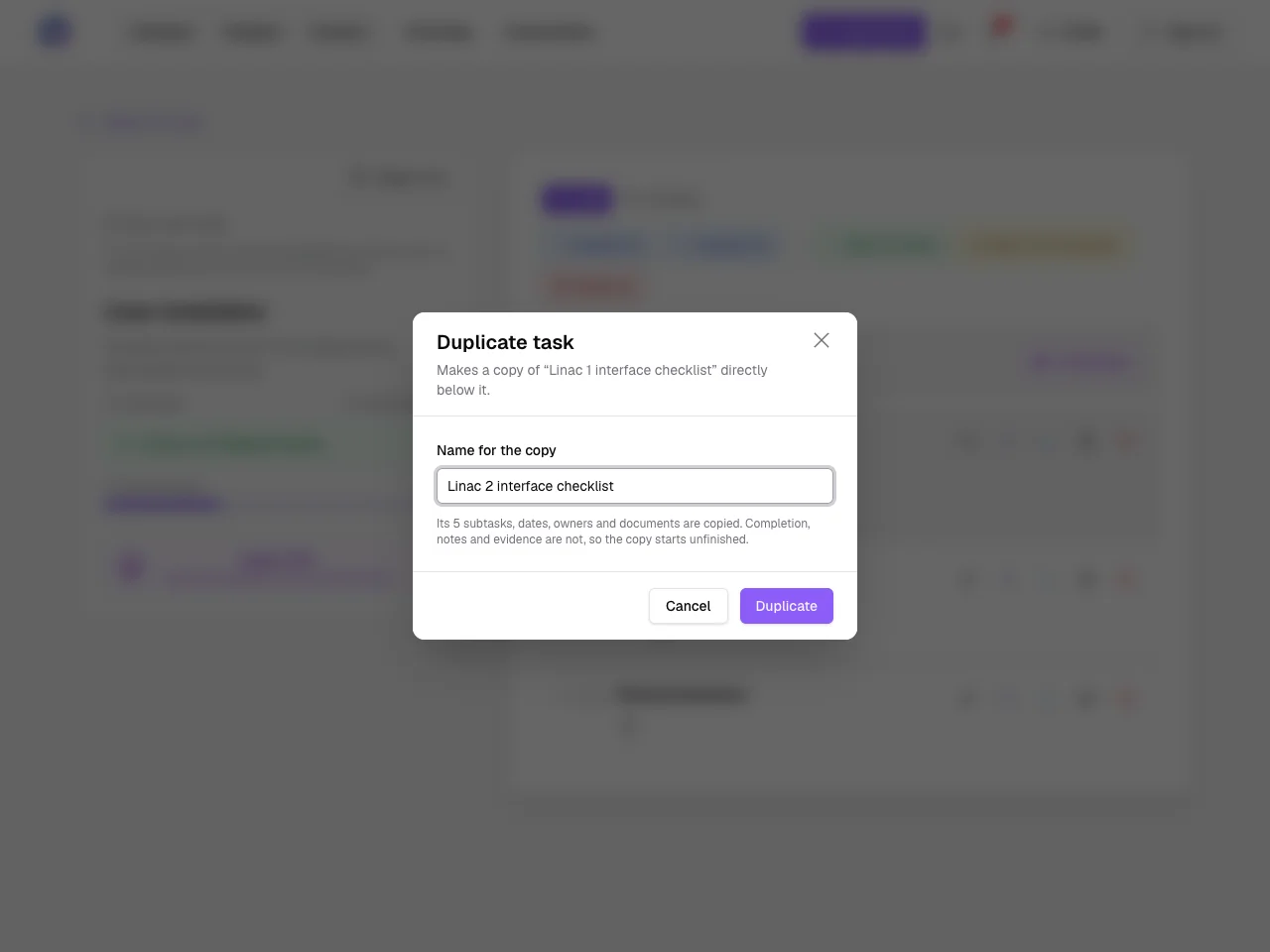
The copy sits right below the original, unticked, so each machine gets its own checklist.
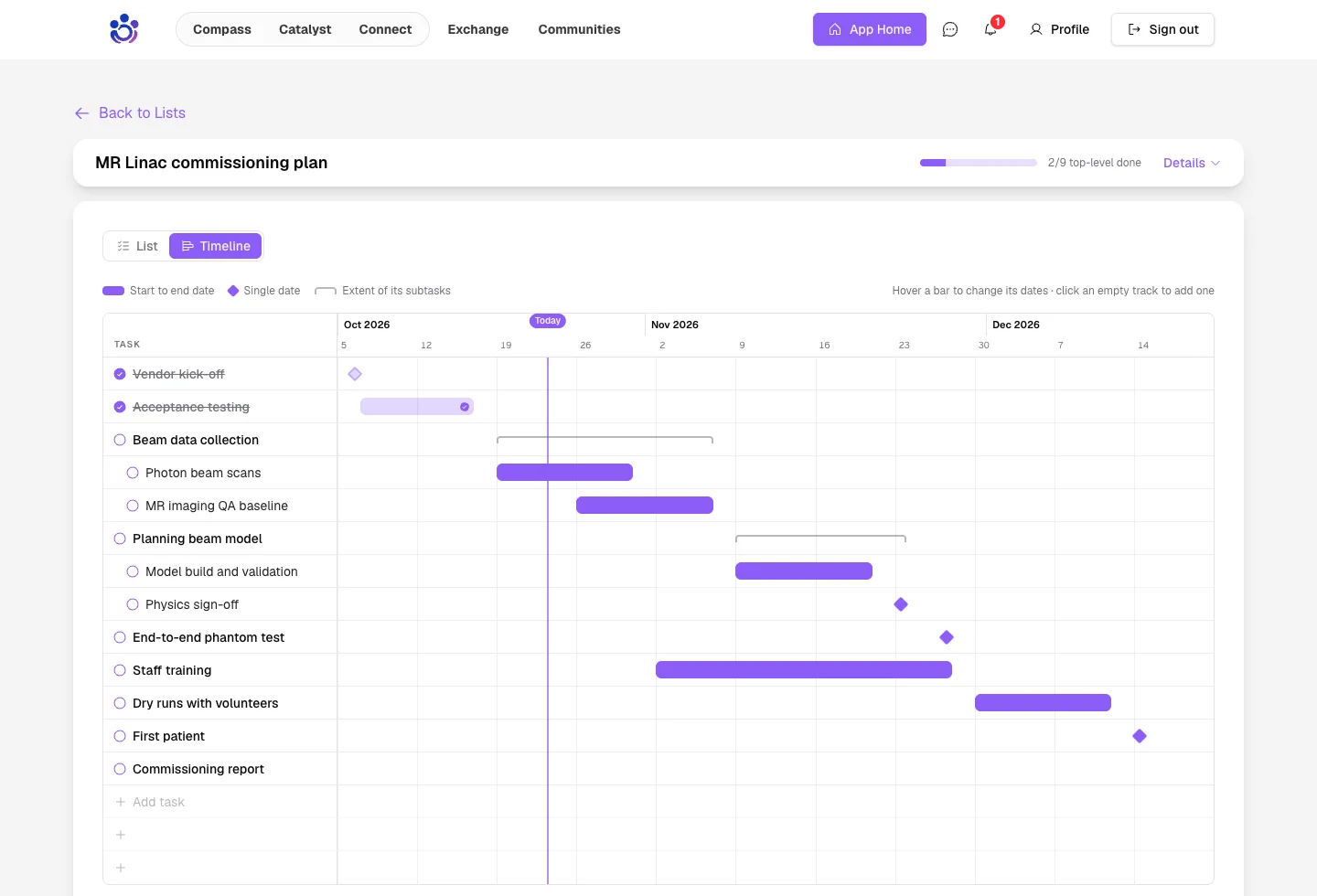
Timeline
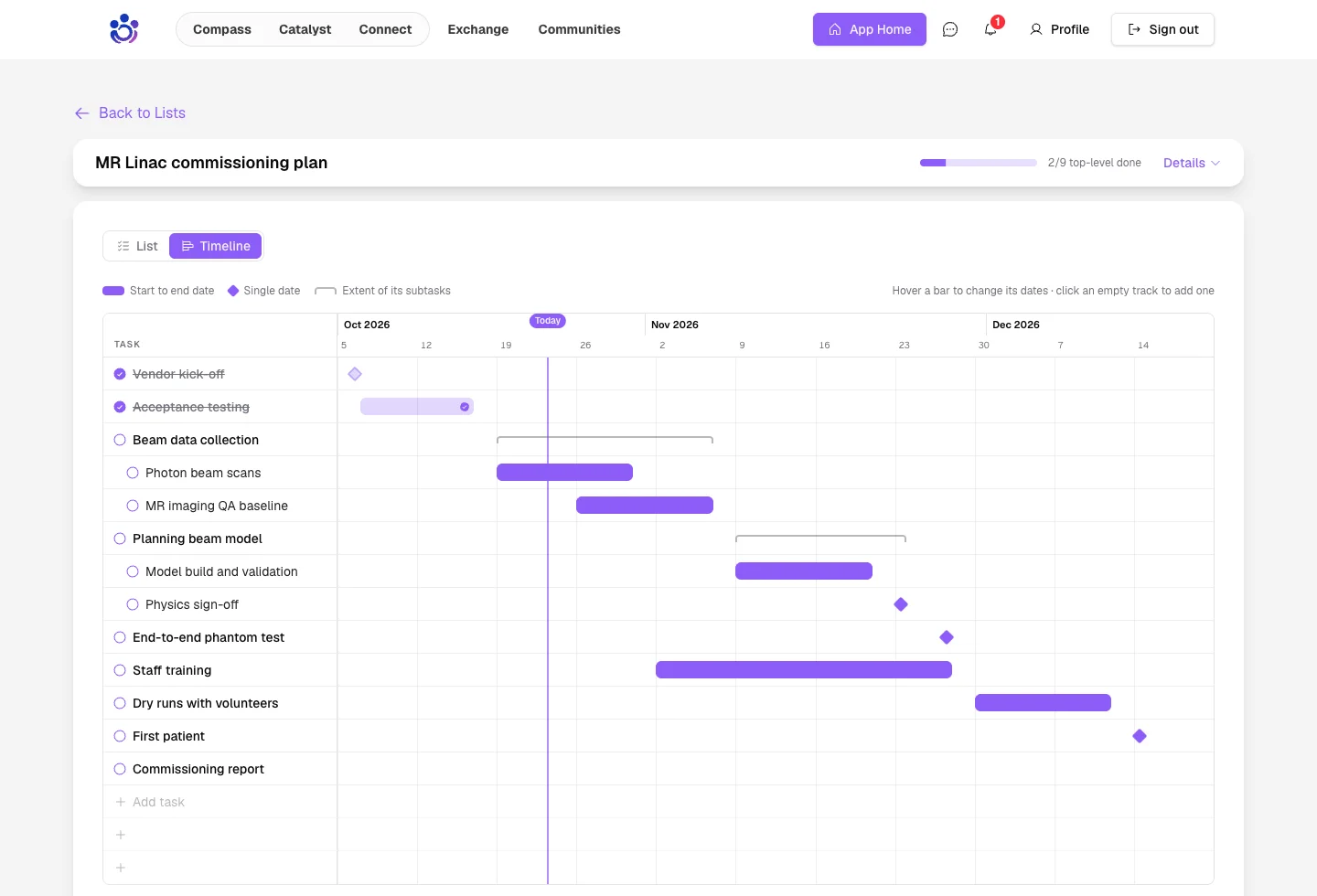
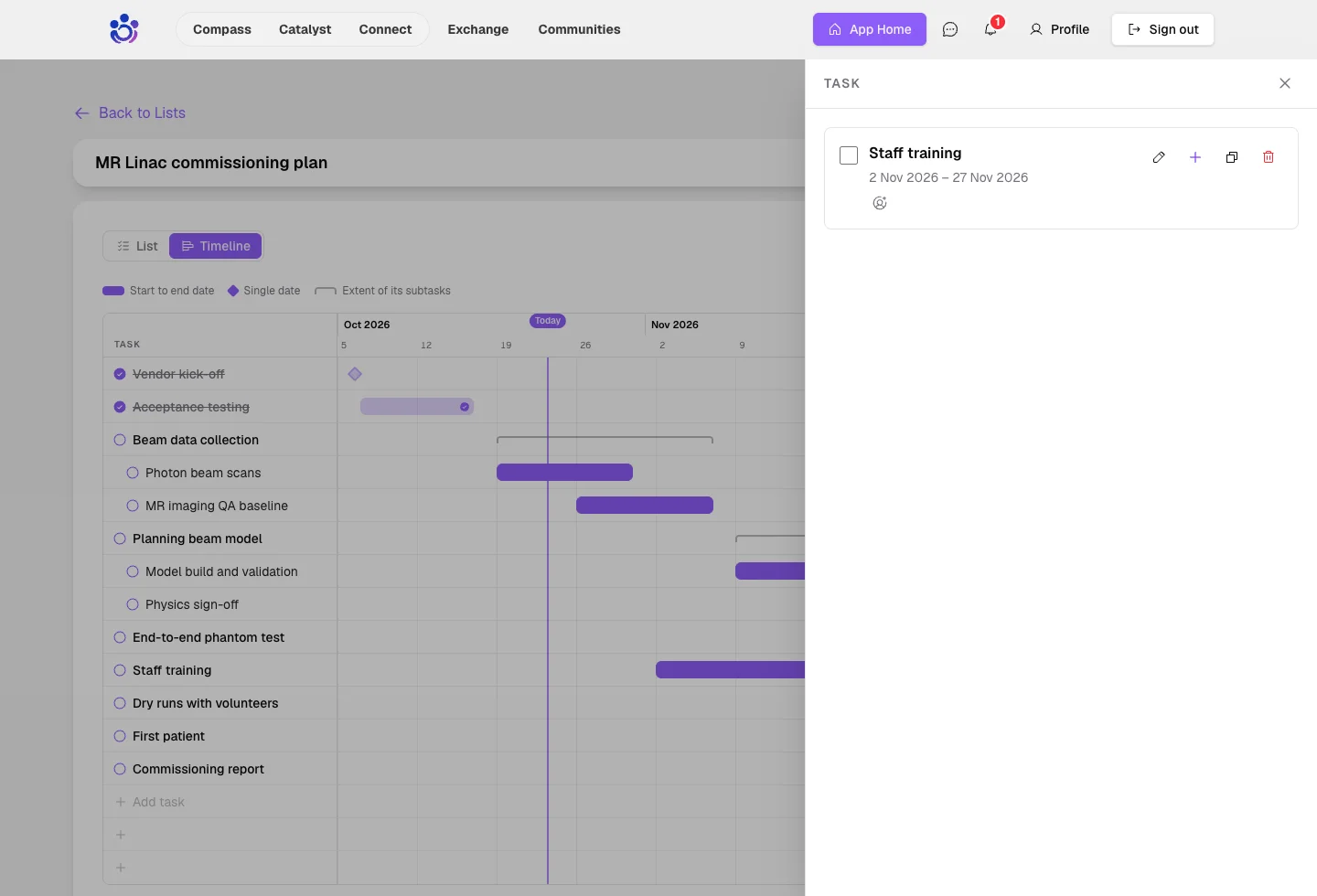
Tasks with dates now show on a timeline.
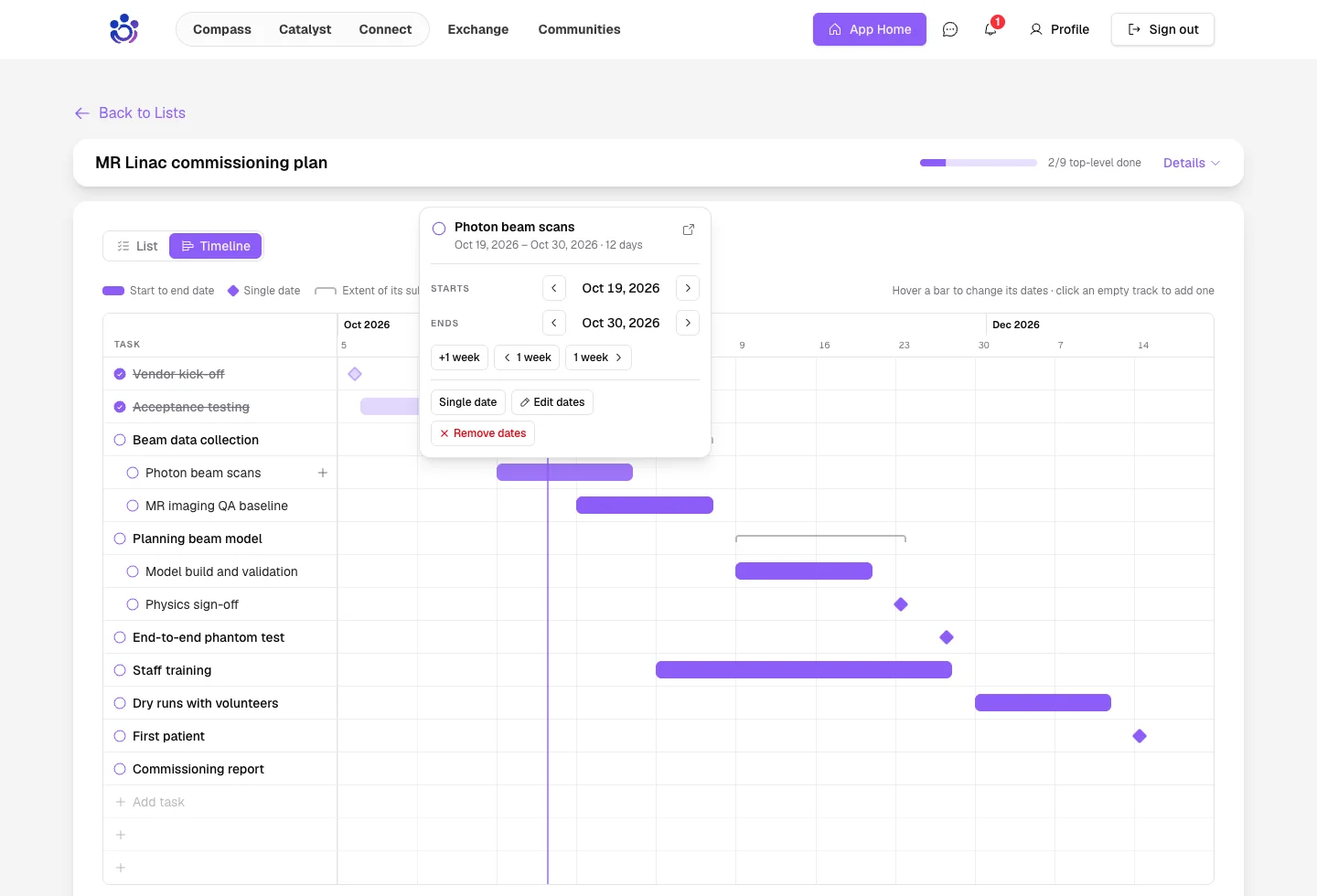
Change a task's dates straight from its bar.
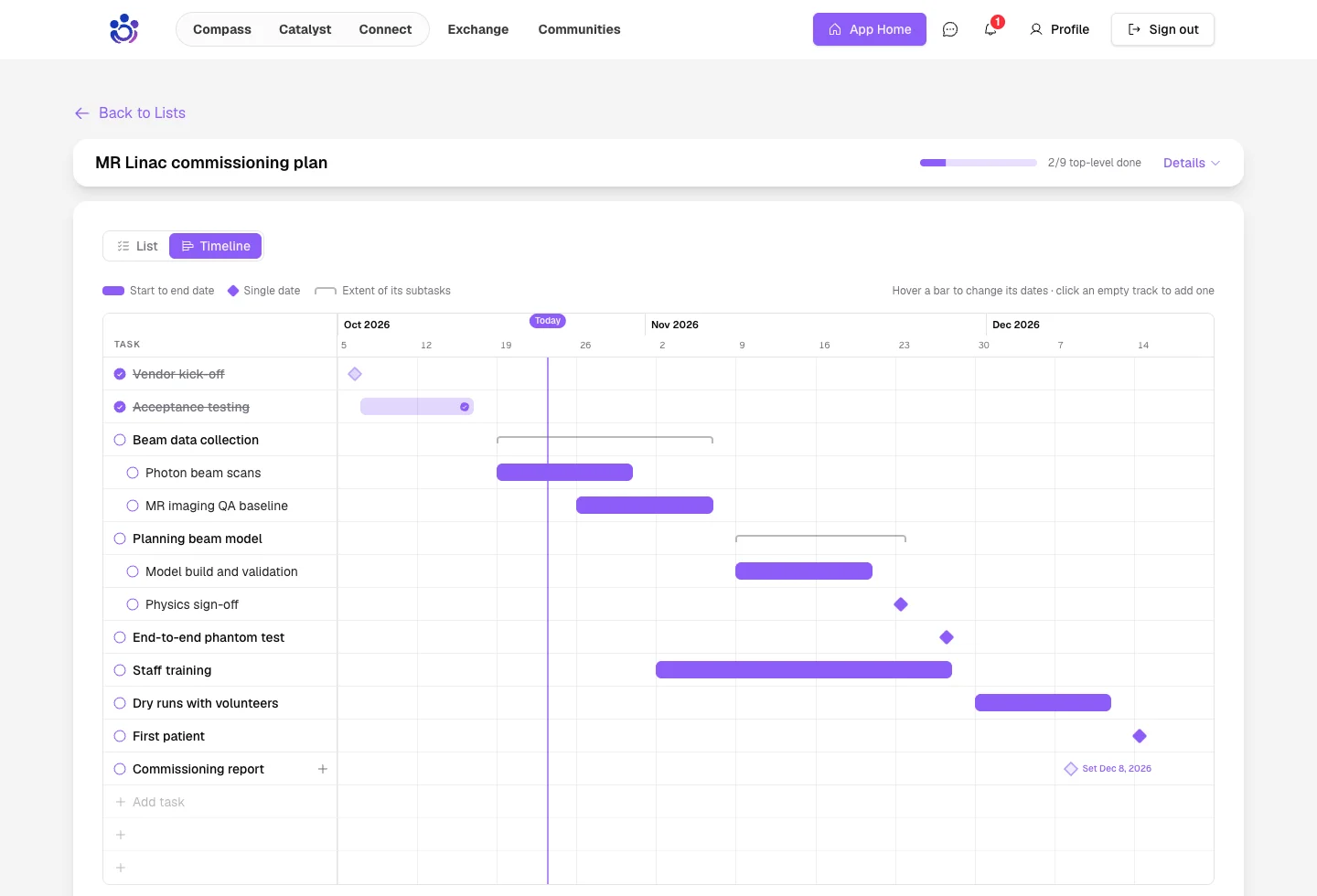
Click an empty row to give a task a date.
Open any task without leaving the timeline.
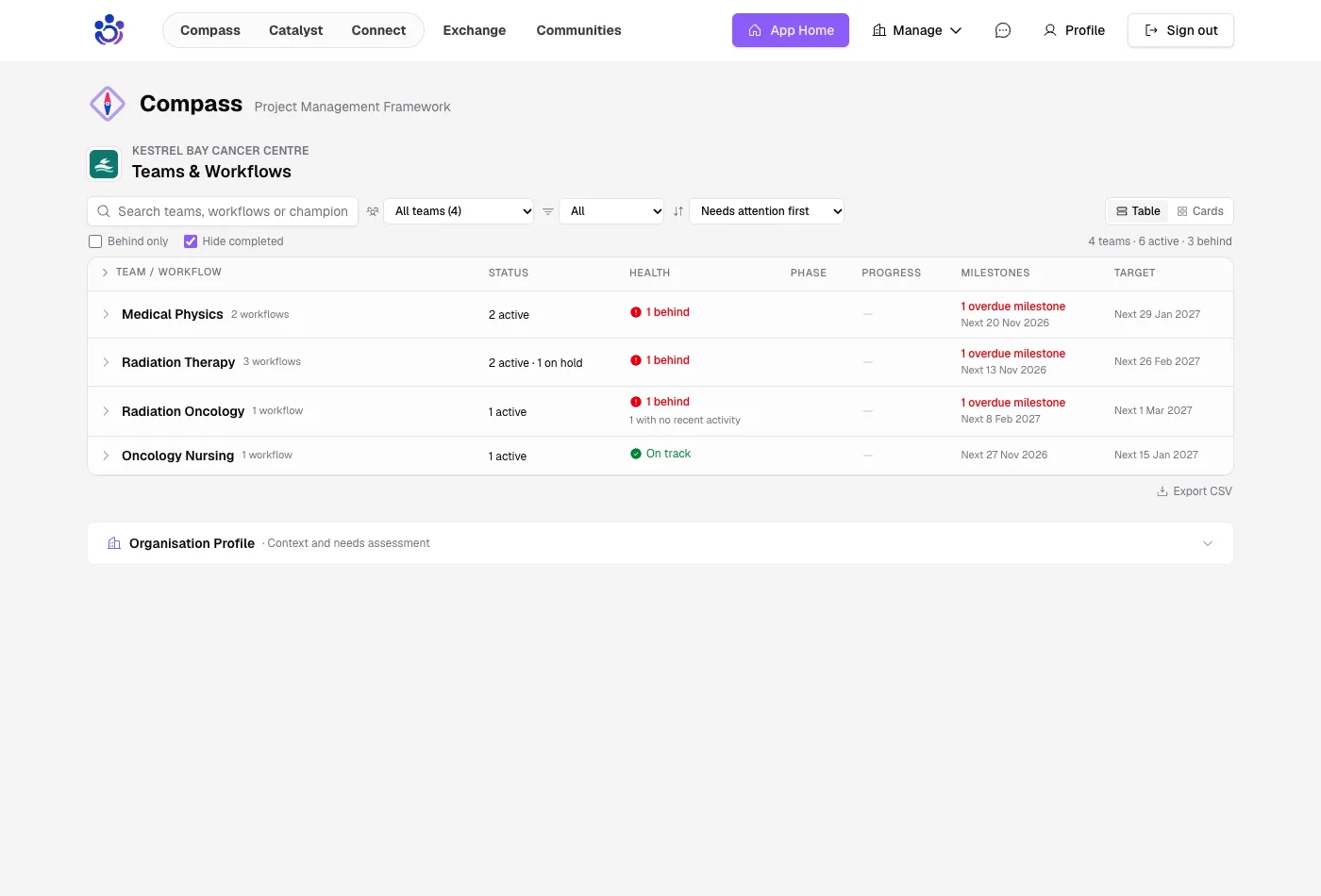
Everything at a glance
Compass now opens as one row per team, with status, health, milestones and target rolled up, and the teams that need attention first.
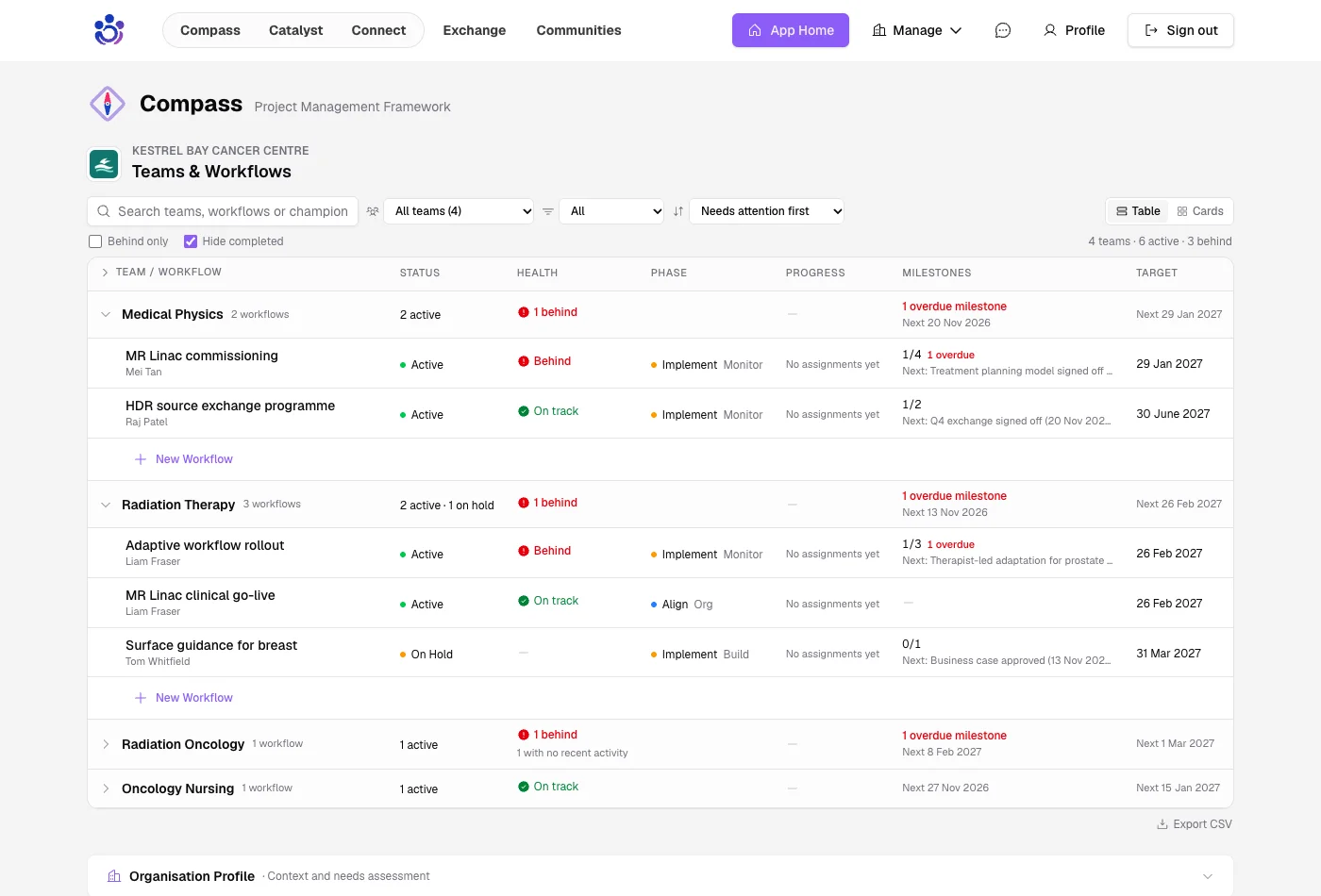
Open a team to see its workflows inline. Prefer cards? They are one click away.
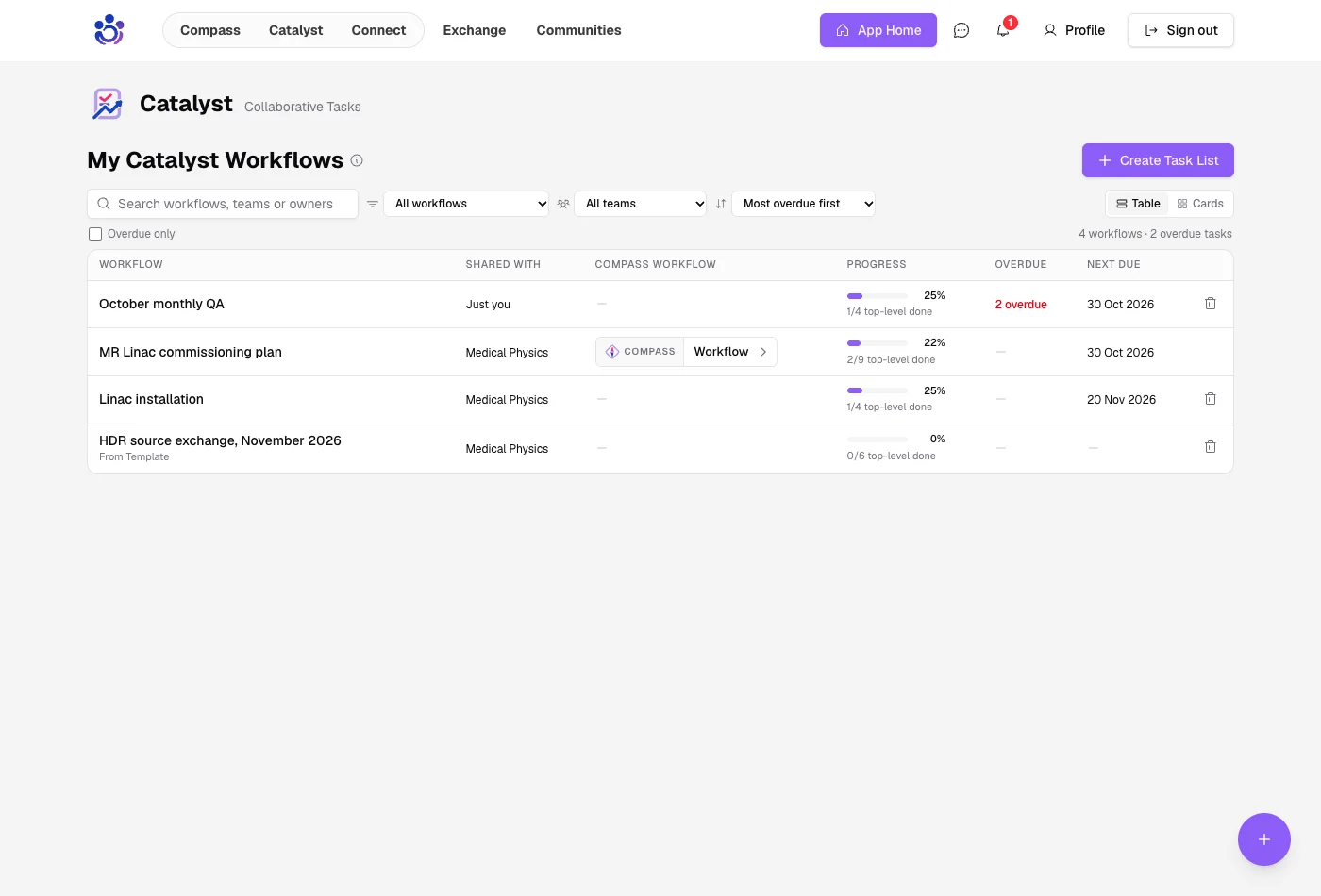
Catalyst gets the same table: who each list is shared with, its progress, overdue tasks and what is due next.
Your organisation
Getting started checklists
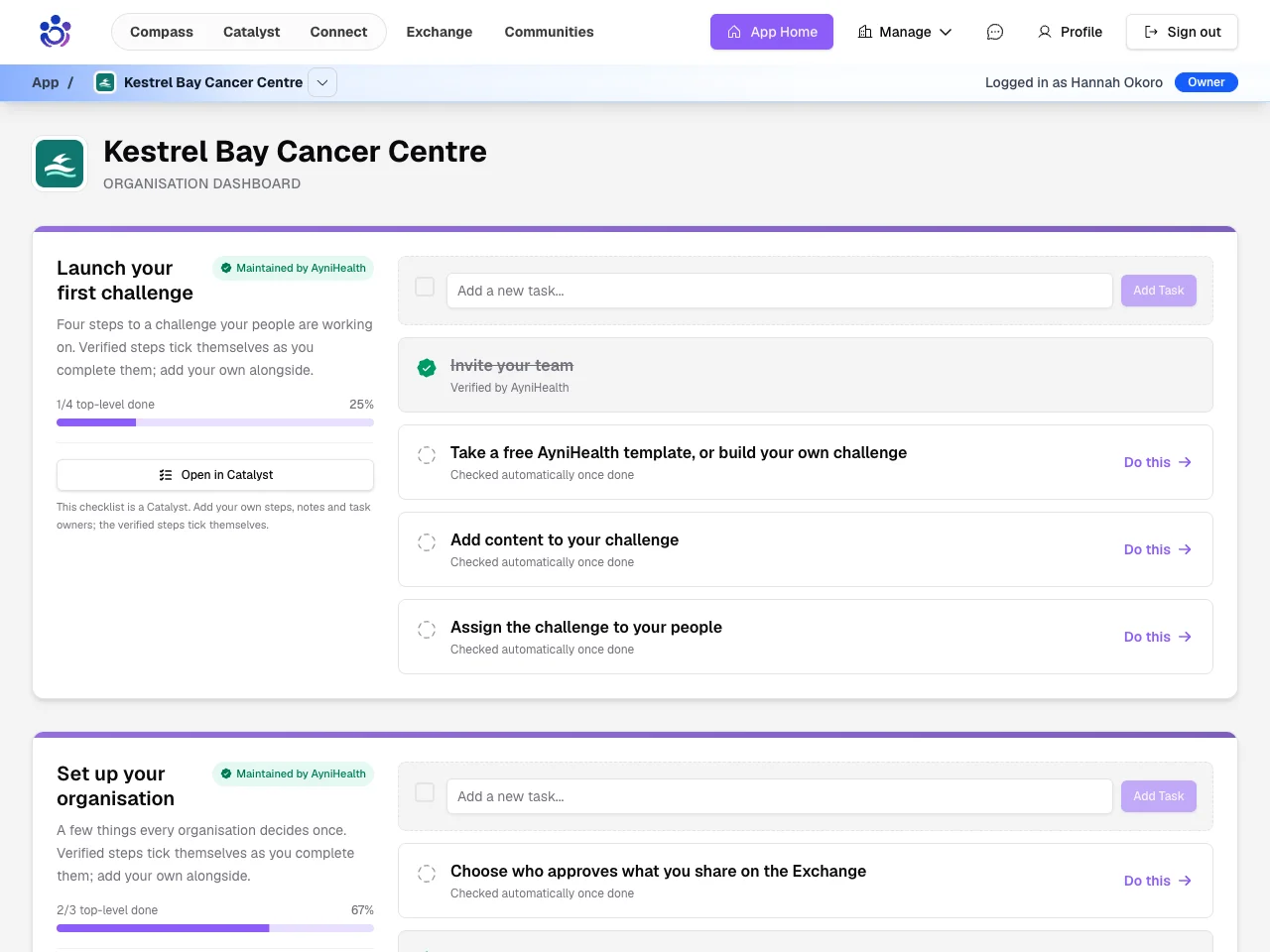
A new admin now gets a checklist that takes them from an empty organisation to their first assigned challenge, and each step ticks itself once it is done.
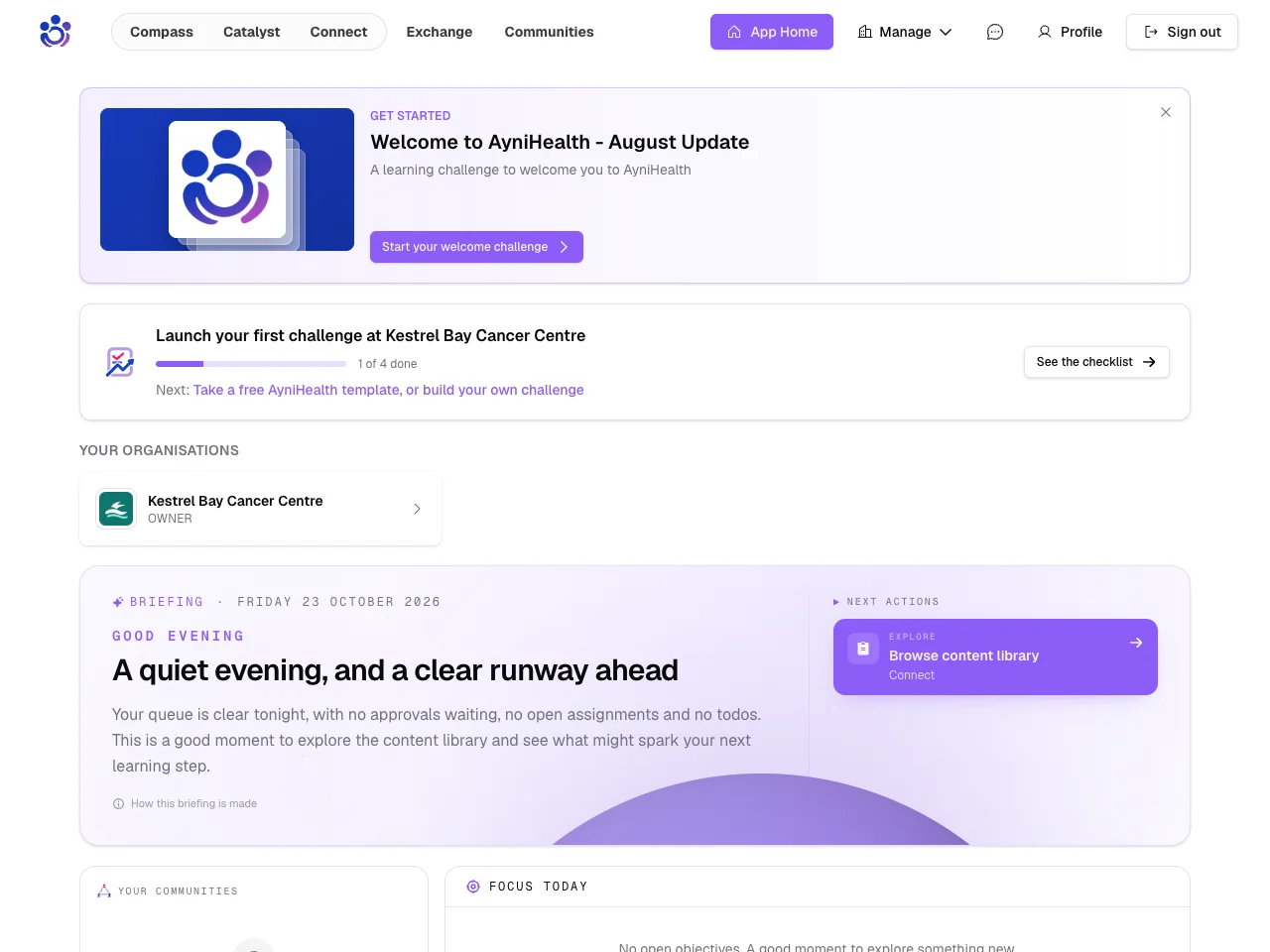
The full checklist sits on the admin dashboard, with a link to where each step gets done.
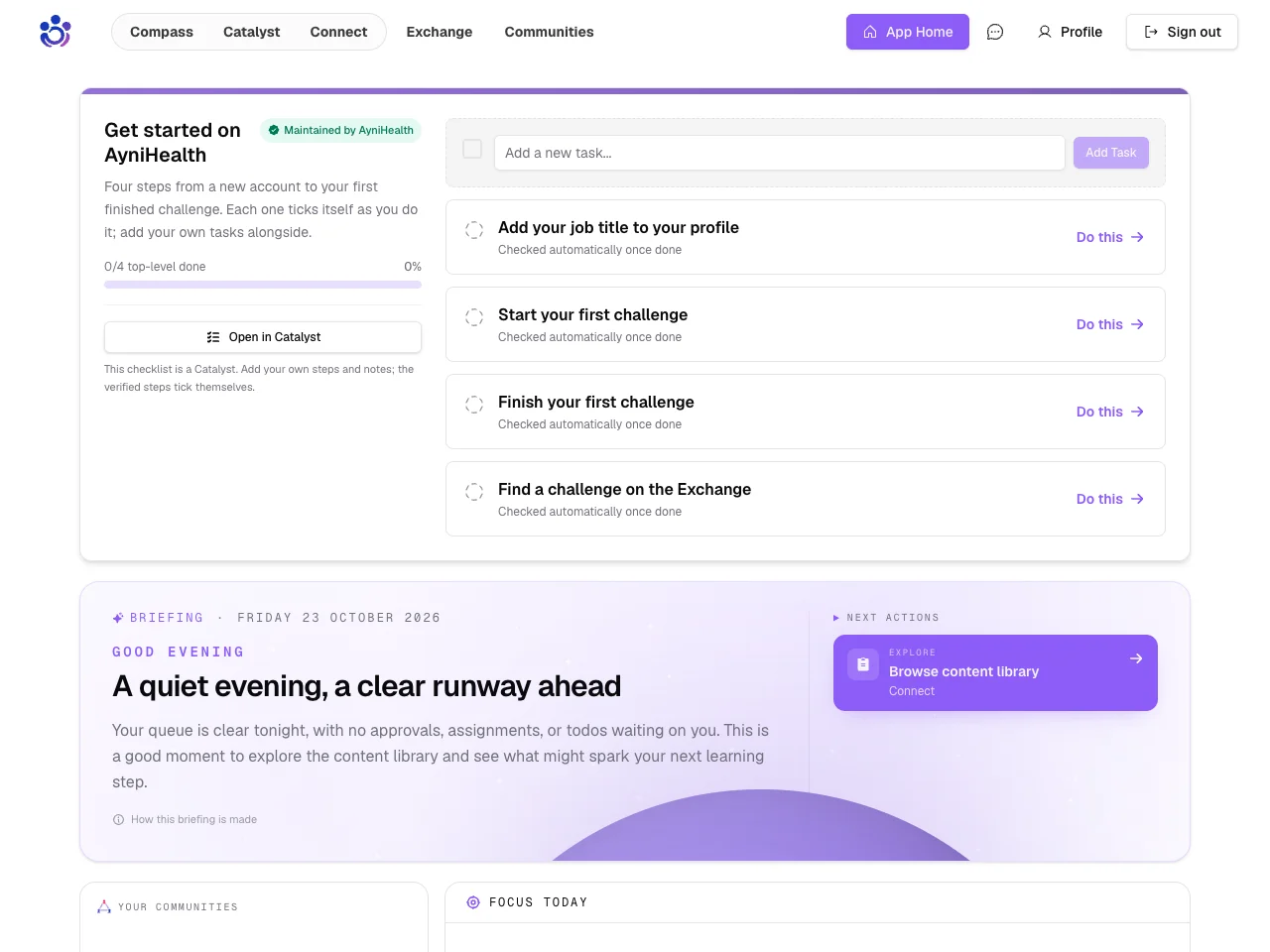
People who join AyniHealth on their own get one too, in place of the welcome banner.
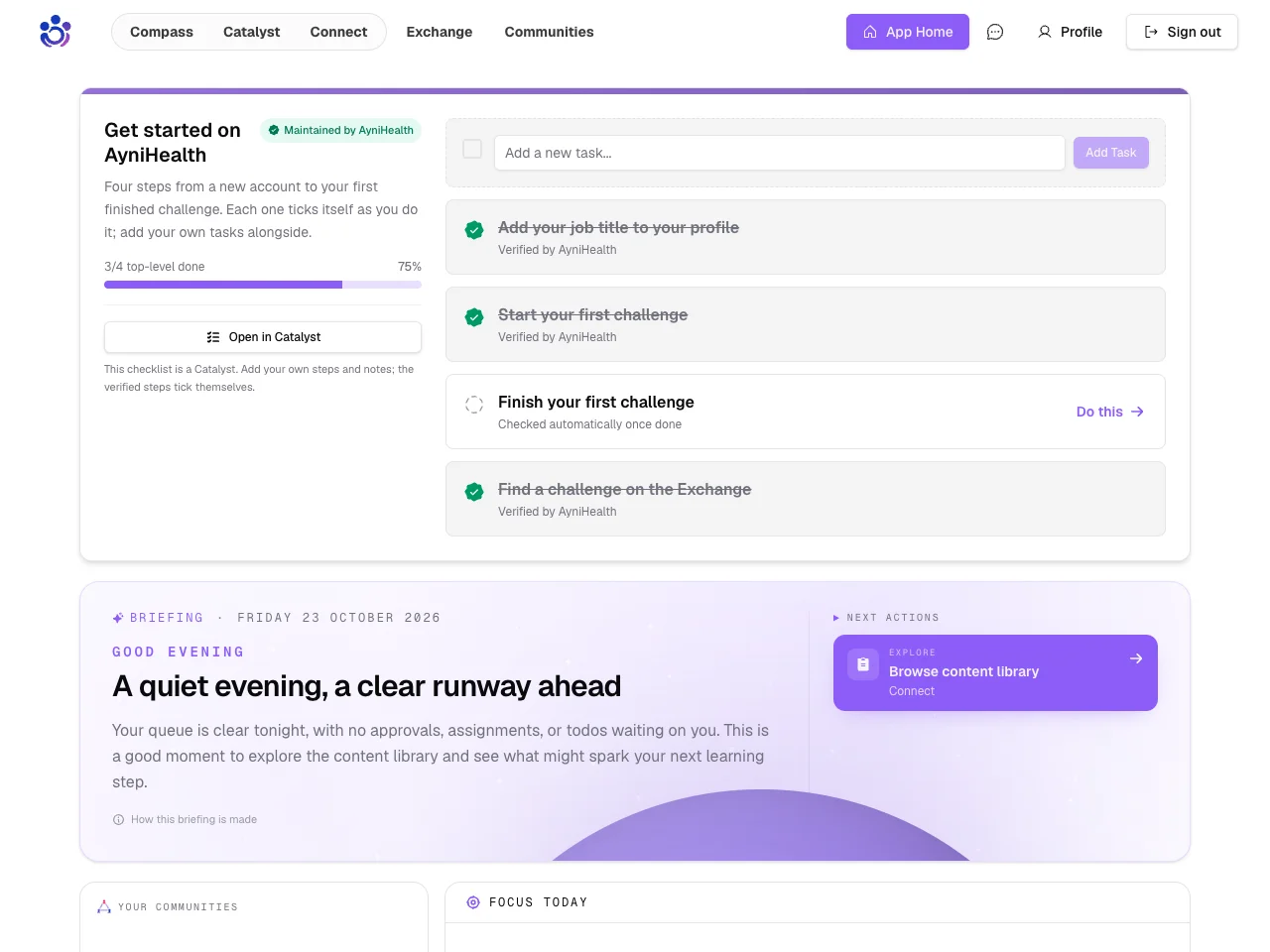
It keeps up with them as they go.
Your brand, throughout
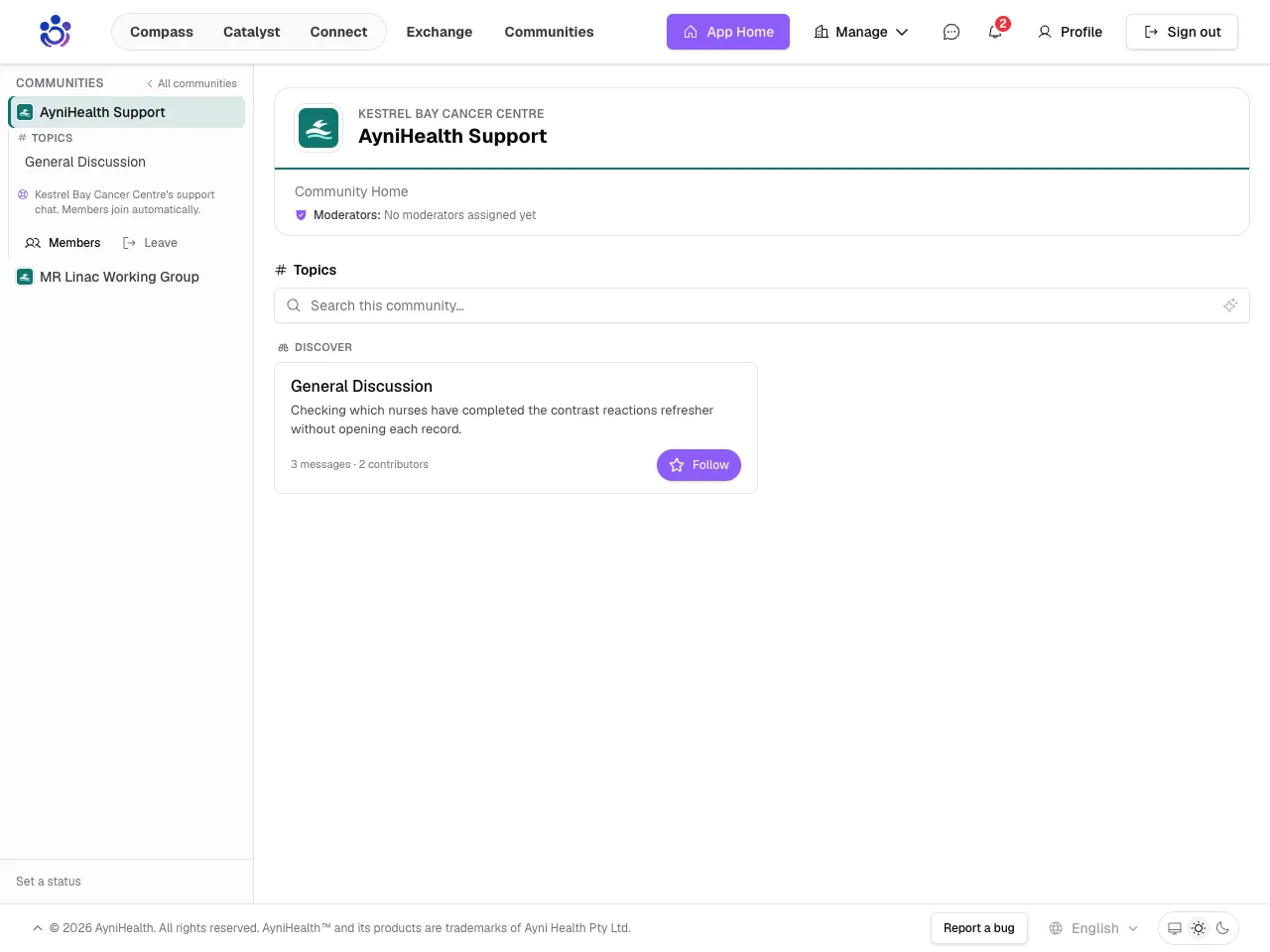
Your organisation's logo and colour now appear wherever AyniHealth shows whose something is, starting on the home page.
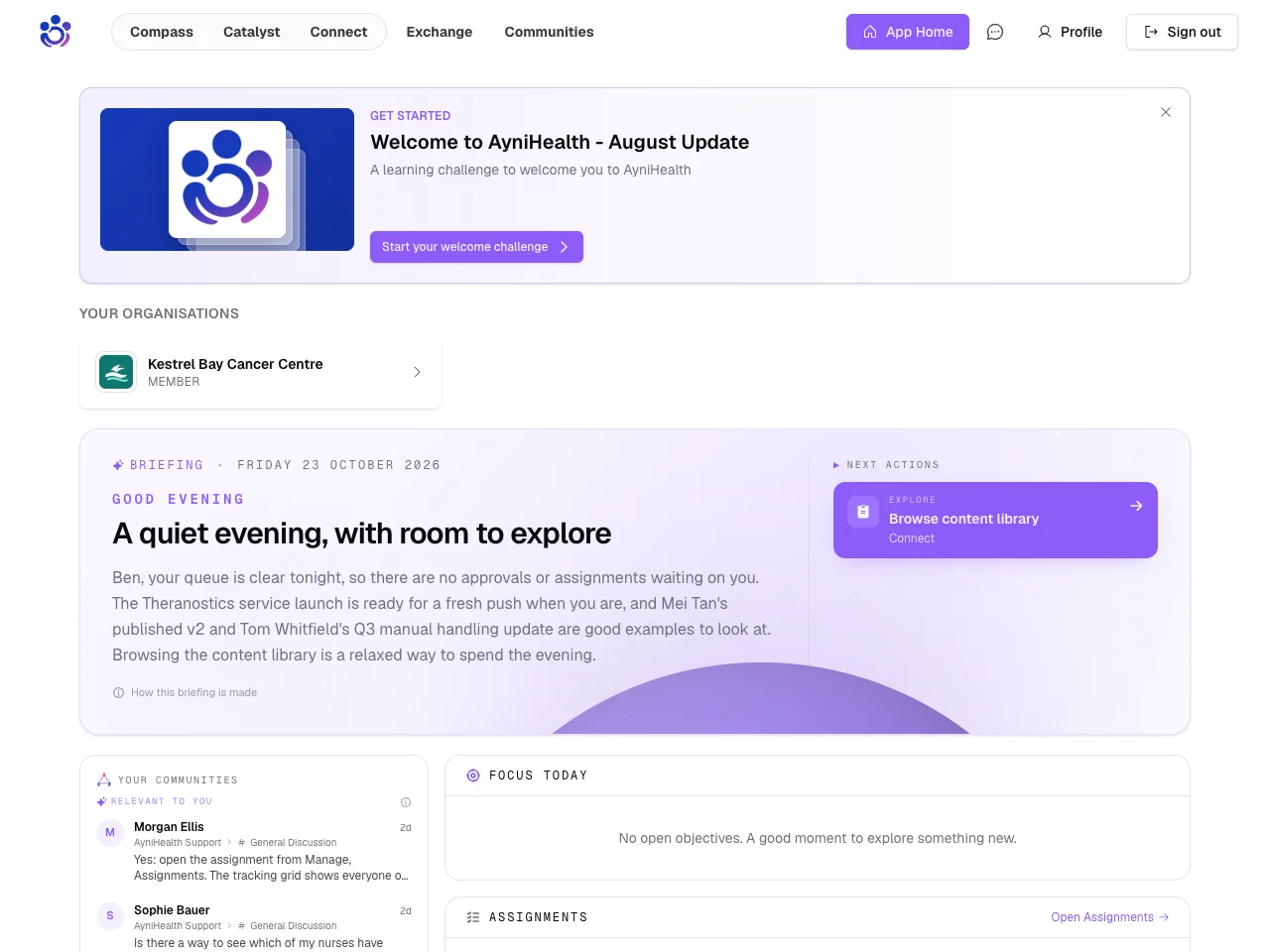
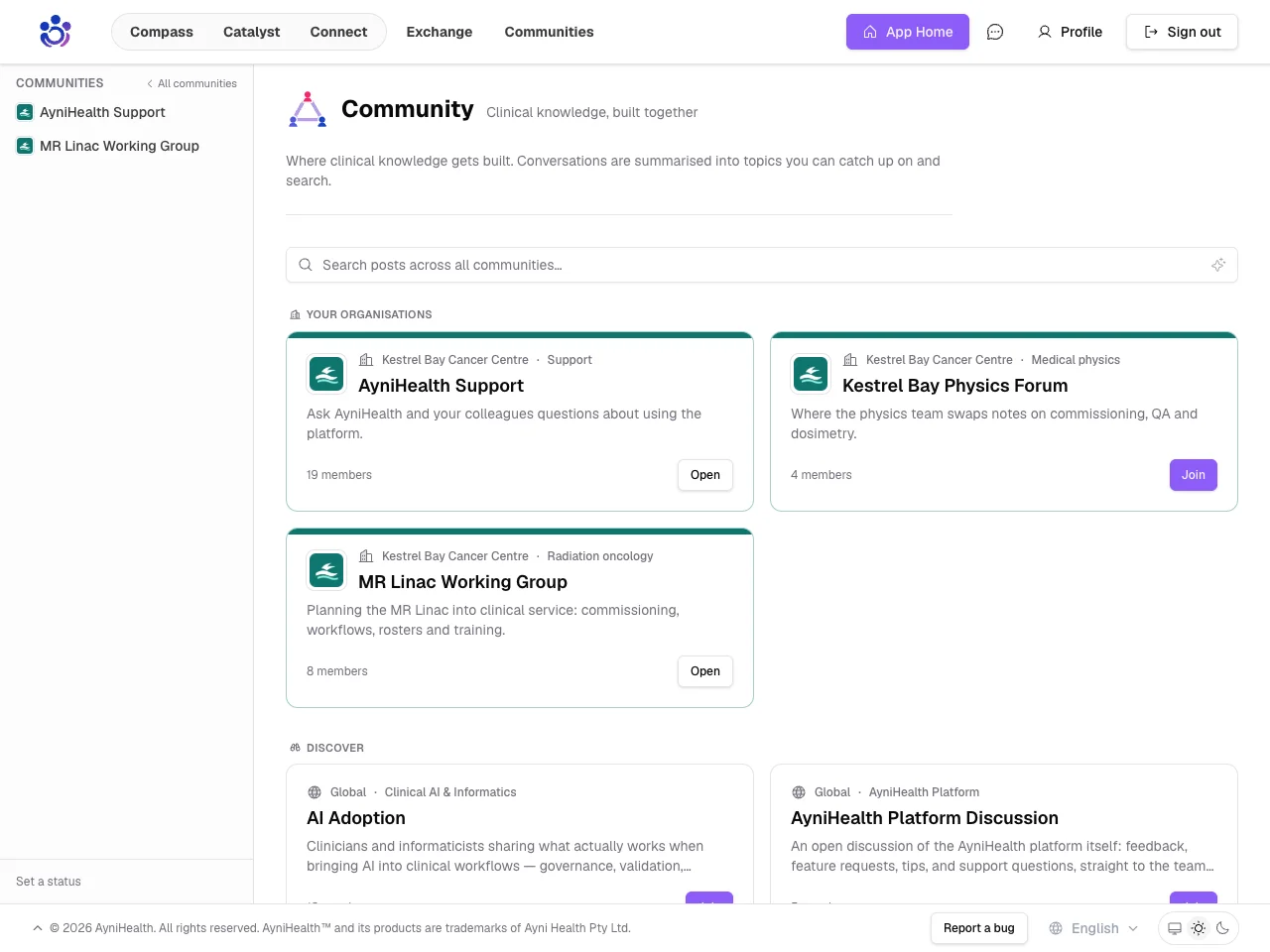
Your communities carry them too, so members can tell at a glance whose space they are in.
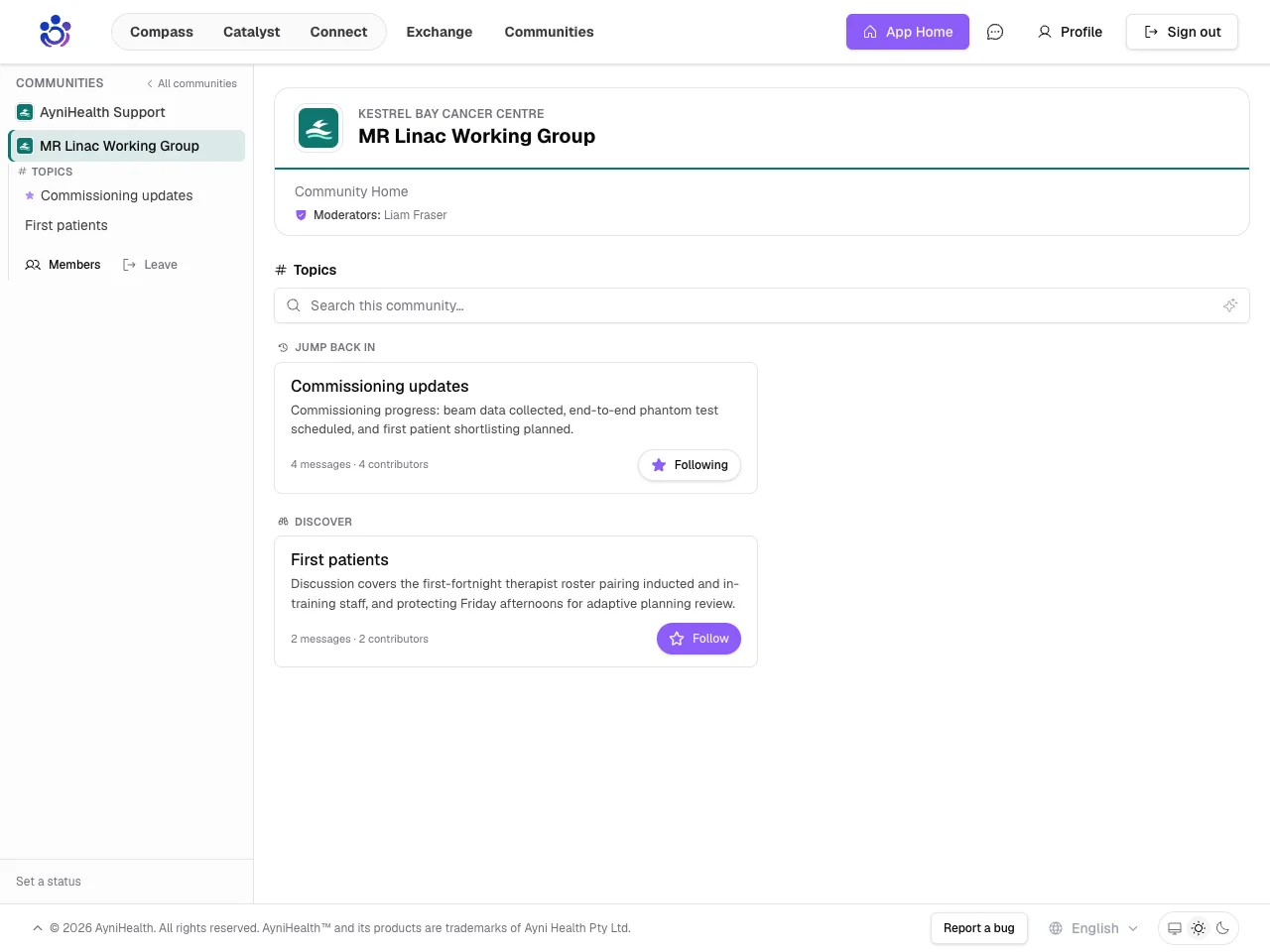
Inside, the community wears your logo and colour.
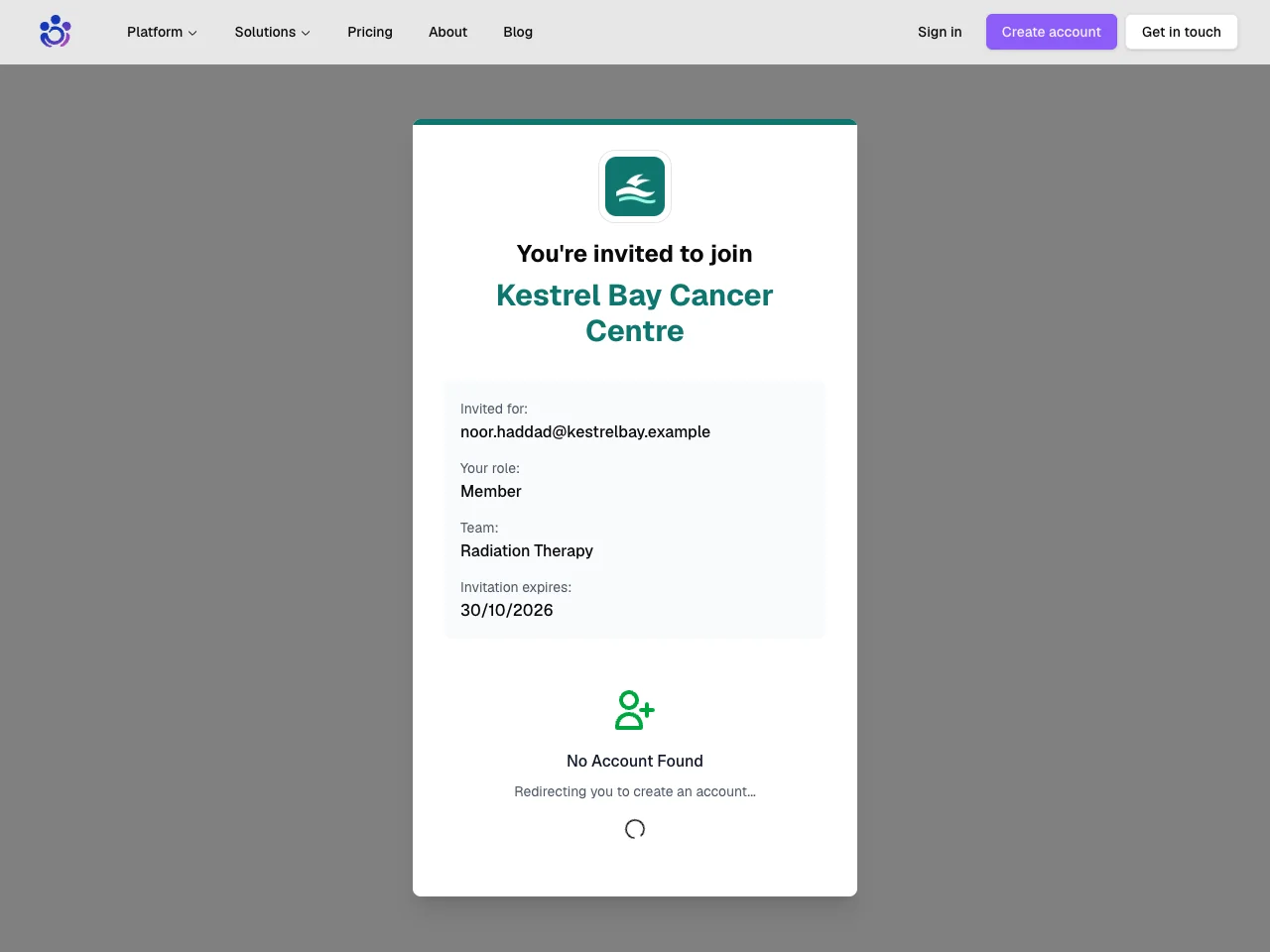
Invitations lead with your logo, so new staff know who is asking them to join.
And every project shows the organisation it belongs to.
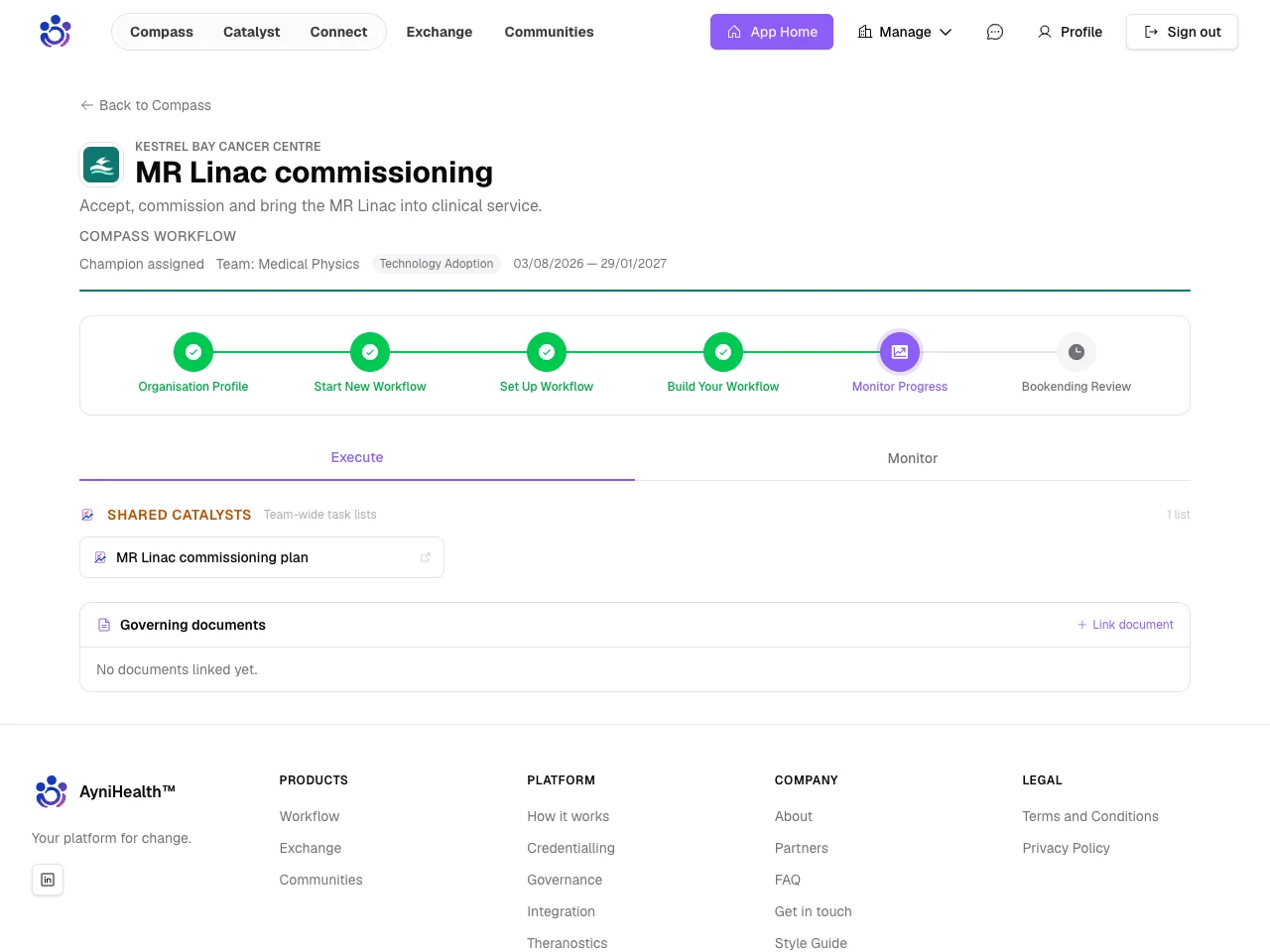
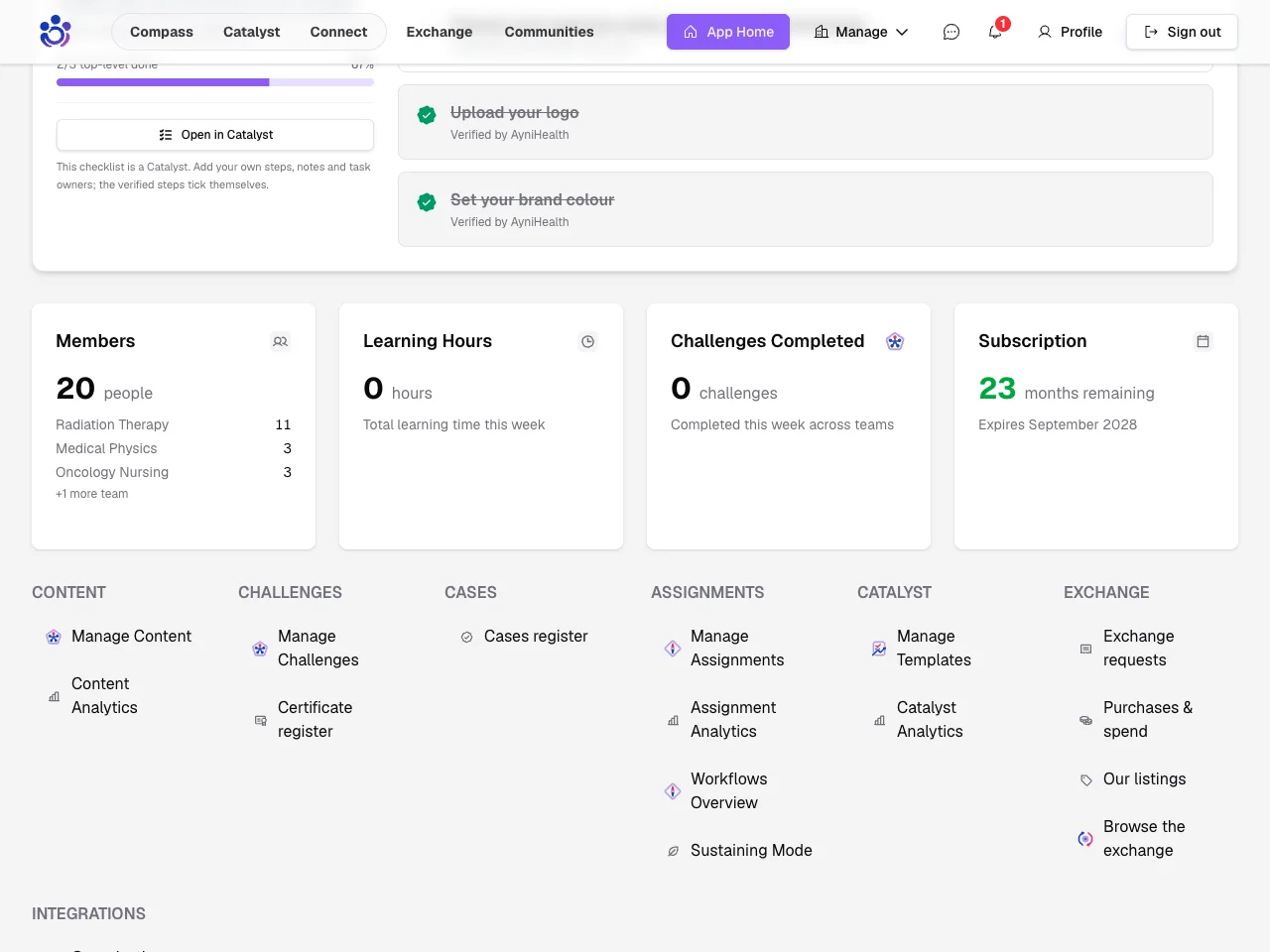
Bring your whole department
Every subscription now includes unlimited staff, so an invitation never stops at a seat count. The admin dashboard shows how many people you have instead, and how they are spread across your teams.
Pause a member on leave
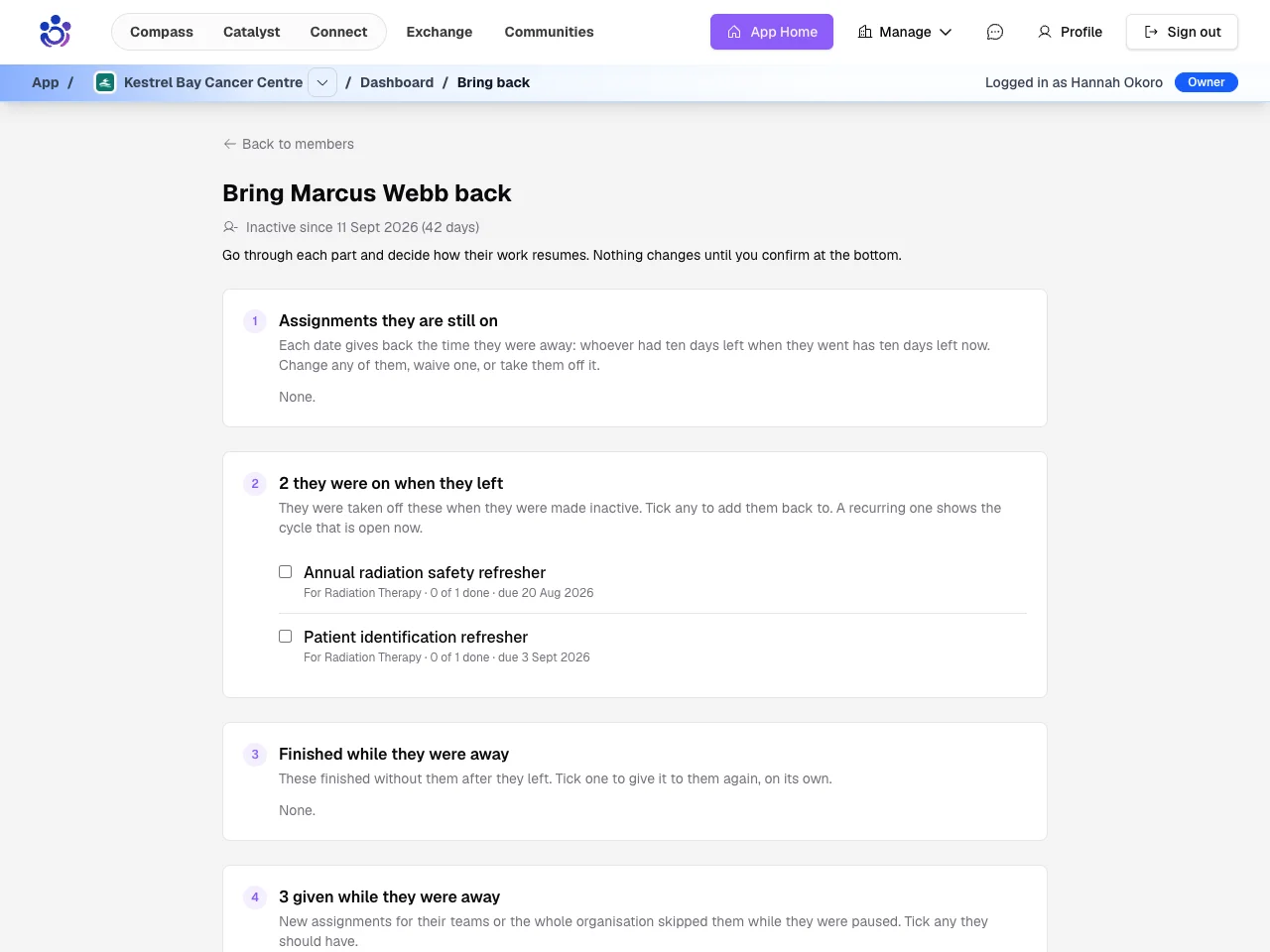
Someone going on parental leave, a sabbatical or a secondment can now be paused instead of removed, keeping their role, their teams and their progress.
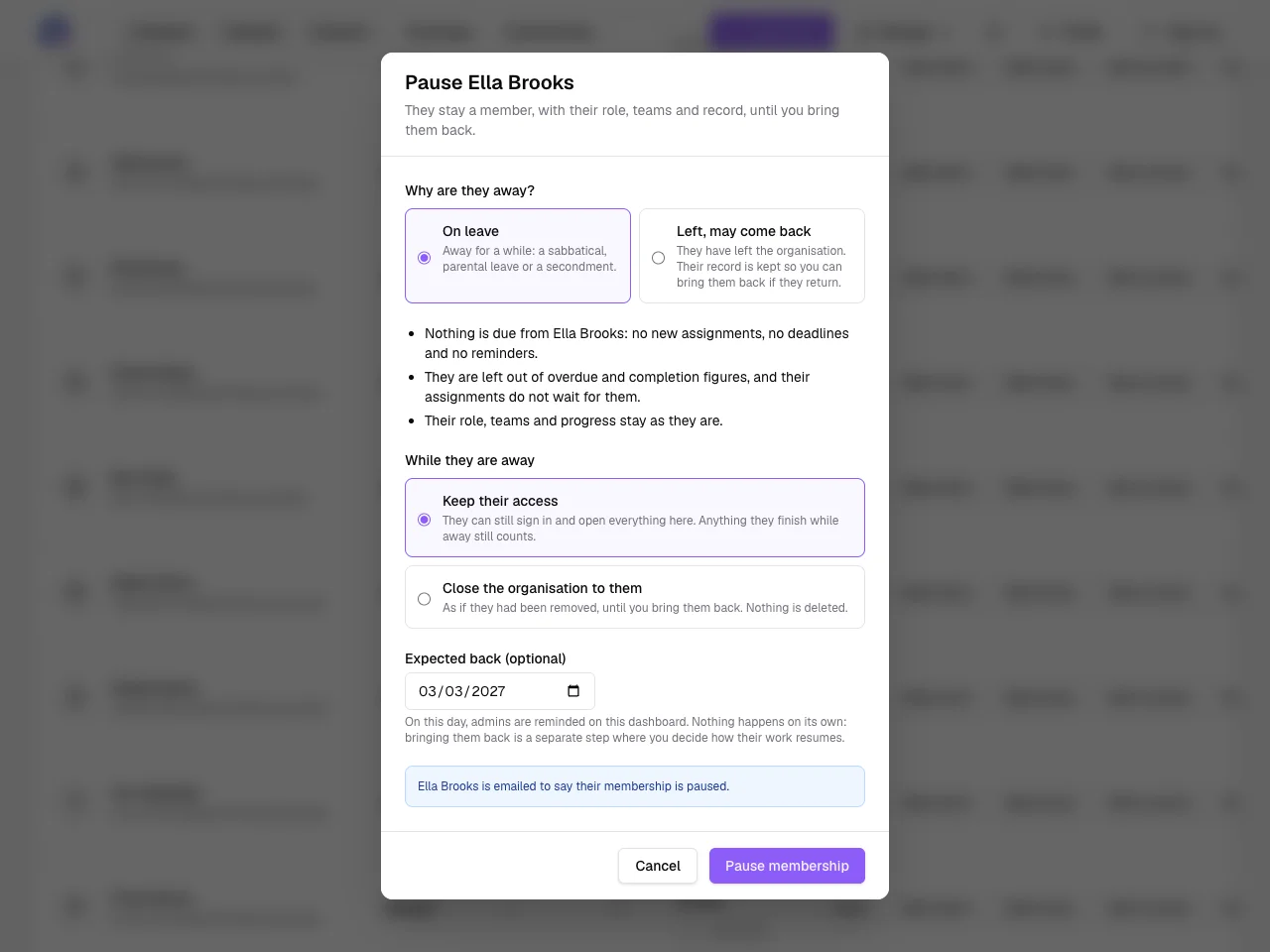
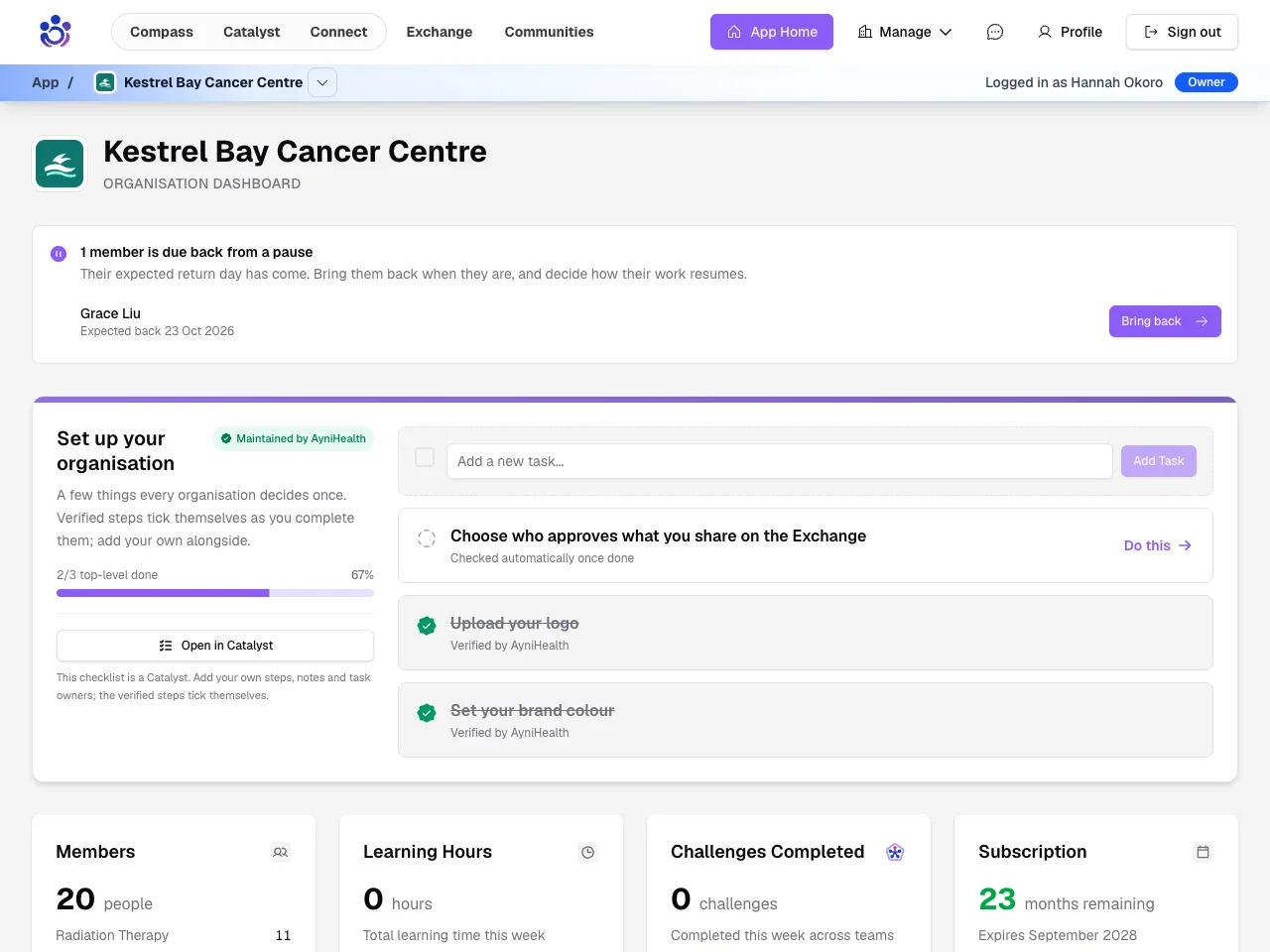
While they are away nothing is due from them and nobody chases them. When their expected return day comes, the dashboard reminds you.
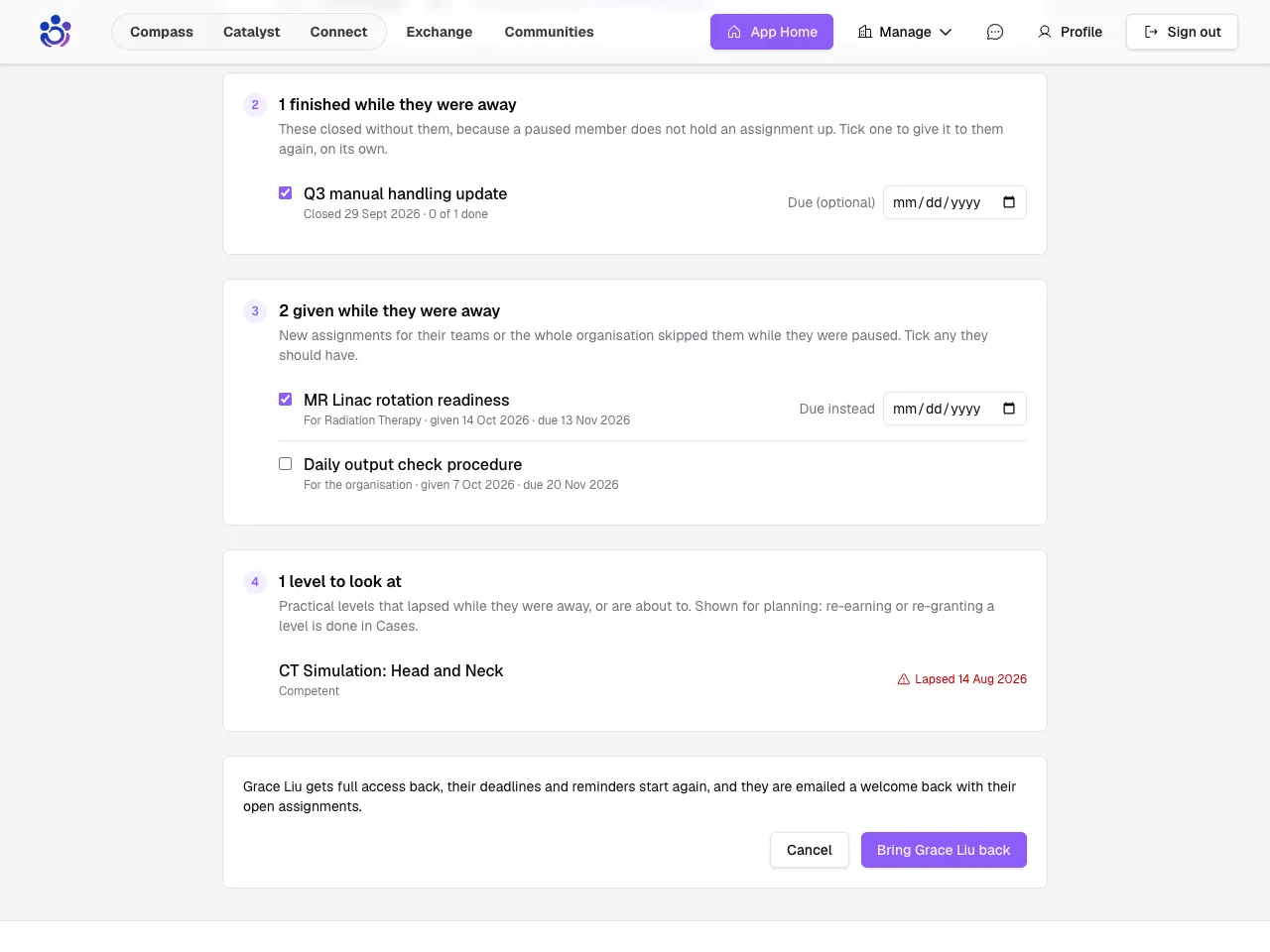
Bringing them back gives them the time they were away: ten days left when they went means ten days left now.
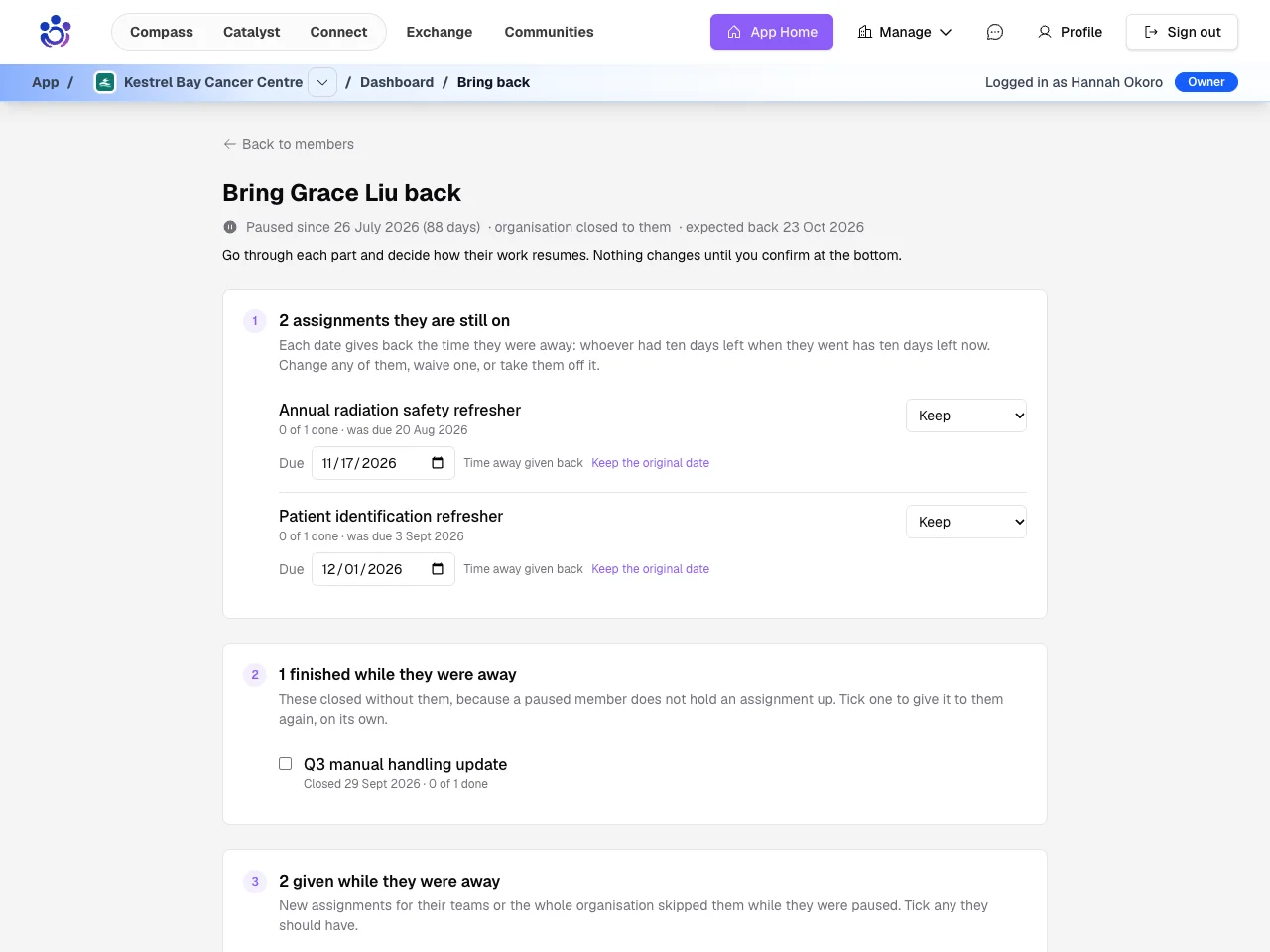
You also see what finished or was given out while they were away, and choose what to give them.
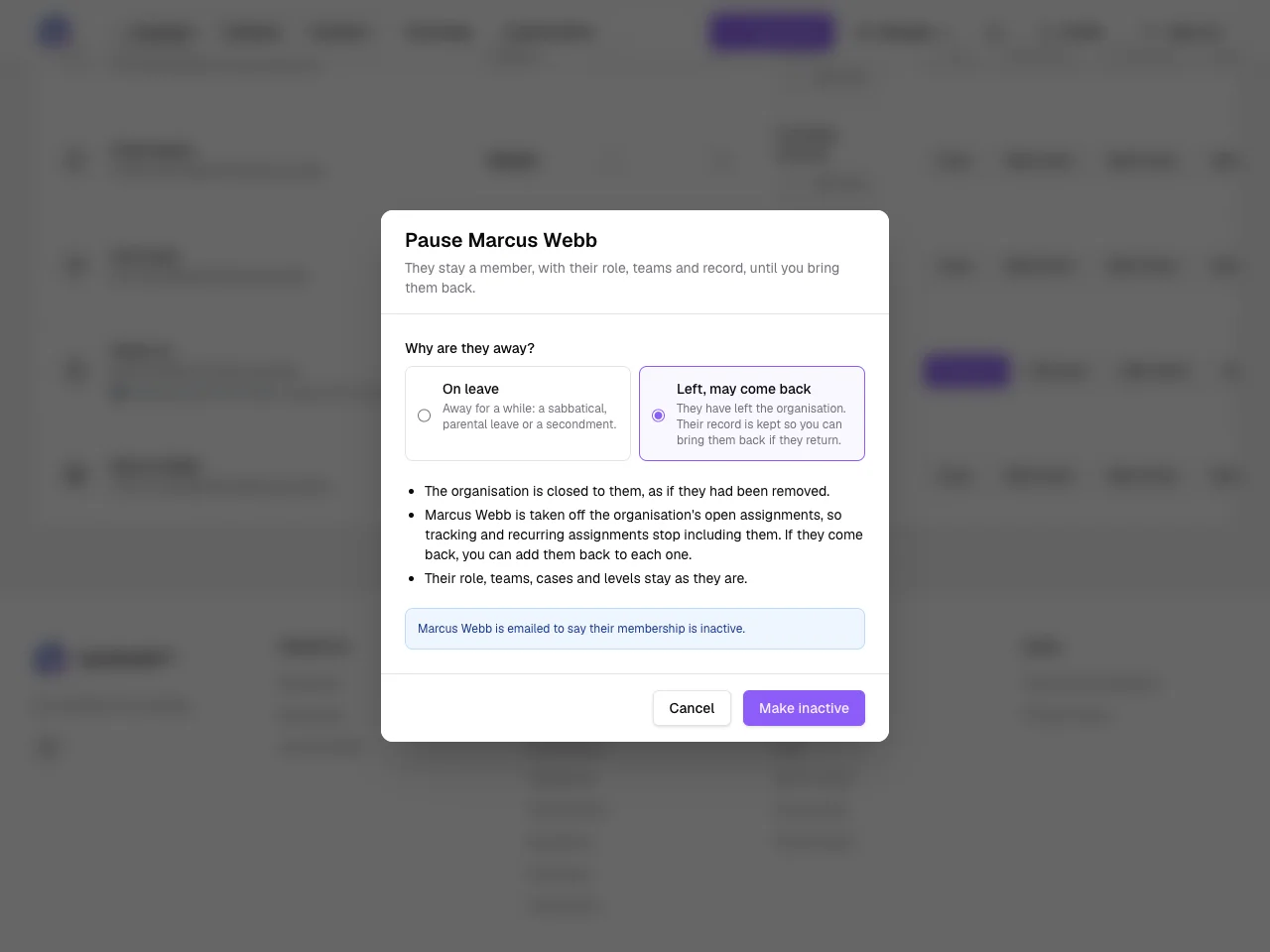
Someone who has left, and may come back
When someone leaves and might one day return, make them inactive instead of removing them. Their record stays with you: role, teams, cases and levels.
They wait at the foot of your members list, out of every tracking grid and recurring assignment.
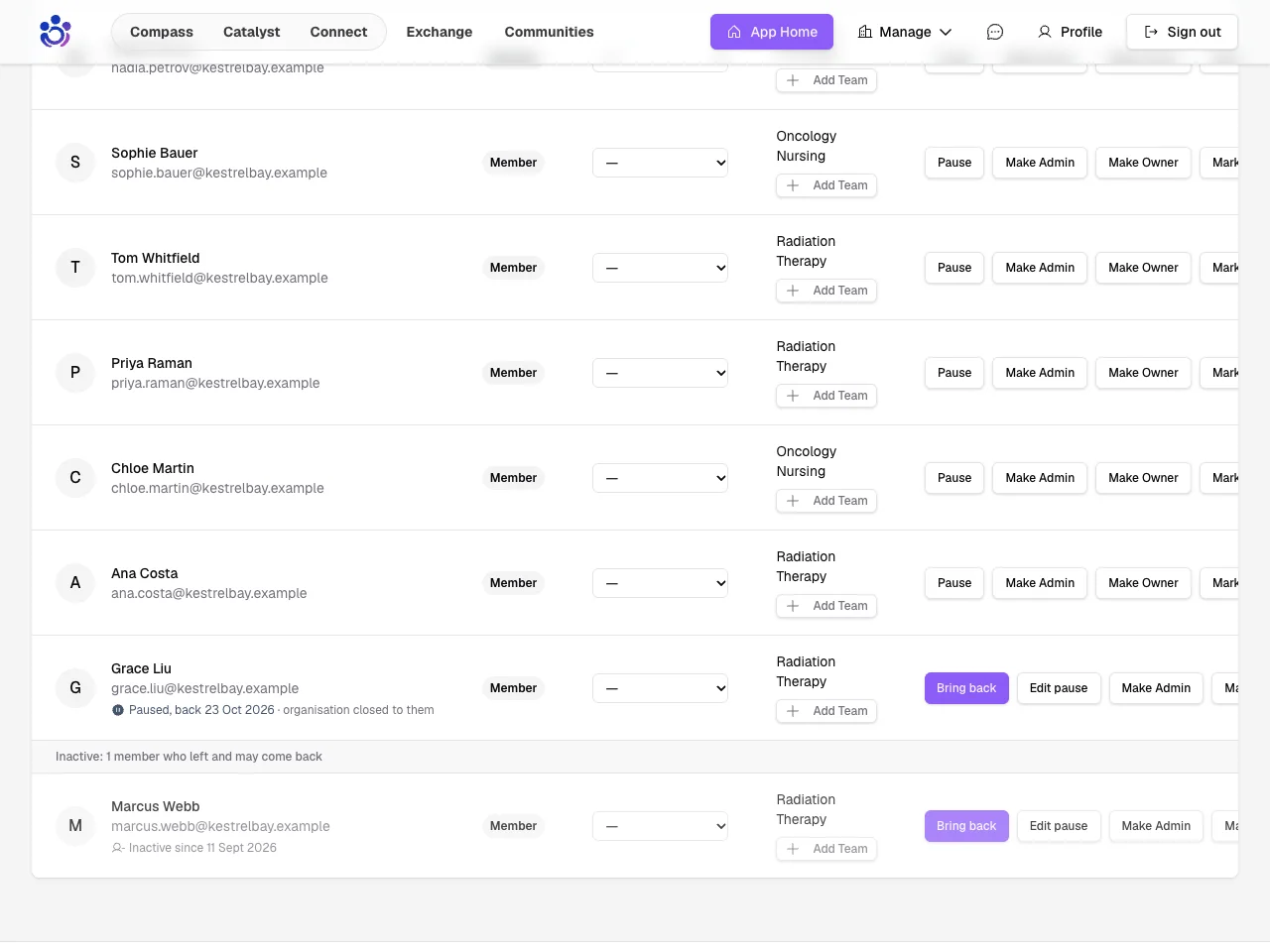
If they return, bring them back the same way and choose which of their old assignments to give them again.
Help and communities
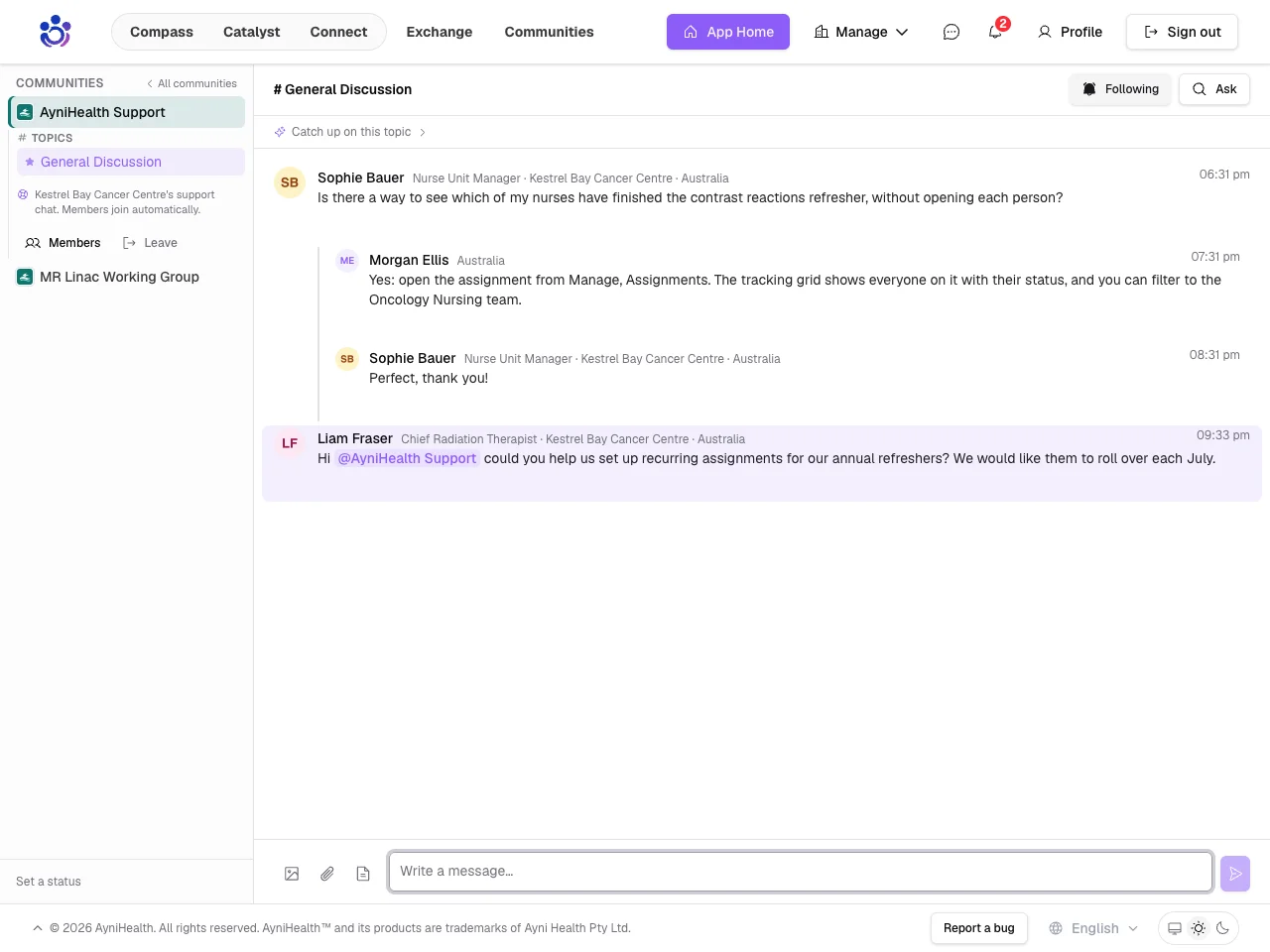
A support chat in every organisation
Every organisation now has an AyniHealth Support chat with all its members already in it, and Report a bug points there for questions.
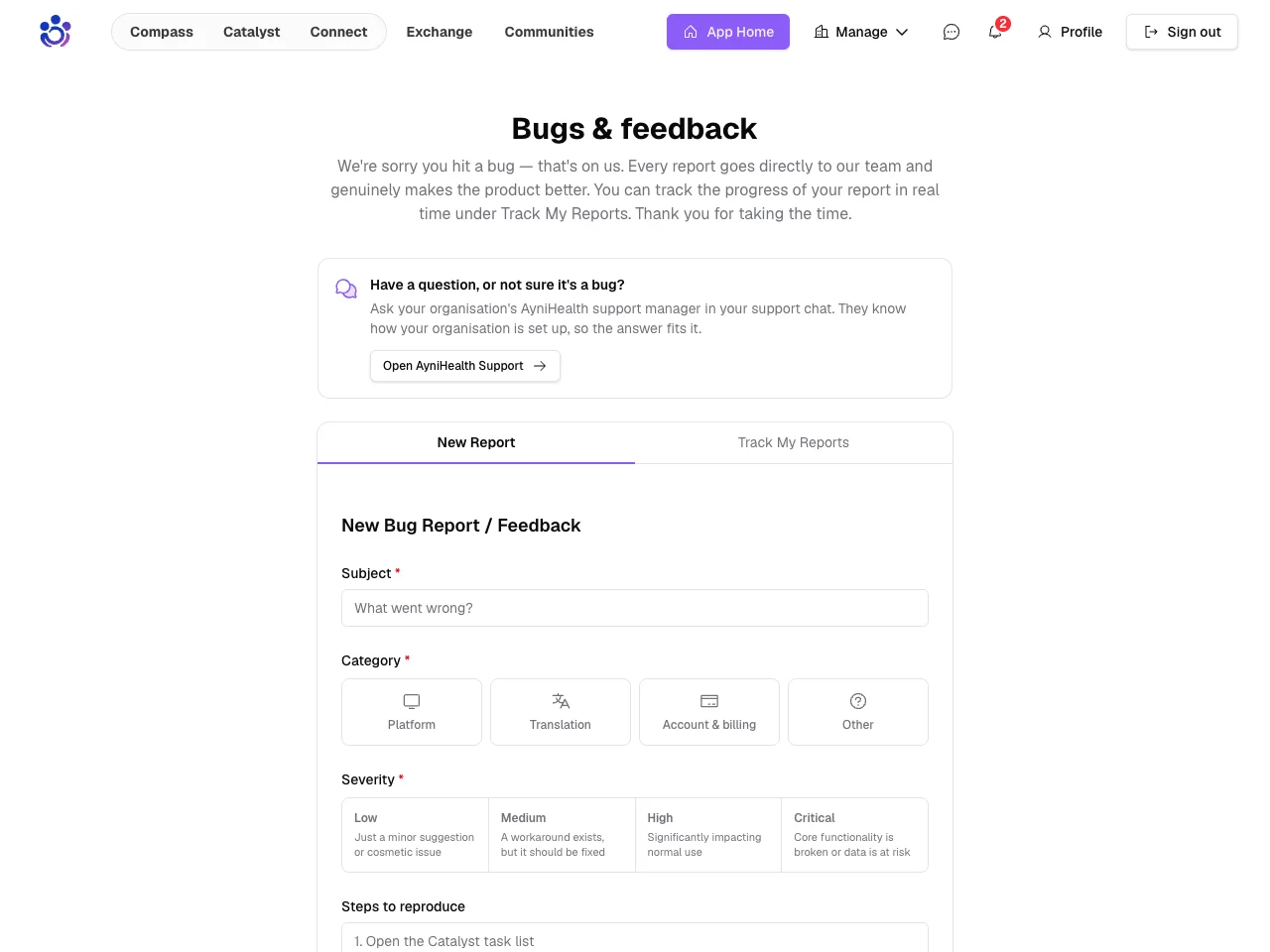
Your AyniHealth support manager answers there, knowing how your organisation is set up.
Not sure who that is? Type @support.
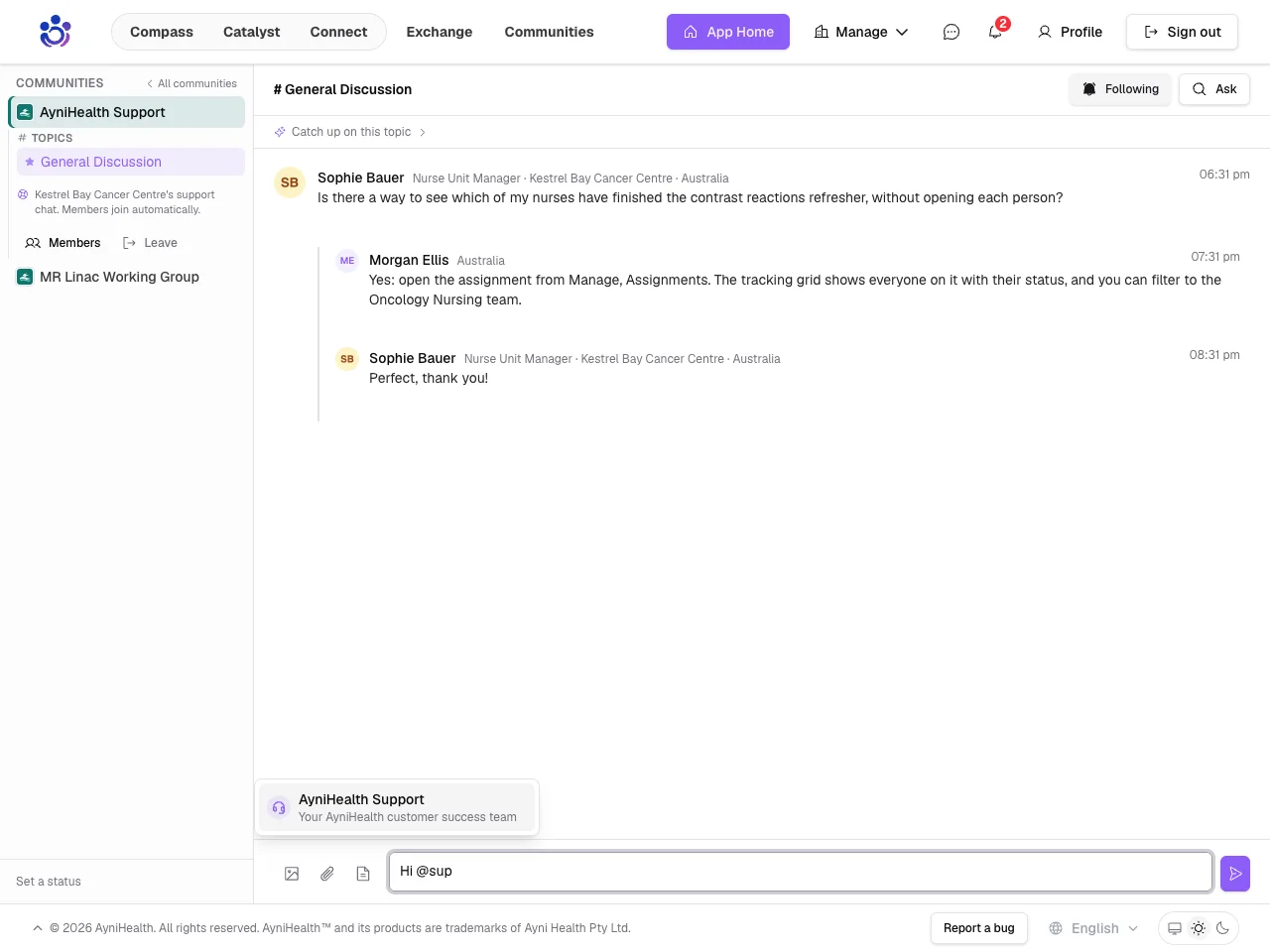
Your support manager is notified, without you needing to know who they are.
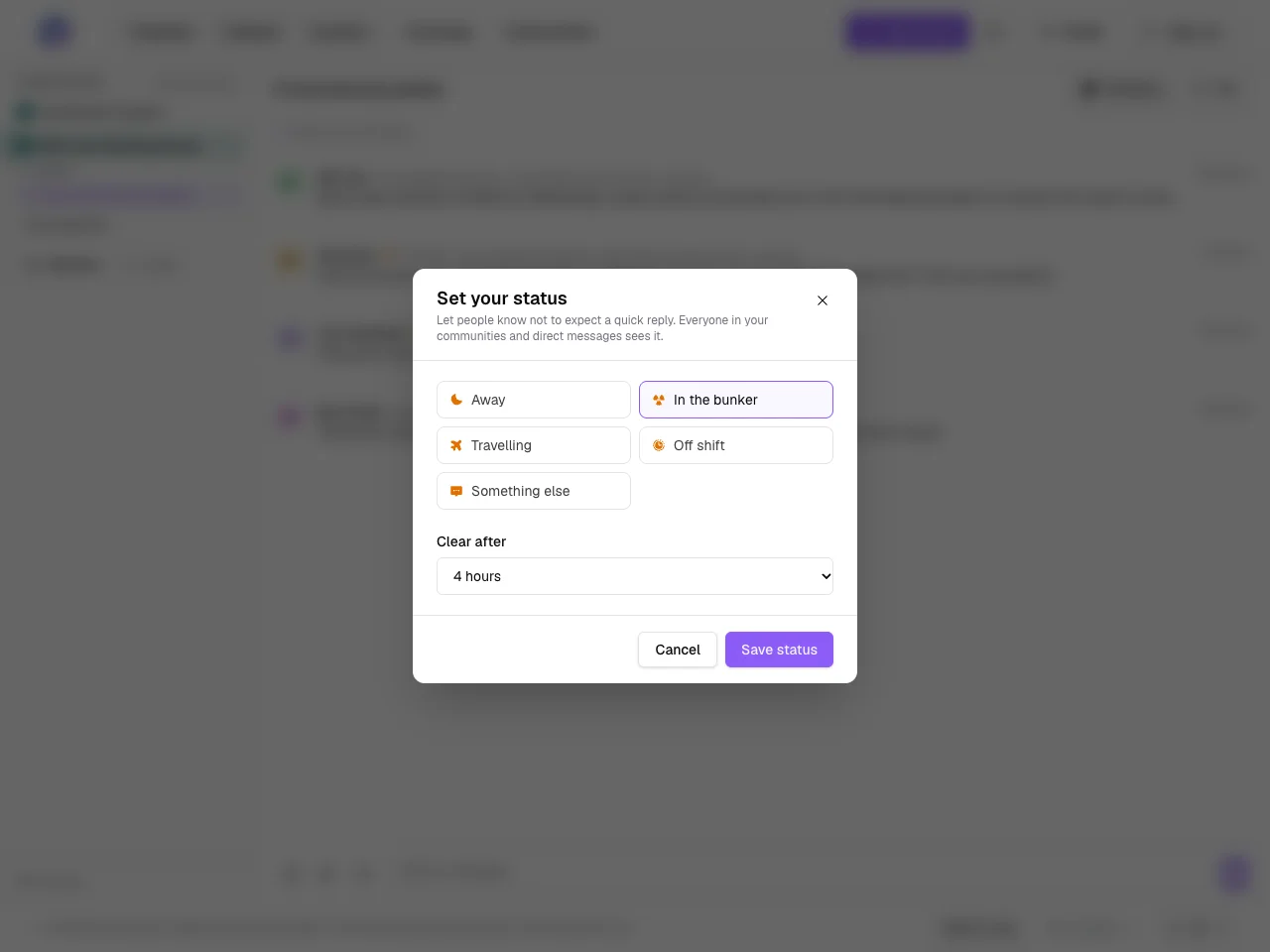
Away, in the bunker, travelling
When you will be slow to reply, set a status in your own words or from a preset, and choose when it clears.
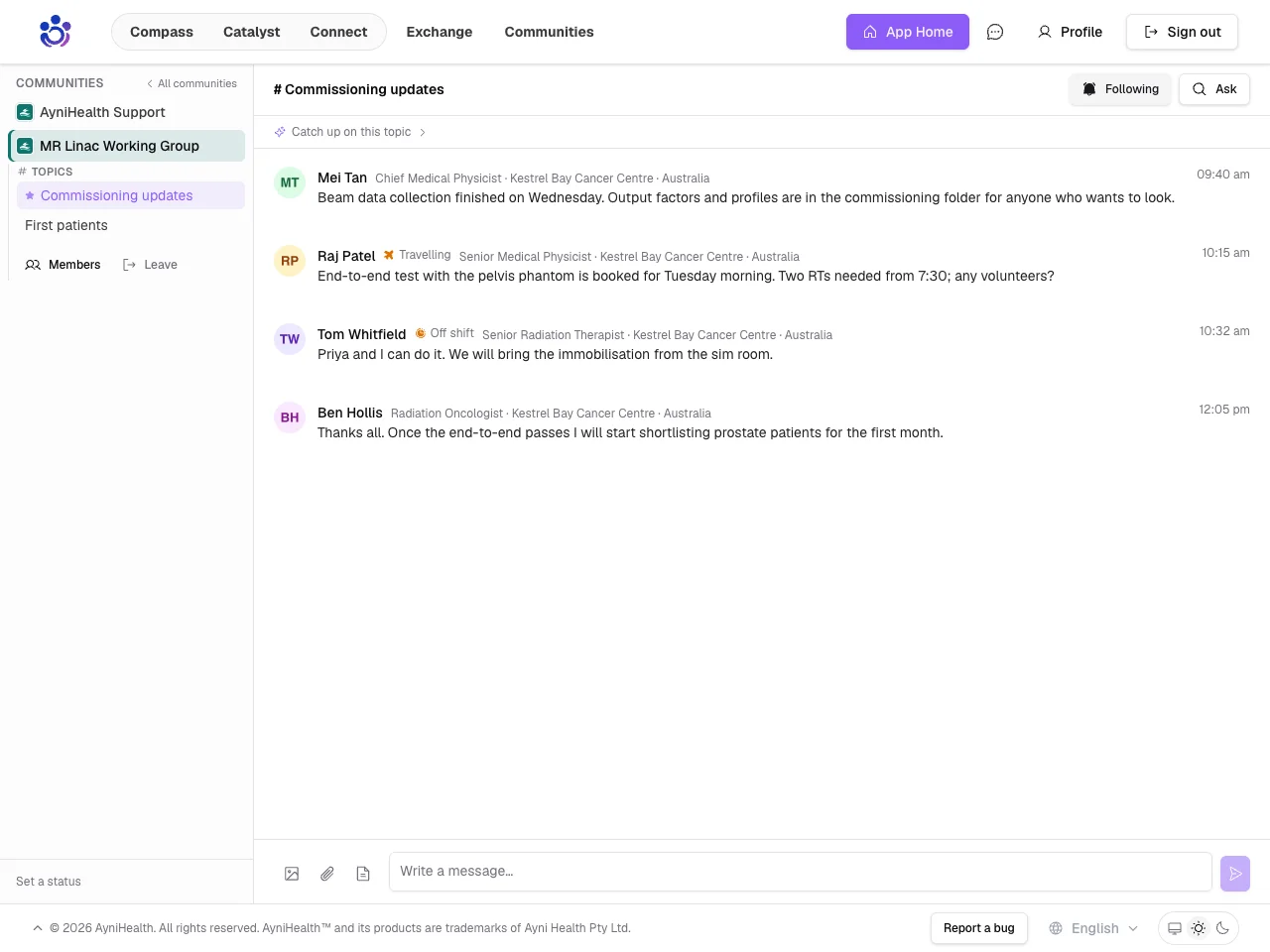
Colleagues see it next to your name.
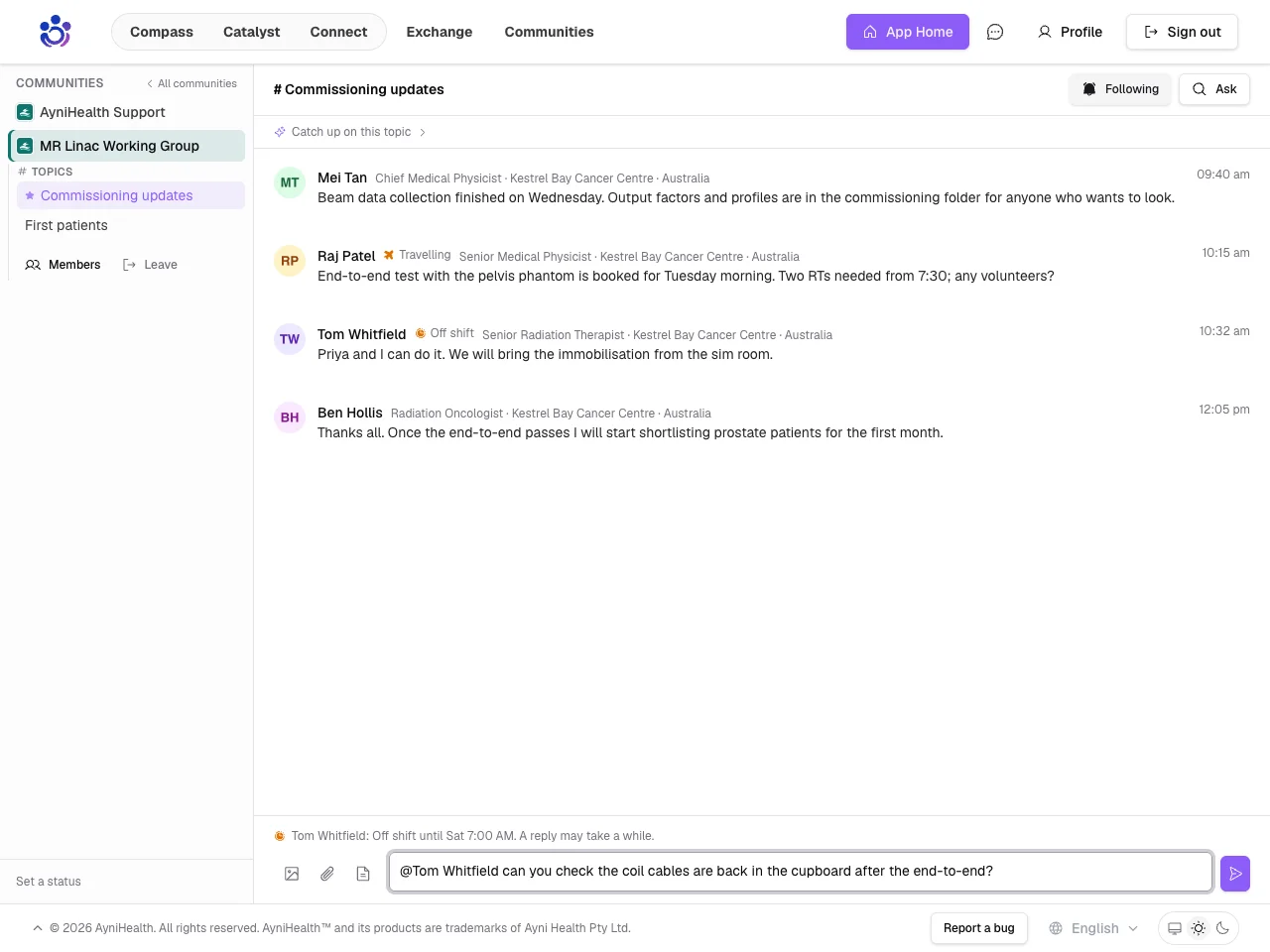
Mention someone who is away and you are told a reply may take a while.
Want a walkthrough for your team? Get in touch.